A learner management system (LMS) is piece of software application created to enable delivery of educational training courses and programs by instructors to earners. It is commonly used for corporate trainings, in universities and other educational institutions to offer and administer learning contents. Open edX is certainly the only platform that provides an open source, massively scalable learning software technology.
There are a number of open source platforms that can be deployed and used in your own infrastructure (self-hosted). One of this is Open edX which is a free to use learner management system originally developed by Axim Collaborative. It powers many Massive Open Online Courses (MOOCs) and other training modules. Harvard and MIT are the key champions of edX aiming to make the world’s best education available to anyone around the world. It is a stable platform since its development is driven by our huge community of developers, research teams, technology providers, as well as normal platform users.
Here are the minimum requirements for running Open edX.
- Supported OS: Tutor runs on any 64-bit, UNIX-based OS. For Windows it’s possible with WSL 2.
- CPU: 2 CPU
- Memory: 8 GB RAM
- Disk space: 20 GB
- Required software: Docker: v24.0.5+ (with BuildKit 0.11+) and Docker Compose: v2.0.0+
Running Open edX Tutor LMS in Docker Container
In this article we shall perform the installation, configuration and usage of Open edX running in a docker container. Other container runtime engines such as Podman can also be used.
1. Install tutor CLI
We need tutor executable installed on the system. This can be installed from binary files or using Python pip package manager.
Option 1: Install tutor from binary file
You can also pull the latest tutor binaries from Github releases page.
VER=$(curl --silent "https://api.github.com/repos/overhangio/tutor/releases/latest"|grep '"tag_name"'|sed -E 's/.*"([^"]+)".*/\1/')
sudo curl -L "https://github.com/overhangio/tutor/releases/download/$VER/tutor-$(uname -s)_$(uname -m)" -o /usr/local/bin/tutor
sudo chmod +x /usr/local/bin/tutor
Confirm the binary is available on the local system.
$ which tutor
/usr/local/bin/tutor

$ tutor --version
tutor, version 17.0.2
Enable shell autocompletion.
#Bash
_TUTOR_COMPLETE=bash_source tutor >> ~/.bashrc

# Zsh
_TUTOR_COMPLETE=zsh_source tutor >> ~/.zshrc
Test auto-completion after opening a new shell by typing:
tutor <tab><tab>Option 2: Install tutor using pip
The tutor package is available on Pypi: https://pypi.org/project/tutor. It needs Python >= 3.6 with pip and the libyaml development headers.
Start by installing the requirements.
### Install Python on Debian / Ubuntu ###
sudo apt update
sudo apt install python3 python3-pip libyaml-dev

### Install Python on RHEL based systems ###
sudo yum -y install python3 python3-pip  libyaml-devel
The use pip to install tutor.
#Python 3
pip3 install "tutor[full]"

#Python 2
pip install "tutor[full]"
Sample installation output:
Collecting tutor[full]
  Downloading tutor-17.0.2.tar.gz (121 kB)
     ━━━━━━━━━━━━━━━━━━━━━━━━━━━━━━━━━━━━━━━━ 121.6/121.6 KB 2.2 MB/s eta 0:00:00
  Installing build dependencies ... done
  Getting requirements to build wheel ... done
  Preparing metadata (pyproject.toml) ... done
Requirement already satisfied: click>=8.0 in /usr/lib/python3/dist-packages (from tutor[full]) (8.0.3)
Requirement already satisfied: jinja2>=2.10 in /usr/lib/python3/dist-packages (from tutor[full]) (3.0.3)
Collecting appdirs
  Downloading appdirs-1.4.4-py2.py3-none-any.whl (9.6 kB)
Collecting mypy
  Downloading mypy-1.8.0-cp310-cp310-manylinux_2_17_x86_64.manylinux2014_x86_64.whl (12.5 MB)
     ━━━━━━━━━━━━━━━━━━━━━━━━━━━━━━━━━━━━━━━━ 12.5/12.5 MB 46.9 MB/s eta 0:00:00
Collecting pycryptodome>=3.17.0
  Downloading pycryptodome-3.20.0-cp35-abi3-manylinux_2_17_x86_64.manylinux2014_x86_64.whl (2.1 MB)
     ━━━━━━━━━━━━━━━━━━━━━━━━━━━━━━━━━━━━━━━━ 2.1/2.1 MB 60.6 MB/s eta 0:00:00
Collecting importlib-metadata>=7.0.1
  Downloading importlib_metadata-7.0.2-py3-none-any.whl (24 kB)
Collecting typing-extensions>=4.4.0
  Downloading typing_extensions-4.10.0-py3-none-any.whl (33 kB)
Collecting kubernetes
  Downloading kubernetes-29.0.0-py2.py3-none-any.whl (1.6 MB)
     ━━━━━━━━━━━━━━━━━━━━━━━━━━━━━━━━━━━━━━━━ 1.6/1.6 MB 54.3 MB/s eta 0:00:00
Collecting importlib-resources>=6.1.1
  Downloading importlib_resources-6.1.3-py3-none-any.whl (34 kB)
Collecting pyyaml>=6.0
  Downloading PyYAML-6.0.1-cp310-cp310-manylinux_2_17_x86_64.manylinux2014_x86_64.whl (705 kB)
     ━━━━━━━━━━━━━━━━━━━━━━━━━━━━━━━━━━━━━━━━ 705.5/705.5 KB 73.2 MB/s eta 0:00:00
Collecting tutor-mfe<18.0.0,>=17.0.0
  Downloading tutor-mfe-17.0.0.tar.gz (29 kB)
  Installing build dependencies ... done
  Getting requirements to build wheel ... done
  Preparing metadata (pyproject.toml) ... done
Collecting tutor-cairn<18.0.0,>=17.0.0
  Downloading tutor-cairn-17.1.0.tar.gz (40 kB)
     ━━━━━━━━━━━━━━━━━━━━━━━━━━━━━━━━━━━━━━━━ 40.2/40.2 KB 5.8 MB/s eta 0:00:00
......
2. Install Docker Engine
We begin the setup be ensuring Docker Engine is installed in our system.
Confirm docker and compose are functional.
$ docker --version
Docker version 25.0.4, build 1a576c5

$ docker compose version
Docker Compose version v2.24.7
3. Configuring DNS records
We recommend for production use to define a DNS records for accessing your LMS service. As an example to access Open edX server at https://learn.computingforgeeks.net on a server with IP address 167.235.68.2, your DNS records will look like below:
learn 3600 IN A 167.235.68.2
*.learn 3600 IN CNAME learn.computingforgeeks.net.
Creating an A record.
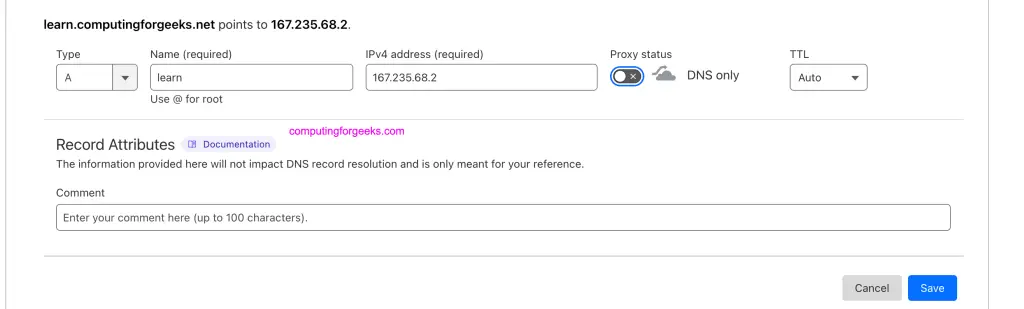
Creating a CNAME.
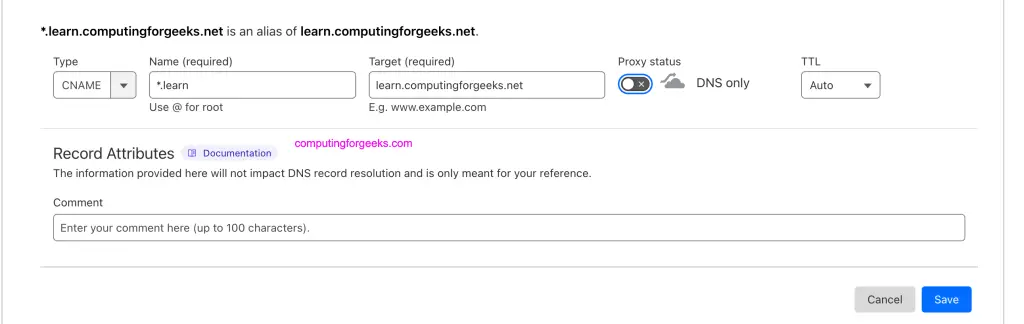
Configured DNS settings.

4. Create local Open edX deployment
Run the commands below to perform local installation of Open edX in Docker containers. Adjust required variables as prompted to ensure the setup suits your environment.
Check location of the project root
$ tutor config printroot
~/.local/share/tutor
Generate a config.yml file in the project root.
$ tutor config save --interactive
==================================================
        Interactive platform configuration
==================================================
Are you configuring a production platform? Type 'n' if you are just testing Tutor on your local computer [Y/n] y
Your website domain name for students (LMS) [www.myopenedx.com] learn.computingforgeeks.net
Your website domain name for teachers (CMS) [studio.learn.computingforgeeks.net]
Your platform name/title [My Open edX]
Your public contact email address [[email protected]]
The default language code for the platform [en]
Activate SSL/TLS certificates for HTTPS access? Important note: this will NOT work in a development environment. [y/N] y
Configuration saved to ~/.local/share/tutor/config.yml
Environment generated in ~/.local/share/tutor/env
The file will have all the configuration values for Open edX platform, such as randomly generated passwords, domain names, etc.
$ ls ~/.local/share/tutor
config.yml  data  env
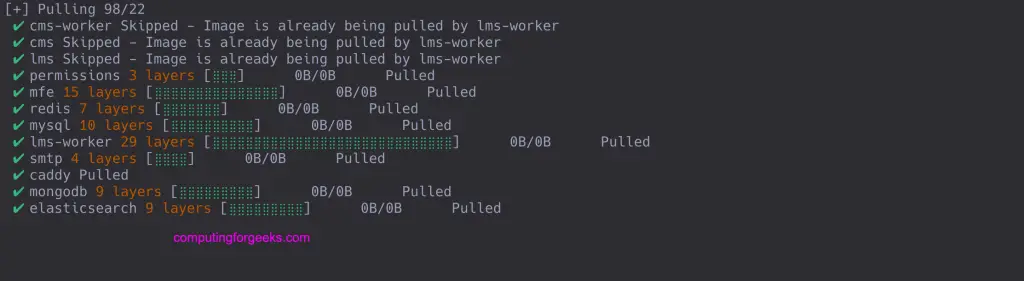
Pull latest container images
tutor local dc pullIf you have good internet speed it should not take long.
Start the services in the background
tutor local start --detachPerform services initialization. In particular, this will create the required databases tables and apply database migrations for all applications. The command should only be run once.
$ tutor local do init
...
Creating flag: openresponseassessment.enhanced_staff_grader
Setting name: openresponseassessment.enhanced_staff_grader
Setting everyone: True
Setting percent: None
Setting superusers: False
Setting staff: False
Setting authenticated: False
Setting group(s): []
Setting user(s): set()
Setting rollout: False
All services initialised.
If initialisation is stopped with a Killed message – it means you don’t have enough RAM. See the Troubleshooting section.
You can view your platform’s containers:
$ tutor local status
NAME                          IMAGE                                     COMMAND                  SERVICE         CREATED          STATUS          PORTS
tutor_local-caddy-1           docker.io/caddy:2.7.4                     "caddy run --config …"   caddy           26 minutes ago   Up 26 minutes   0.0.0.0:80->80/tcp, :::80->80/tcp, 0.0.0.0:443->443/tcp, :::443->443/tcp, 0.0.0.0:443->443/udp, :::443->443/udp, 2019/tcp
tutor_local-cms-1             docker.io/overhangio/openedx:17.0.2       "/bin/sh -c 'uwsgi u…"   cms             26 minutes ago   Up 26 minutes   8000/tcp
tutor_local-cms-worker-1      docker.io/overhangio/openedx:17.0.2       "celery --app=cms.ce…"   cms-worker      26 minutes ago   Up 26 minutes   8000/tcp
tutor_local-elasticsearch-1   docker.io/elasticsearch:7.17.13           "/bin/tini -- /usr/l…"   elasticsearch   26 minutes ago   Up 26 minutes   9200/tcp, 9300/tcp
tutor_local-lms-1             docker.io/overhangio/openedx:17.0.2       "/bin/sh -c 'uwsgi u…"   lms             26 minutes ago   Up 26 minutes   8000/tcp
tutor_local-lms-worker-1      docker.io/overhangio/openedx:17.0.2       "celery --app=lms.ce…"   lms-worker      26 minutes ago   Up 26 minutes   8000/tcp
tutor_local-mfe-1             docker.io/overhangio/openedx-mfe:17.0.0   "caddy run --config …"   mfe             26 minutes ago   Up 26 minutes   80/tcp, 443/tcp, 2019/tcp, 443/udp
tutor_local-mongodb-1         docker.io/mongo:4.4.25                    "docker-entrypoint.s…"   mongodb         26 minutes ago   Up 26 minutes   27017/tcp
tutor_local-mysql-1           docker.io/mysql:8.1.0                     "docker-entrypoint.s…"   mysql           26 minutes ago   Up 26 minutes   3306/tcp, 33060/tcp
tutor_local-redis-1           docker.io/redis:7.2.1                     "docker-entrypoint.s…"   redis           26 minutes ago   Up 26 minutes   6379/tcp
tutor_local-smtp-1            docker.io/devture/exim-relay:4.96-r1-0    "/sbin/tini -- exim …"   smtp            26 minutes ago   Up 26 minutes   8025/tcp
LMS and CMS logs are persisted to disk by default in the following files:
$(tutor config printroot)/data/lms/logs/all.log
$(tutor config printroot)/data/cms/logs/all.log
Finally, tracking logs that store user events are persisted in the following files:
$(tutor config printroot)/data/lms/logs/tracking.log
$(tutor config printroot)/data/cms/logs/tracking.log
5. Access Open edX web platform
After the installation, LMS and the Studio are accessible at the domain name specified during the configuration step.
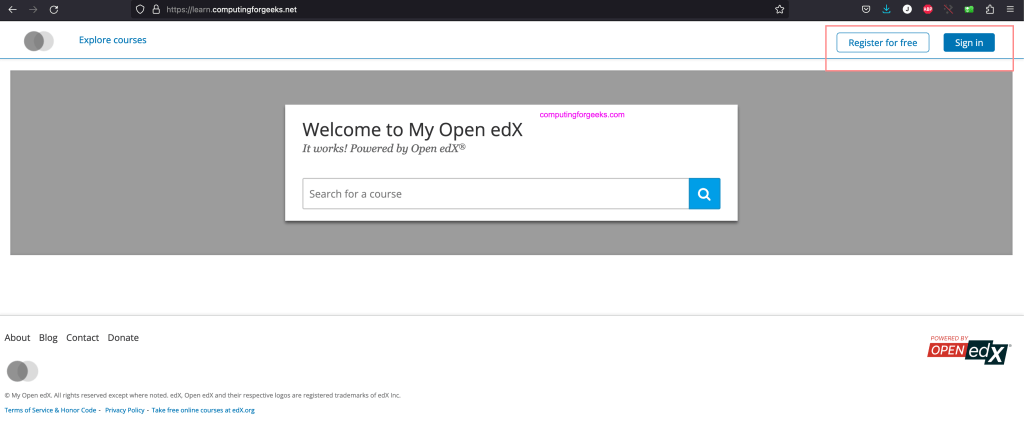
Creating a new user with staff and admin rights
We need to create a user to administer the platform by running the following commands:
tutor local do createuser --staff --superuser admin [email protected]Provide password for the user.
Password:
docker compose -f /root/.local/share/tutor/env/local/docker-compose.yml -f /root/.local/share/tutor/env/local/docker-compose.prod.yml --project-name tutor_local -f /root/.local/share/tutor/env/local/docker-compose.jobs.yml run --rm lms-job sh -e -c './manage.py lms manage_user  --superuser --staff admin [email protected]
./manage.py lms shell -c "
from django.contrib.auth import get_user_model
u = get_user_model().objects.get(username='"'"'admin'"'"')
u.set_password('"'"'Password01'"'"')
u.save()"'
[+] Creating 3/0
 ✔ Container tutor_local-permissions-1  Created                                                                                                                                                  0.0s
 ✔ Container tutor_local-mongodb-1      Running                                                                                                                                                  0.0s
 ✔ Container tutor_local-mysql-1        Running                                                                                                                                                  0.0s
[+] Running 1/1
 ✔ Container tutor_local-permissions-1  Started
2024-03-08 08:42:14,521 WARNING 7 [py.warnings] [user None] [ip None] warnings.py:109 - /openedx/venv/lib/python3.8/site-packages/drag_and_drop_v2/drag_and_drop_v2.py:28: DeprecatedPackageWarning: Please use import xblock.utils.settings instead of xblockutils.settings because the 'xblock-utils' package has been deprecated and migrated to within 'xblock' package.
  from xblockutils.settings import ThemableXBlockMixin, XBlockWithSettingsMixin

2024-03-08 08:42:14,541 WARNING 7 [py.warnings] [user None] [ip None] warnings.py:109 - /openedx/venv/lib/python3.8/site-packages/google_drive/google_docs.py:14: DeprecatedPackageWarning: Please use import xblock.utils.publish_event instead of xblockutils.publish_event because the 'xblock-utils' package has been deprecated and migrated to within 'xblock' package.
  from xblockutils.publish_event import PublishEventMixin

Created new user: "admin"
Setting is_staff for user "admin" to "True"
Setting is_superuser for user "admin" to "True"
Adding user "admin" to groups []
Removing user "admin" from groups []
2024-03-08 08:42:18,904 INFO 7 [common.djangoapps.student.models.user] [user None] [ip None] user.py:786 - Created new profile for user: admin
2024-03-08 08:42:18,908 INFO 7 [tracking] [user None] [ip None] logger.py:41 - {"name": "edx.user.settings.changed", "context": {}, "username": "", "session": "", "ip": "", "agent": "", "host": "", "referer": "", "accept_language": "", "event": {"old": null, "new": null, "truncated": [], "setting": "password", "user_id": 4, "table": "auth_user"}, "time": "2024-03-08T08:42:18.907241+00:00", "event_type": "edx.user.settings.changed", "event_source": "server", "page": null}
2024-03-08 08:42:18,910 INFO 7 [tracking] [user None] [ip None] logger.py:41 - {"name": "edx.user.settings.changed", "context": {}, "username": "", "session": "", "ip": "", "agent": "", "host": "", "referer": "", "accept_language": "", "event": {"old": false, "new": true, "truncated": [], "setting": "is_superuser", "user_id": 4, "table": "auth_user"}, "time": "2024-03-08T08:42:18.909763+00:00", "event_type": "edx.user.settings.changed", "event_source": "server", "page": null}
2024-03-08 08:42:18,911 INFO 7 [tracking] [user None] [ip None] logger.py:41 - {"name": "edx.user.settings.changed", "context": {}, "username": "", "session": "", "ip": "", "agent": "", "host": "", "referer": "", "accept_language": "", "event": {"old": false, "new": true, "truncated": [], "setting": "is_staff", "user_id": 4, "table": "auth_user"}, "time": "2024-03-08T08:42:18.911299+00:00", "event_type": "edx.user.settings.changed", "event_source": "server", "page": null}
2024-03-08 08:42:28,591 INFO 12 [tracking] [user None] [ip None] logger.py:41 - {"name": "edx.user.settings.changed", "context": {}, "username": "", "session": "", "ip": "", "agent": "", "host": "", "referer": "", "accept_language": "", "event": {"old": null, "new": null, "truncated": [], "setting": "password", "user_id": 4, "table": "auth_user"}, "time": "2024-03-08T08:42:28.590522+00:00", "event_type": "edx.user.settings.changed", "event_source": "server", "page": null}
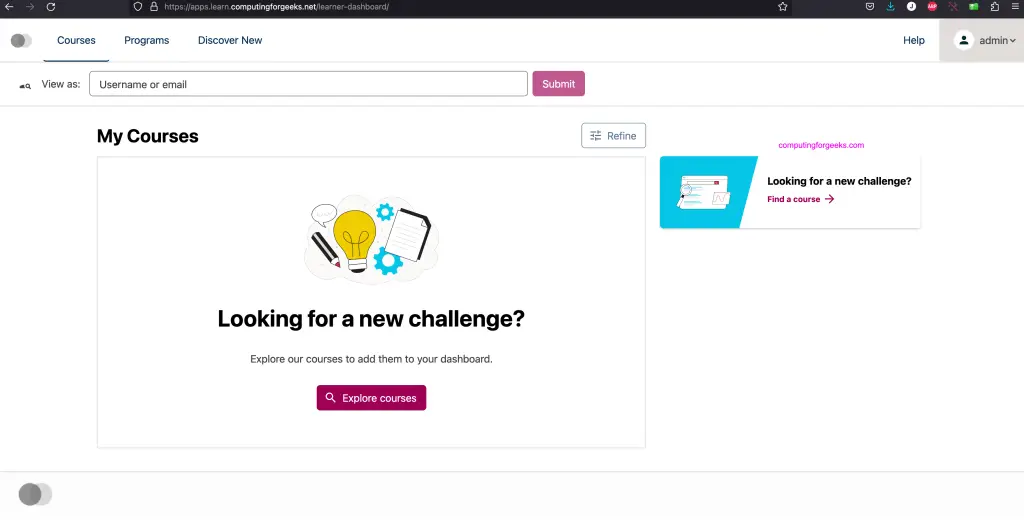
Login with the user details provided while adding the user.
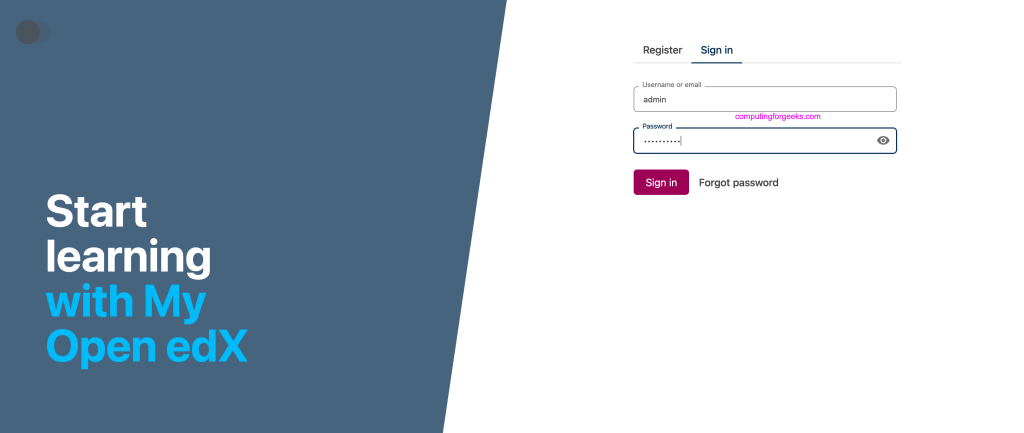
From here you can administer your Open edX platform.
Importing the demo course
The platform configured will nit have a single course after a fresh installation. To import the Open edX demo course, run the following commands:
tutor local do importdemocourse6. Install Indigo theme
Indigo is a customizable and elegant theme for Open edX. Update plugins list.
tutor plugins updateThen install Indigo theme for Open edX.
tutor plugins install indigoEnable the theme once installed.
$ tutor plugins enable indigo
Plugin indigo enabled
Configuration saved to /root/.local/share/tutor/config.yml
Environment generated in /root/.local/share/tutor/env
Configure Open edX platform using the following command:
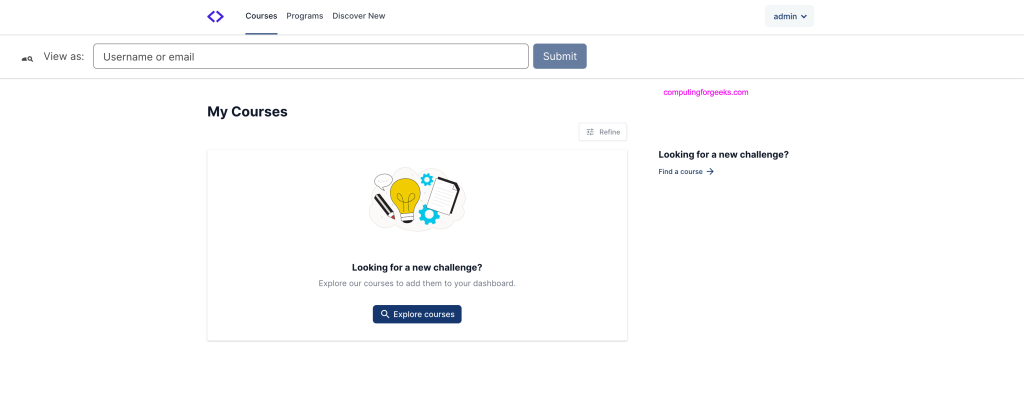
tutor local launchThe Indigo theme that we installed is enabled automatically if you have not previously defined a theme. To override an existing theme, use the settheme command:
tutor local do settheme indigoIf you reload the web interface the look should be different.
7. Upgrading to new Open edX release
Major Open edX releases are published twice a year, in June and December, by the Open edX Build/Test/Release working group. Perform a backup before beginning upgrade process.
tutor local stop
sudo rsync -avr "$(tutor config printroot)"/ /tmp/tutor-backup/
Download the latest version of the Docker images from Docker Hub.
tutor local dc pullTo start services in detached mode run:
tutor local start --detachIf you run customised Docker images, you need to rebuild them before running launch:
tutor config save
tutor images build all # specify here the images that you need to build
tutor local upgrade --from=<version>
tutor local launch
8. Uninstalling Open edX platform
To completely uninstall Open edX platform running locally, you will first stop any locally-running platform and remove all Tutor containers:
tutor local dc down --remove-orphans
tutor dev dc down --remove-orphans
Thereafter, delete all data associated with your Open edX platform:
sudo rm -rf "$(tutor config printroot)"The last step will be to uninstall Tutor itself:
# If tutor was installed from source
pip3 uninstall tutor

# If installed from tutor binary
sudo rm /usr/local/bin/tutor

# Optionally, rmove Tutor plugins installed. List them using the commands below
pip3 freeze | grep tutor
#Then remove a plugin using the following command:
pip3 uninstall <plugin-name>
References: