

Home Assistant is an open source home automation platform that gives you local control over your smart home devices with a strong focus on privacy. It supports thousands of integrations – from Zigbee and Z-Wave devices to IP cameras, media players, and climate sensors. Running Home Assistant in Docker is the preferred method for experienced Linux users because it keeps the installation isolated, makes updates trivial, and lets you roll back to a previous version in seconds.
This guide walks you through deploying Home Assistant 2026.3 in Docker and Docker Compose on Ubuntu 24.04 LTS. You will set up the container, complete initial onboarding, install HACS (Home Assistant Community Store), configure automations, set up an Nginx reverse proxy with SSL, and learn how to back up and update your installation.
Prerequisites
- A server or VM running Ubuntu 24.04 LTS (also works on Debian 13)
- At least 2 GB RAM and 2 CPU cores
- Docker Engine and Docker Compose plugin installed
- A non-root user with sudo privileges (or root access)
- Port 8123 open in your firewall
- Optional: a domain name and SSL certificate for remote access
Step 1: Install Docker on Ubuntu 24.04
If Docker is not installed yet, follow our dedicated guide to install Docker and Docker Compose on Ubuntu 24.04 / Debian 13. Docker Compose is included as a plugin when you install Docker Engine from the official repository.
After installation, add your user to the docker group so you can run containers without sudo.
sudo usermod -aG docker $USER
newgrp docker
Verify Docker and Compose are working.
docker versionClient: Docker Engine - Community
Version: 29.3.0
API version: 1.49
Go version: go1.24.3
Git commit: 3470564
Built: Wed May 7 22:53:32 2025
OS/Arch: linux/amd64
Context: default
Server: Docker Engine - Community
Engine:
Version: 29.3.0
API version: 1.49 (minimum version 1.24)
Go version: go1.24.3
Git commit: 3a27056
Built: Wed May 7 22:53:32 2025
OS/Arch: linux/amd64
Experimental: false
containerd:
Version: 1.7.27
GitCommit: 05044ec0a9a75232cad458027ca83437aae3f4da
runc:
Version: 1.2.6
GitCommit: v1.2.6-0-g24e3f9e5
docker-init:
Version: 0.19.0
GitCommit: de40ad0docker compose versionDocker Compose version v5.1.1Step 2: Create the Project Directory
Create a directory to hold the Home Assistant Docker Compose file and persistent configuration data.
mkdir -p ~/homeassistant && cd ~/homeassistantThe config subdirectory will be created automatically when the container starts. It stores all Home Assistant configuration files, automations, custom components, and the database.
Step 3: Create the Docker Compose File
Create a docker-compose.yml file in your project directory.
vim docker-compose.ymlAdd the following tested configuration.
services:
  homeassistant:
    container_name: homeassistant
    image: ghcr.io/home-assistant/home-assistant:stable
    restart: unless-stopped
    privileged: true
    network_mode: host
    volumes:
      - ./config:/config
      - /etc/localtime:/etc/localtime:ro
      - /run/dbus:/run/dbus:ro
    environment:
      - TZ=America/New_York
Here is what each option does:
- network_mode: host – gives the container direct access to the host network. This is required for mDNS device discovery, Bluetooth, and Zigbee/Z-Wave USB devices to work properly.
- privileged: true – allows access to host hardware including USB devices (Zigbee dongles, Z-Wave sticks) and Bluetooth adapters.
- ./config:/config – mounts a local directory for all Home Assistant configuration. Your data persists across container recreations.
- /etc/localtime:/etc/localtime:ro – syncs the container clock with your host system time.
- /run/dbus:/run/dbus:ro – required for Bluetooth integration support.
- TZ=America/New_York – set this to your timezone. Examples:
Europe/London,Asia/Tokyo,America/Chicago. - restart: unless-stopped – automatically restarts the container after a crash or system reboot unless you explicitly stop it.
Step 4: Deploy Home Assistant Container
Pull the Home Assistant container image and start the service.
docker compose pull[+] Pulling 1/1
✔ homeassistant PulledStart the container in detached mode.
docker compose up -d[+] Running 1/1
✔ Container homeassistant StartedVerify the container is running.
docker compose psNAME IMAGE COMMAND SERVICE CREATED STATUS PORTS
homeassistant ghcr.io/home-assistant/home-assistant:stable "/init" homeassistant 15 seconds ago Up 14 secondsConfirm that Home Assistant is listening on port 8123.
ss -tlnp | grep 8123LISTEN 0 128 0.0.0.0:8123 0.0.0.0:* users:(("python3",pid=3053,fd=8))
LISTEN 0 128 [::]:8123 [::]:* users:(("python3",pid=3053,fd=9))You can also check the container logs for any startup errors.
docker compose logs -f --tail=20Step 5: Access the Home Assistant Web UI
Open your browser and navigate to http://YOUR_SERVER_IP:8123. You will see the Home Assistant onboarding screen. Give it a minute or two on first launch as it initializes the database and installs default integrations.
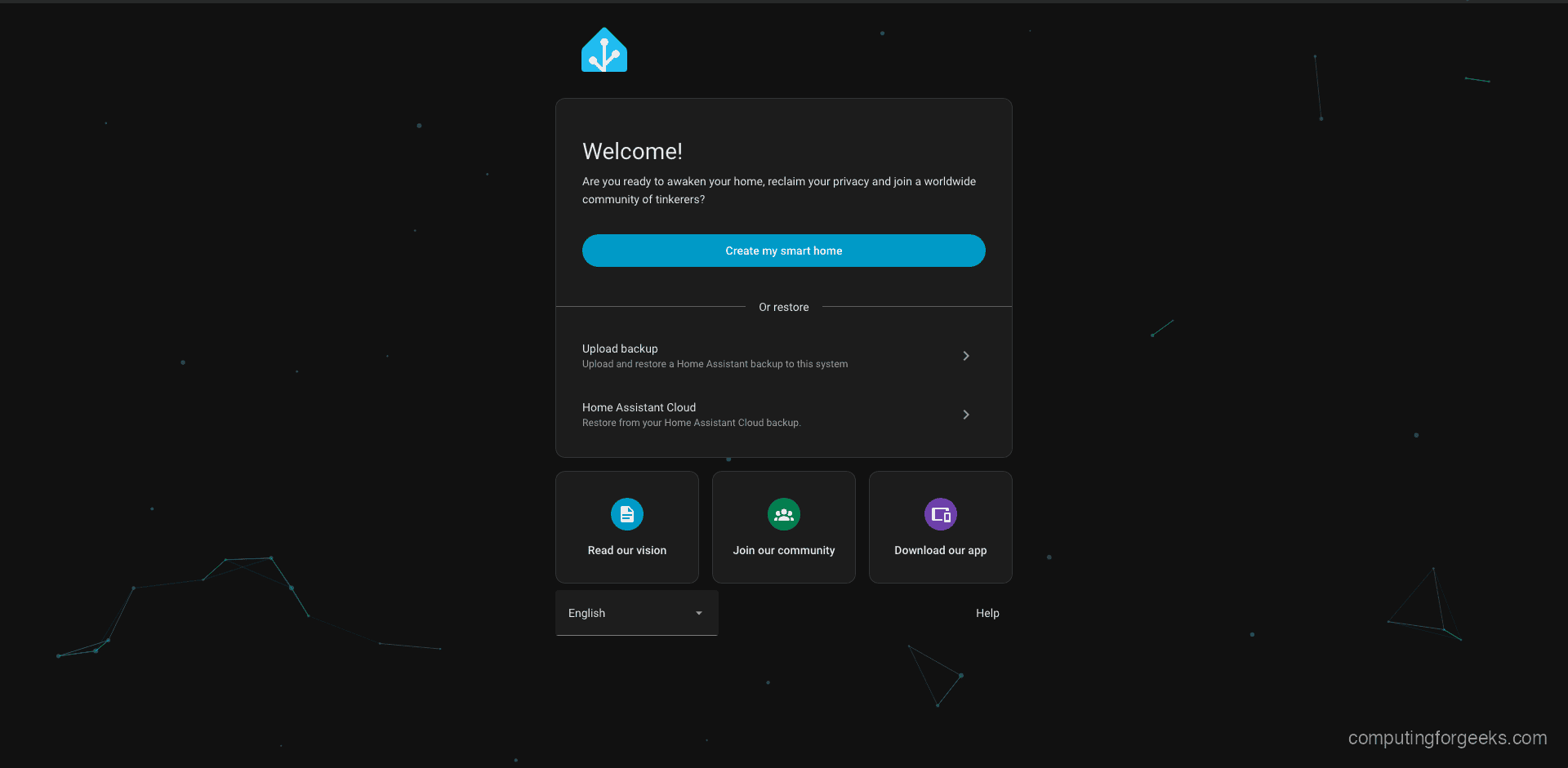
Click “Create my smart home” to begin the setup process.
Step 6: Create Your Admin Account and Initial Configuration
On the next screen, create your administrator account. Enter your name, username, and a strong password. This account has full access to all Home Assistant features and settings.
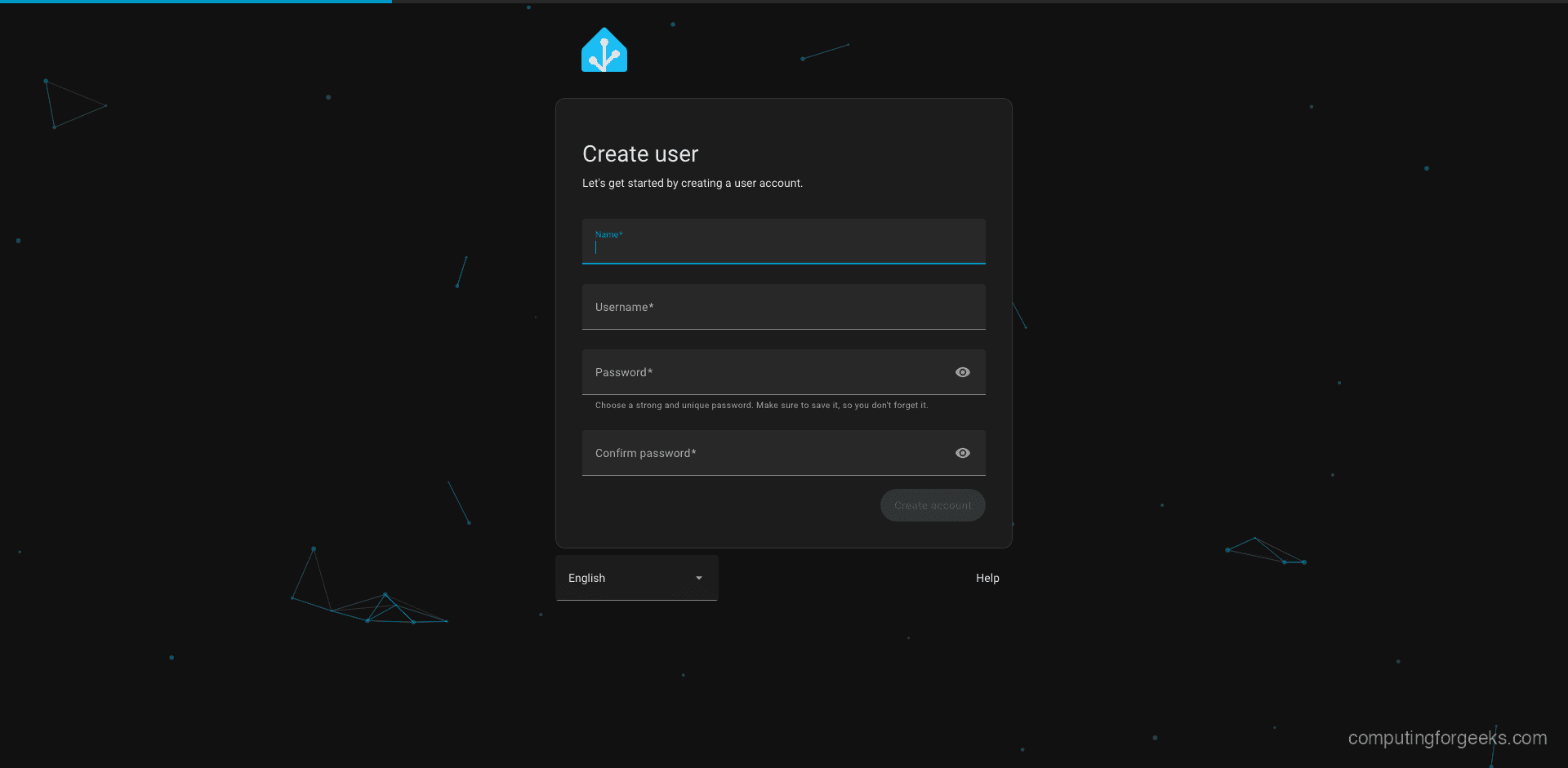
After creating your account, Home Assistant asks you to configure your home location, timezone, and unit system (metric or imperial). Set your location on the map so weather and sun-based automations work correctly. You can also choose which data you are willing to share with the Home Assistant project.
Once onboarding is complete, you land on the Home Assistant dashboard.
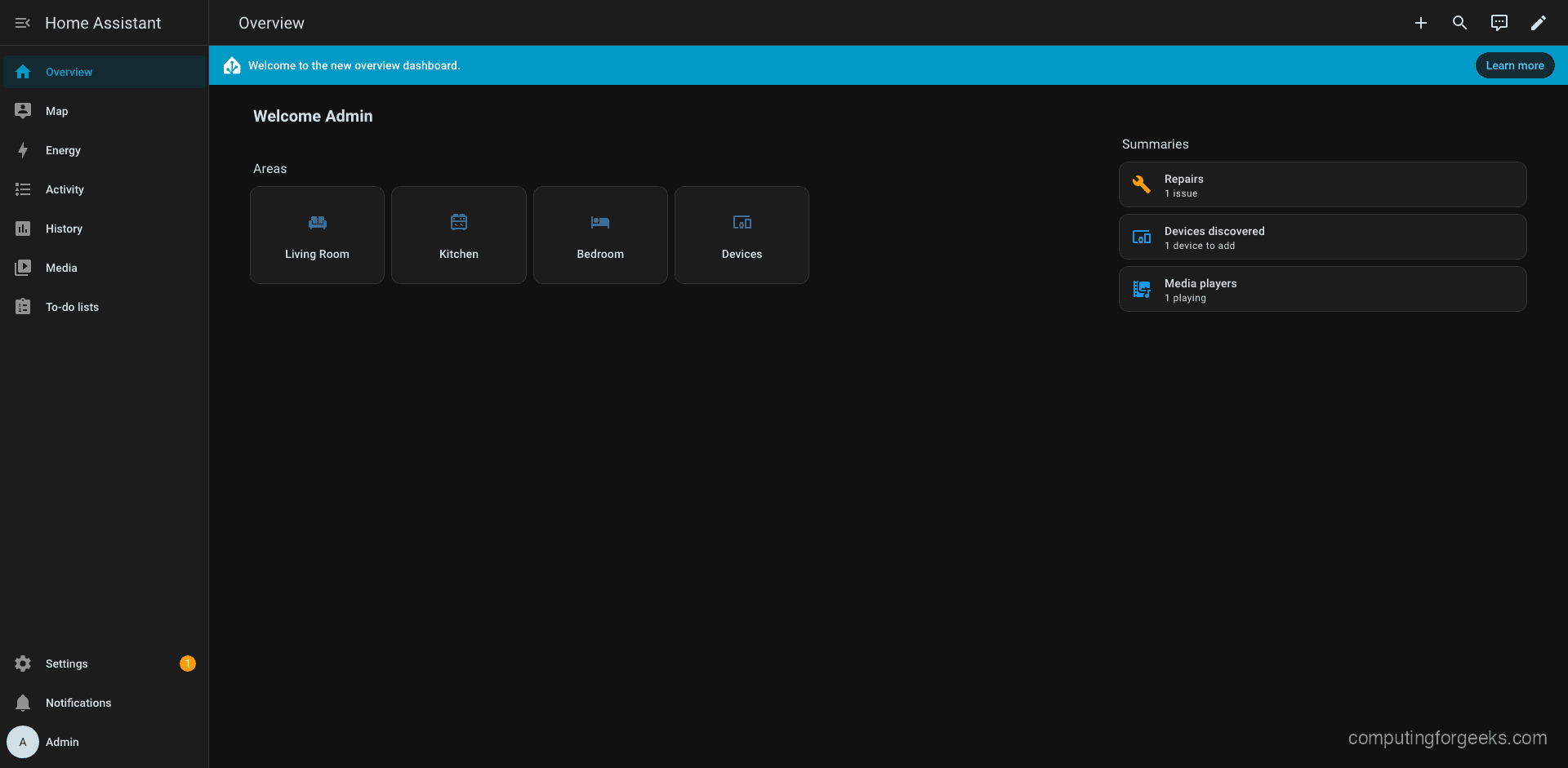
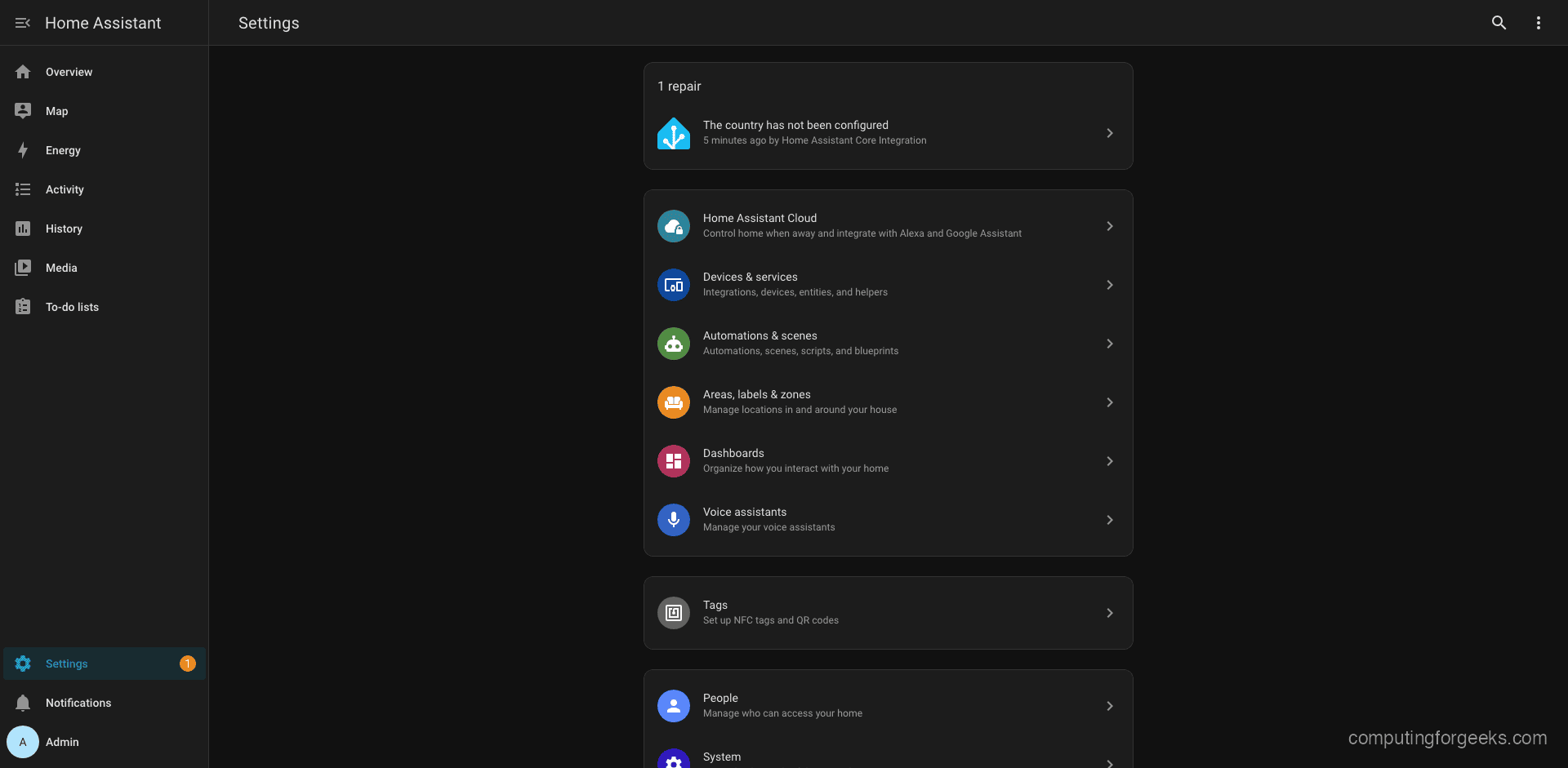
From the sidebar, you can access Settings to manage integrations, automations, devices, and system configuration.
Step 7: Install HACS (Home Assistant Community Store)
HACS extends Home Assistant with community-built integrations, themes, and frontend cards that are not available in the official repository. It is the most popular add-on for Home Assistant Docker installations.
Open a shell inside the running Home Assistant container.
docker exec -it homeassistant bashRun the HACS installation script.
wget -O - https://get.hacs.xyz | bash -Exit the container shell after installation.
exitRestart the Home Assistant container to load HACS.
docker compose restartAfter the restart, go to Settings > Devices & Services > Add Integration and search for “HACS”. Follow the prompts to link your GitHub account. Once activated, HACS appears in the sidebar and gives you access to hundreds of community integrations and custom dashboard cards.
Step 8: Add Integrations
Home Assistant supports over 2,800 integrations out of the box. To add an integration, go to Settings > Devices & Services > Add Integration and search for the service you want to connect.
Some popular integrations for Docker-based installations:
- MQTT – message broker for IoT devices (Zigbee2MQTT, Tasmota, ESPHome). Run Mosquitto as a companion container.
- Frigate – real-time object detection for IP cameras using hardware acceleration.
- ESPHome – manage and flash ESP32/ESP8266 microcontrollers directly from Home Assistant.
- Google Home / Alexa – voice control through cloud integrations.
- Zigbee Home Automation (ZHA) – native Zigbee support using a USB coordinator like SONOFF Zigbee 3.0 Dongle.
To add an MQTT broker as a companion service, extend your docker-compose.yml.
services:
  homeassistant:
    container_name: homeassistant
    image: ghcr.io/home-assistant/home-assistant:stable
    restart: unless-stopped
    privileged: true
    network_mode: host
    volumes:
      - ./config:/config
      - /etc/localtime:/etc/localtime:ro
      - /run/dbus:/run/dbus:ro
    environment:
      - TZ=America/New_York
    depends_on:
      - mosquitto

  mosquitto:
    container_name: mosquitto
    image: eclipse-mosquitto:2
    restart: unless-stopped
    ports:
      - "1883:1883"
    volumes:
      - ./mosquitto/config:/mosquitto/config
      - ./mosquitto/data:/mosquitto/data
      - ./mosquitto/log:/mosquitto/log
Create the Mosquitto configuration file before starting.
mkdir -p mosquitto/config
cat > mosquitto/config/mosquitto.conf <<EOF
listener 1883
allow_anonymous true
persistence true
persistence_location /mosquitto/data/
log_dest file /mosquitto/log/mosquitto.log
EOF
Apply the updated Compose file.
docker compose up -dThen add the MQTT integration in Home Assistant with broker address 127.0.0.1 and port 1883 (since both containers share the host network or are on the same Docker host).
Step 9: Configure Automations
Home Assistant automations let you create rules that trigger actions based on device states, time, location, or sensor data. You can build automations through the web UI or write them directly in YAML.
Here is an example automation that turns on a light at sunset and sends a notification when a door sensor opens. Add this to config/automations.yaml.
# Turn on living room light at sunset
- id: 'sunset_light_on'
  alias: Turn on living room light at sunset
  trigger:
    - platform: sun
      event: sunset
      offset: "-00:15:00"
  action:
    - service: light.turn_on
      target:
        entity_id: light.living_room
      data:
        brightness_pct: 80
        color_temp: 370

# Notify when front door opens
- id: 'door_open_notify'
  alias: Front door opened notification
  trigger:
    - platform: state
      entity_id: binary_sensor.front_door
      to: 'on'
  condition:
    - condition: time
      after: '22:00:00'
      before: '06:00:00'
  action:
    - service: notify.mobile_app_your_phone
      data:
        title: "Security Alert"
        message: "Front door opened at {{ now().strftime('%H:%M') }}"
After editing the YAML file, go to Developer Tools > YAML > Automations and click “Reload” to apply changes without restarting the container.
Step 10: Update Home Assistant in Docker
One of the biggest advantages of running Home Assistant in Docker is how simple updates are. Two commands pull the latest image and restart the container.
cd ~/homeassistant
docker compose pull
docker compose up -d
Check the running version after the update.
docker compose logs --tail=5If something breaks after an update, roll back by specifying the previous version tag instead of stable.
# Roll back to a specific version
# Edit docker-compose.yml and change image to:
# image: ghcr.io/home-assistant/home-assistant:2026.3.2
docker compose up -d
Always read the release notes before updating. Breaking changes are listed at the top of each release.
Step 11: Backup and Restore Home Assistant
All Home Assistant data lives in the ./config directory. Back it up regularly to protect your configuration, automations, and history database.
Create a compressed backup.
cd ~/homeassistant
tar czf ha-backup-$(date +%Y%m%d).tar.gz config/
Automate daily backups with a cron job.
crontab -eAdd the following line to back up every day at 2 AM and keep the last 7 backups.
0 2 * * * cd ~/homeassistant && tar czf /backups/ha-backup-$(date +\%Y\%m\%d).tar.gz config/ && find /backups -name "ha-backup-*.tar.gz" -mtime +7 -deleteTo restore from a backup, stop the container, extract the backup, and start again.
cd ~/homeassistant
docker compose down
rm -rf config
tar xzf ha-backup-20260323.tar.gz
docker compose up -d
Step 12: Run Home Assistant with Docker CLI
If you prefer not to use Docker Compose, you can run Home Assistant with a single docker run command. This is useful for quick testing or environments where Compose is not available.
docker run -d \
  --name homeassistant \
  --privileged \
  --restart=unless-stopped \
  -v $(pwd)/config:/config \
  -v /etc/localtime:/etc/localtime:ro \
  -v /run/dbus:/run/dbus:ro \
  -e TZ=America/New_York \
  --network=host \
  ghcr.io/home-assistant/home-assistant:stable
Verify it is running.
docker psCONTAINER ID IMAGE COMMAND CREATED STATUS PORTS NAMES
c3def373509b ghcr.io/home-assistant/home-assistant:stable "/init" 10 seconds ago Up 9 seconds homeassistantTo stop and remove the container.
docker stop homeassistant
docker rm homeassistant
Docker Compose is recommended for production use because it is easier to manage updates, add companion services, and version-control your setup.
Step 13: Configure Nginx Reverse Proxy with SSL
To access Home Assistant remotely over HTTPS, set up an Nginx reverse proxy with a Let’s Encrypt SSL certificate. This is essential if you plan to access Home Assistant outside your local network.
Install Nginx and Certbot.
sudo apt install nginx certbot python3-certbot-nginx -yCreate the Nginx server block configuration.
sudo vim /etc/nginx/sites-available/homeassistantAdd the following configuration. Replace ha.example.com with your actual domain.
map $http_upgrade $connection_upgrade {
    default upgrade;
    ''      close;
}

server {
    listen 80;
    server_name ha.example.com;

    location / {
        proxy_pass http://127.0.0.1:8123;
        proxy_set_header Host $host;
        proxy_set_header X-Real-IP $remote_addr;
        proxy_set_header X-Forwarded-For $proxy_add_x_forwarded_for;
        proxy_set_header X-Forwarded-Proto $scheme;

        # WebSocket support (required for HA frontend)
        proxy_http_version 1.1;
        proxy_set_header Upgrade $http_upgrade;
        proxy_set_header Connection $connection_upgrade;
    }
}
Enable the site and test the Nginx configuration.
sudo ln -s /etc/nginx/sites-available/homeassistant /etc/nginx/sites-enabled/
sudo nginx -t
sudo systemctl reload nginx
Obtain and install an SSL certificate with Certbot.
sudo certbot --nginx -d ha.example.comYou also need to tell Home Assistant to trust the reverse proxy. Add these lines to config/configuration.yaml.
http:
  use_x_forwarded_for: true
  trusted_proxies:
    - 127.0.0.1
    - ::1
Restart the Home Assistant container to apply the proxy configuration.
docker compose restartYou can now access Home Assistant securely at https://ha.example.com.
Step 14: Configure the Firewall
If you are running UFW on Ubuntu, allow the required ports for Home Assistant and the reverse proxy.
sudo ufw allow 8123/tcp comment "Home Assistant"
sudo ufw allow 80/tcp comment "HTTP"
sudo ufw allow 443/tcp comment "HTTPS"
sudo ufw allow 1883/tcp comment "MQTT"
Verify the firewall rules.
sudo ufw status numberedIf you only access Home Assistant through the Nginx reverse proxy, you can skip opening port 8123 and only allow ports 80 and 443.
Docker Compose vs Home Assistant OS
Home Assistant can be installed several ways. Here is how the Docker Compose method compares to the dedicated Home Assistant Operating System (HAOS).
| Feature | Docker Compose | Home Assistant OS |
|---|---|---|
| Installation complexity | Moderate – requires Docker knowledge | Easy – flash and boot |
| OS control | Full – you manage the host OS | Limited – managed OS, no direct SSH by default |
| Add-ons/Supervisor | Not available – use separate containers | Full Supervisor with one-click add-ons |
| Updates | docker compose pull + up -d | One-click from UI |
| Rollback | Change image tag and recreate | Restore from snapshot |
| Hardware access | Full with privileged mode | Full – native OS |
| Resource usage | Lower – no Supervisor overhead | Higher – runs Supervisor + add-on containers |
| Best for | Linux servers, VMs, existing Docker hosts | Dedicated hardware (Pi, NUC, VM appliance) |
Docker Compose is the better choice when you already run other containers on the same server or want full control over the host operating system. HAOS is better suited for dedicated appliances where you want a turnkey experience with built-in add-ons and backups.
Troubleshooting Common Issues
USB Devices Not Detected (Zigbee/Z-Wave)
If your Zigbee or Z-Wave USB dongle is not detected, check that the device node exists on the host.
ls -la /dev/ttyUSB* /dev/ttyACM*Map the device into the container by adding a devices section to your docker-compose.yml.
services:
  homeassistant:
    # ... other options ...
    devices:
      - /dev/ttyUSB0:/dev/ttyUSB0
      # For ConBee/deCONZ:
      # - /dev/ttyACM0:/dev/ttyACM0
Recreate the container after changing the Compose file.
docker compose up -dBluetooth Not Working
Bluetooth requires D-Bus access and the privileged flag. Make sure your Compose file includes both.
volumes:
  - /run/dbus:/run/dbus:ro
privileged: true
Also verify that the Bluetooth service is running on the host.
sudo systemctl status bluetoothmDNS Device Discovery Fails
mDNS (used by Chromecast, Apple TV, and other devices for discovery) requires network_mode: host. If you use bridge networking, mDNS packets do not reach the container. Make sure your Compose file has:
network_mode: hostContainer Keeps Restarting
Check the container logs for error messages.
docker compose logs --tail=50Common causes include corrupt configuration files or incompatible custom components after an update. If needed, start fresh by renaming the config directory and letting Home Assistant create a new one.
docker compose down
mv config config.bak
docker compose up -d
Port 8123 Already in Use
If another process is using port 8123, find and stop it.
sudo lsof -i :8123Conclusion
You now have Home Assistant running in Docker on Ubuntu 24.04 with Docker Compose managing the container lifecycle. This setup gives you full control over updates, easy rollback to previous versions, and the flexibility to add companion services like MQTT brokers and media servers alongside Home Assistant.
For a production deployment, consider setting up the Nginx reverse proxy with SSL for secure remote access, automated daily backups, and monitoring the container health with a tool like Docker’s built-in health checks or an external monitoring stack.
