Listmonk is a free, self-hosted newsletter and mailing list manager built with Go and Vue.js. It handles subscriber management, campaign delivery, bounce tracking, and analytics – all without depending on third-party email services. This guide covers deploying Listmonk v6.0 in Docker with PostgreSQL, setting up Nginx as a reverse proxy, and securing everything with Let’s Encrypt SSL on Ubuntu 24.04 / Debian 13 and Rocky Linux 10 / AlmaLinux 10.
Listmonk stands out from hosted newsletter platforms because you own all subscriber data, there are no per-email fees, and you get features like two-factor authentication, transactional email API, campaign-level attributes, and built-in database maintenance tools.
Prerequisites
- A Linux server running Ubuntu 24.04, Debian 13, Rocky Linux 10, or AlmaLinux 10
- At least 1 vCPU and 2GB RAM (sufficient for small to medium lists)
- A domain name pointed to your server (for SSL setup)
- Root or sudo access
- Ports 80, 443 open in firewall
Step 1: Install Docker and Docker Compose
Listmonk runs as a Docker container alongside PostgreSQL. Install Docker Engine and Compose plugin on your server.
On Ubuntu / Debian, run:
sudo apt update
sudo apt install -y ca-certificates curl
sudo install -m 0755 -d /etc/apt/keyrings
sudo curl -fsSL https://download.docker.com/linux/ubuntu/gpg -o /etc/apt/keyrings/docker.asc
sudo chmod a+r /etc/apt/keyrings/docker.asc
Add the Docker repository. For Debian, replace ubuntu with debian in the URL below:
echo "deb [arch=$(dpkg --print-architecture) signed-by=/etc/apt/keyrings/docker.asc] https://download.docker.com/linux/ubuntu $(. /etc/os-release && echo "$VERSION_CODENAME") stable" | sudo tee /etc/apt/sources.list.d/docker.list > /dev/null
sudo apt update
sudo apt install -y docker-ce docker-ce-cli containerd.io docker-buildx-plugin docker-compose-plugin
On Rocky Linux / AlmaLinux, install Docker from the official repository:
sudo dnf install -y dnf-plugins-core
sudo dnf config-manager --add-repo https://download.docker.com/linux/centos/docker-ce.repo
sudo dnf install -y docker-ce docker-ce-cli containerd.io docker-buildx-plugin docker-compose-plugin
On Rocky Linux 10 minimal/cloud images, Docker may fail to start if the kernel is outdated. If systemctl start docker fails with iptables errors, install the latest kernel and reboot:
sudo dnf install -y kernel kernel-modules kernel-modules-extra
sudo reboot
Enable and start Docker on all distributions:
sudo systemctl enable --now dockerVerify Docker is running. You should see version numbers for both Docker Engine and Compose:
docker --version
docker compose version
Add your user account to the docker group so you can run containers without sudo:
sudo usermod -aG docker $USER
newgrp docker
Step 2: Create Listmonk Docker Compose File
Create a working directory for the Listmonk deployment:
mkdir -p ~/listmonk && cd ~/listmonkCreate the Docker Compose configuration file:
vim docker-compose.ymlAdd the following content. Replace the password values with strong passwords of your own:
services:
  db:
    image: postgres:16-alpine
    container_name: listmonk_db
    restart: unless-stopped
    ports:
      - "127.0.0.1:9432:5432"
    environment:
      - POSTGRES_PASSWORD=StrongDBPassword2026
      - POSTGRES_USER=listmonk
      - POSTGRES_DB=listmonk
    volumes:
      - listmonk-data:/var/lib/postgresql/data
    networks:
      - listmonk
    healthcheck:
      test: ["CMD-SHELL", "pg_isready -U listmonk"]
      interval: 10s
      timeout: 5s
      retries: 6

  app:
    image: listmonk/listmonk:latest
    container_name: listmonk_app
    restart: unless-stopped
    ports:
      - "127.0.0.1:9000:9000"
    environment:
      - TZ=Etc/UTC
    depends_on:
      db:
        condition: service_healthy
    volumes:
      - ./config.toml:/listmonk/config.toml
    networks:
      - listmonk

networks:
  listmonk:

volumes:
  listmonk-data:
Key points in this configuration: PostgreSQL 16 Alpine is used for the database, both containers bind to 127.0.0.1 so they are not exposed to the internet directly, and the app container waits for the database health check to pass before starting.
Step 3: Configure Listmonk
Create the Listmonk configuration file in the same directory:
vim config.tomlAdd the following configuration. Starting with Listmonk v6.0, admin users are created through the web interface on first launch – the config file only handles the app address and database connection:
[app]
address = "0.0.0.0:9000"

[db]
host = "listmonk_db"
port = 5432
user = "listmonk"
password = "StrongDBPassword2026"
database = "listmonk"
ssl_mode = "disable"
max_open = 25
max_idle = 25
max_lifetime = "300s"
params = ""
Make sure the password under [db] matches the POSTGRES_PASSWORD you set in the Docker Compose file.
Step 4: Deploy Listmonk Containers
Start the database container first and run the Listmonk database migration:
docker compose up -d dbWait a few seconds for PostgreSQL to become healthy, then run the initial database setup:
docker compose run --rm app ./listmonk --installWhen prompted to wipe existing data, type y to confirm since this is a fresh installation. Now start all services:
docker compose up -dVerify both containers are running:
docker compose psBoth listmonk_app and listmonk_db should show a status of Up. Confirm Listmonk is listening on port 9000:
ss -tlnp | grep 9000Step 5: Configure Firewall
Open HTTP and HTTPS ports for the Nginx reverse proxy. On Ubuntu / Debian with ufw:
sudo ufw allow 80/tcp
sudo ufw allow 443/tcp
sudo ufw reload
On Rocky Linux / AlmaLinux with firewalld:
sudo firewall-cmd --permanent --add-service=http
sudo firewall-cmd --permanent --add-service=https
sudo firewall-cmd --reload
Do not open port 9000 in the firewall. Listmonk is bound to localhost and will be accessed through the Nginx reverse proxy only.
Step 6: Set Up Nginx Reverse Proxy
Install Nginx and the Certbot Let’s Encrypt client. On Ubuntu / Debian:
sudo apt install -y nginx certbot python3-certbot-nginxOn Rocky Linux / AlmaLinux:
sudo dnf install -y epel-release
sudo dnf install -y nginx certbot python3-certbot-nginx
Enable and start Nginx:
sudo systemctl enable --now nginxCreate the Nginx virtual host configuration for Listmonk:
sudo vim /etc/nginx/conf.d/listmonk.confAdd the following reverse proxy configuration. Replace newsletter.example.com with your actual domain:
server {
    listen 80;
    server_name newsletter.example.com;

    location / {
        proxy_pass http://127.0.0.1:9000;
        proxy_set_header Host $http_host;
        proxy_set_header X-Real-IP $remote_addr;
        proxy_set_header X-Forwarded-For $proxy_add_x_forwarded_for;
        proxy_set_header X-Forwarded-Proto $scheme;
        proxy_buffering off;
    }

    access_log /var/log/nginx/listmonk_access.log;
    error_log /var/log/nginx/listmonk_error.log;
}
On Ubuntu/Debian, disable the default Nginx site so it does not conflict:
sudo rm -f /etc/nginx/sites-enabled/defaultTest the Nginx configuration for syntax errors:
sudo nginx -tThe output should confirm the syntax is OK and the test is successful. Reload Nginx to apply:
sudo systemctl reload nginxSELinux Configuration (Rocky Linux / AlmaLinux)
On RHEL-based systems with SELinux enforcing, Nginx cannot connect to upstream services by default. Allow it:
sudo setsebool -P httpd_can_network_connect 1Without this, Nginx will return a 502 Bad Gateway when trying to proxy to Listmonk.
Step 7: Secure with Let’s Encrypt SSL
Request a free Let’s Encrypt SSL certificate for your domain:
sudo certbot --nginx -d newsletter.example.comCertbot will ask for your email address and agreement to the terms of service. Once completed, it automatically configures Nginx with SSL and sets up auto-renewal. Verify the renewal timer is active:
sudo systemctl status certbot.timerYour Listmonk instance is now accessible at https://newsletter.example.com.
Access the Listmonk Dashboard
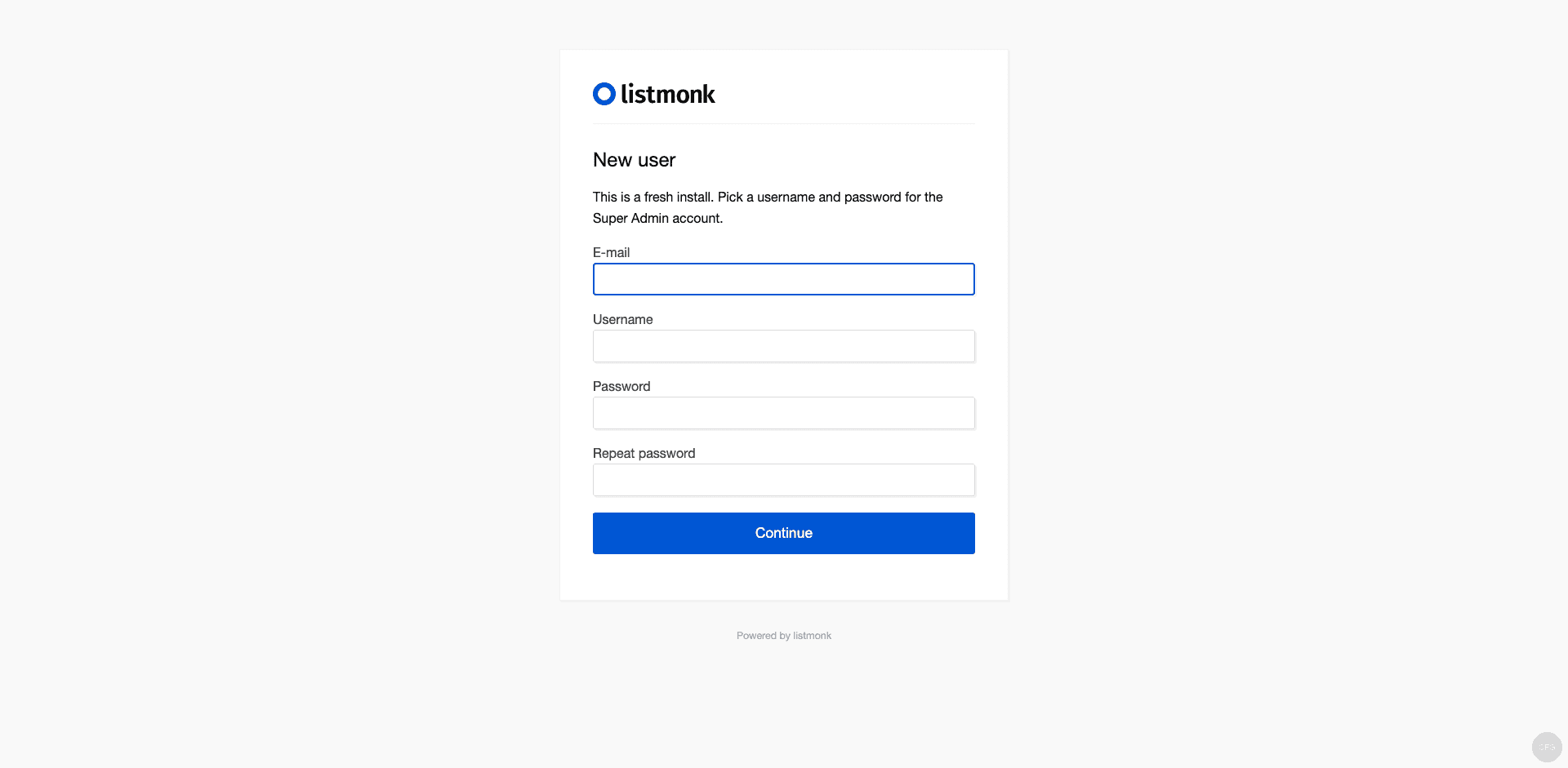
Open your browser and navigate to your Listmonk URL. On a fresh install, Listmonk prompts you to create a Super Admin account. Enter your email, username, and a strong password to set up the first admin user.
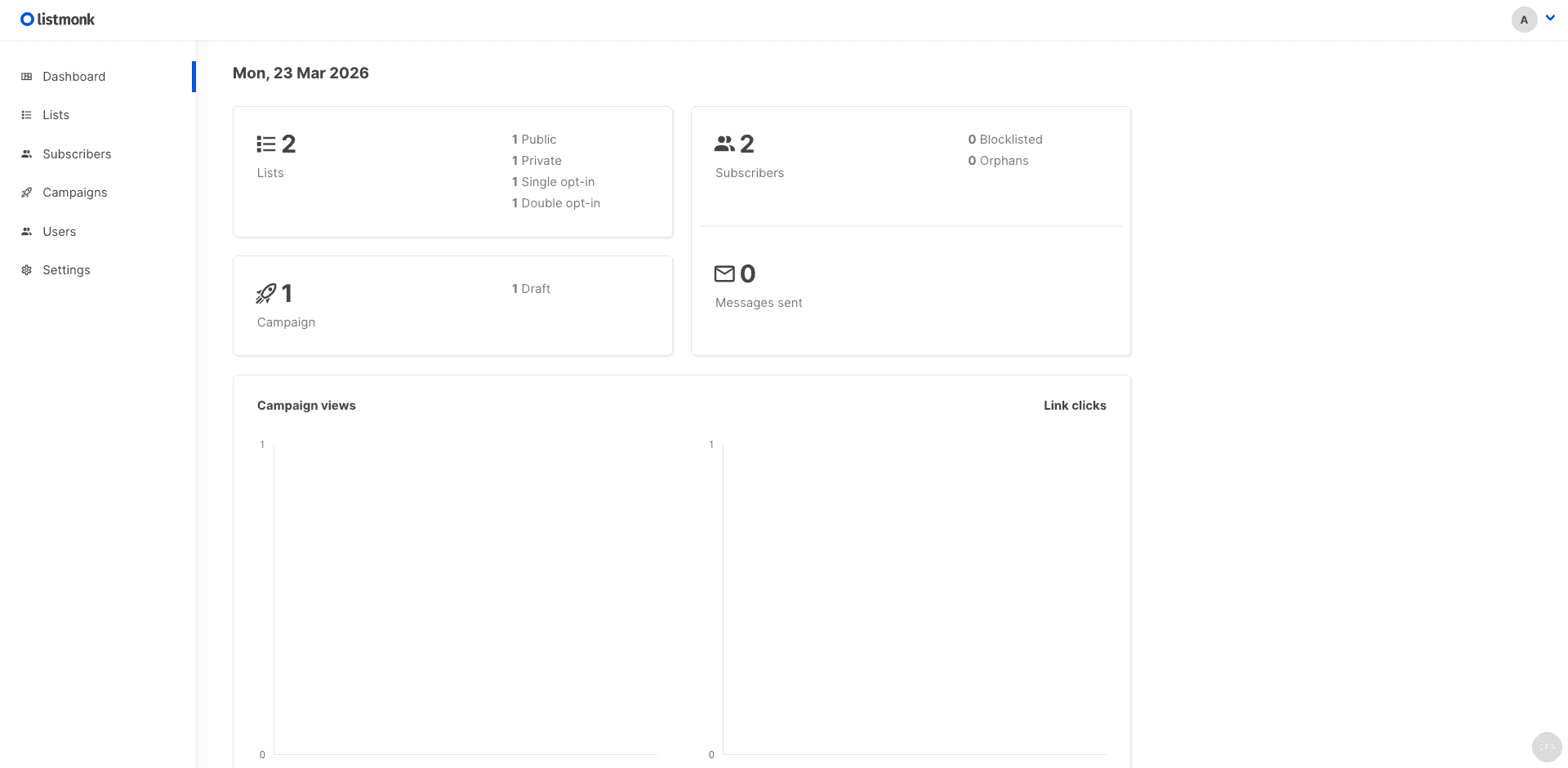
After creating the admin account, you are redirected to the dashboard. It shows subscriber counts, campaign statistics, list summaries, and campaign views at a glance.
Step 8: Configure SMTP for Email Delivery
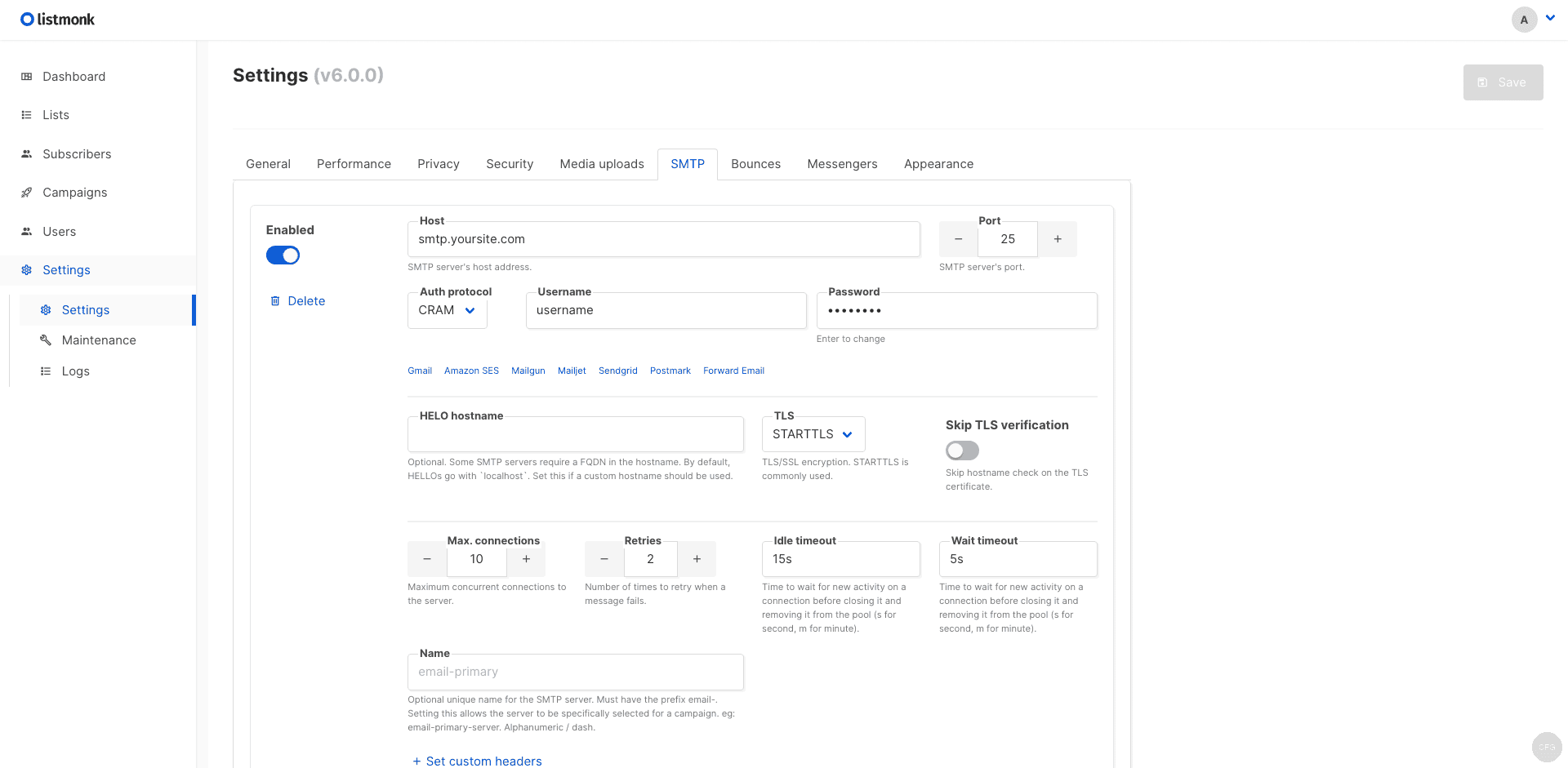
Listmonk needs an SMTP server to send emails. Go to Settings > SMTP in the dashboard and configure your email provider. Common options include Amazon SES, Mailgun, SendGrid, or your own Postfix mail server.
Fill in the SMTP host, port, authentication method, and credentials. Click Test Connection to verify delivery works before sending any campaigns.
Upgrading Listmonk
When a new Listmonk version is released, upgrade by pulling the latest image and running the database migration:
cd ~/listmonk
docker compose pull
Stop the running containers, run the upgrade migration, then restart:
docker compose down
docker compose run --rm app ./listmonk --upgrade
docker compose up -d
Always back up your PostgreSQL data before upgrading. You can dump the database with:
docker exec listmonk_db pg_dump -U listmonk listmonk > listmonk_backup_$(date +%F).sqlTroubleshooting Common Issues
Listmonk container exits with “config.toml not found”
The config.toml file must be in the same directory as your docker-compose.yml. Check the volume mount path matches and the file exists:
ls -la ~/listmonk/config.toml502 Bad Gateway from Nginx
This usually means Nginx cannot reach Listmonk on port 9000. Check the container is running with docker compose ps. On Rocky Linux / AlmaLinux, confirm SELinux allows the connection:
sudo setsebool -P httpd_can_network_connect 1Database connection refused during install
If docker compose run --rm app ./listmonk --install fails with a connection error, the database container may not be ready yet. Start it explicitly and wait for the health check:
docker compose up -d db
docker compose ps
Wait until the db container shows healthy status, then retry the install command.
Conclusion
Listmonk is now running behind Nginx with SSL on your server. You have full control over subscriber data without per-email costs or vendor lock-in. For production use, set up regular PostgreSQL backups, configure DKIM/SPF/DMARC records for your sending domain, and enable two-factor authentication from the Listmonk security settings.