

LUKS (Linux Unified Key Setup) encrypts your entire disk at the block level, protecting all data at rest. If someone steals your drive or laptop, they get nothing without the passphrase. Combining LUKS with LVM gives you the best of both worlds – full disk encryption plus flexible volume management for swap, root, and home partitions, all inside a single encrypted container.
This guide walks through a complete Arch Linux installation with LUKS2 full disk encryption and LVM on a UEFI system. The setup uses GRUB as the bootloader (the only major bootloader that supports LUKS-encrypted /boot), which means two passphrase prompts at boot – one from GRUB and one from the initramfs. Everything here has been tested end-to-end on the latest Arch ISO with kernel 6.18. If you want a simpler setup without encryption, check out our Arch Linux with LVM guide.
What You Need
- A UEFI-capable system with at least 2 GB RAM and 20 GB disk space
- The latest Arch Linux ISO burned to a bootable USB
- A working internet connection (Ethernet recommended, WiFi works too)
- A strong passphrase you can remember – you will type it twice on every boot
Boot the Arch ISO and Verify UEFI Mode
Boot from the USB drive and select the default Arch Linux option. Once you land at the root shell, confirm that the system booted in UEFI mode.
ls /sys/firmware/efi/efivarsIf this directory exists and lists variables, you are in UEFI mode. If the directory does not exist, your system booted in legacy BIOS mode and you need to adjust your firmware settings before continuing.
Connect to the Internet
Wired Ethernet should work automatically. For WiFi, use iwctl to connect.
iwctl station wlan0 connect "YourNetworkName"Verify connectivity with a quick ping.
ping -c 3 archlinux.orgIf ping resolves and returns replies, your network is good. Also sync the system clock so package signatures validate correctly.
timedatectl set-ntp truePartition the Disk
We need two partitions on a GPT partition table – a 512 MB EFI System Partition and the rest for LUKS. Using sgdisk makes this quick and scriptable. Replace /dev/sda with your actual disk if different (check with lsblk).
sgdisk --zap-all /dev/sda
sgdisk -n 1:0:+512M -t 1:EF00 -c 1:"EFI" /dev/sda
sgdisk -n 2:0:0 -t 2:8309 -c 2:"LUKS" /dev/sda
Verify the partition layout looks correct.
sgdisk -p /dev/sdaYou should see two partitions – /dev/sda1 at 512 MiB with type EF00 and /dev/sda2 using the remaining space with type 8309 (Linux LUKS).
Create the LUKS Encrypted Container
Now encrypt the second partition with LUKS2. For an interactive setup where you type your passphrase (recommended for real installs), run this.
cryptsetup luksFormat --type luks2 /dev/sda2Type YES (uppercase) to confirm, then enter your passphrase twice. Choose something strong – this is the key to your entire system. For automated or scripted installs, you can pipe the passphrase instead.
echo -n "your-passphrase" | cryptsetup luksFormat --type luks2 /dev/sda2 -Once formatted, open the LUKS container and map it to /dev/mapper/cryptlvm.
cryptsetup open /dev/sda2 cryptlvmEnter your passphrase. The decrypted device is now available at /dev/mapper/cryptlvm and ready for LVM.
Set Up LVM Inside the Encrypted Container
Create a physical volume, volume group, and three logical volumes inside the unlocked LUKS container. This gives you separate swap, root, and home volumes while keeping everything encrypted under one passphrase.
pvcreate /dev/mapper/cryptlvm
vgcreate archvg /dev/mapper/cryptlvm
lvcreate -L 4G archvg -n swap
lvcreate -L 30G archvg -n root
lvcreate -l 100%FREE archvg -n home
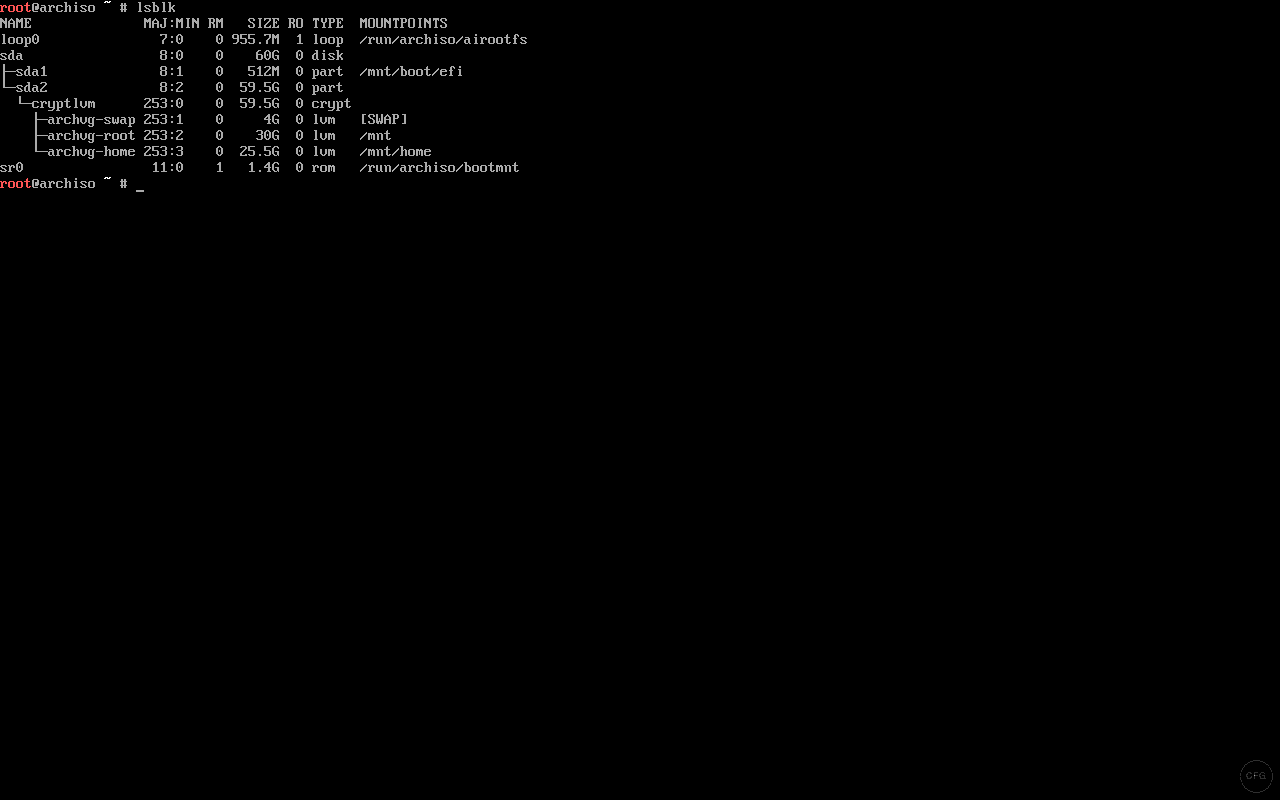
Verify the layout with lsblk. You should see the LVM volumes nested under the LUKS container.
lsblkThe output confirms the full disk layout – sda2 mapped to cryptlvm, with archvg-swap, archvg-root, and archvg-home inside.
Format and Mount the Partitions
Format the EFI partition as FAT32, root and home as ext4, and initialize swap.
mkfs.fat -F32 /dev/sda1
mkfs.ext4 /dev/archvg/root
mkfs.ext4 /dev/archvg/home
mkswap /dev/archvg/swap
Mount everything in the correct order – root first, then create mount points for EFI and home.
mount /dev/archvg/root /mnt
mkdir -p /mnt/boot/efi /mnt/home
mount /dev/sda1 /mnt/boot/efi
mount /dev/archvg/home /mnt/home
swapon /dev/archvg/swap
Run lsblk again to confirm all mount points look correct before installing the base system.
Install the Base System
Use pacstrap to install the base system along with essential packages. The lvm2 package is critical here – without it, the initramfs cannot assemble LVM volumes at boot.
pacstrap -K /mnt base linux linux-firmware lvm2 base-devel grub efibootmgr nano networkmanager sudoThis pulls down about 500-600 MB depending on mirrors. Wait for it to finish completely.
Generate fstab
Generate the filesystem table using UUIDs for reliable mounting.
genfstab -U /mnt >> /mnt/etc/fstabCheck the generated fstab to make sure all four entries are present (root, home, swap, EFI).
cat /mnt/etc/fstabYou should see entries for /dev/archvg/root mounted at /, /dev/archvg/home at /home, /dev/archvg/swap as swap, and /dev/sda1 at /boot/efi.
Configure the System in chroot
Enter the new system with arch-chroot and configure the basics.
arch-chroot /mntSet the timezone and sync the hardware clock.
ln -sf /usr/share/zoneinfo/UTC /etc/localtime
hwclock --systohc
Replace UTC with your timezone (for example, America/New_York or Europe/London). Now configure the locale. Open the locale file and uncomment your locale.
sed -i 's/#en_US.UTF-8 UTF-8/en_US.UTF-8 UTF-8/' /etc/locale.gen
locale-gen
Set the system locale and hostname.
echo "LANG=en_US.UTF-8" > /etc/locale.conf
echo "archlinux" > /etc/hostname
Set the root password and create a regular user with sudo privileges.
passwd
useradd -m -G wheel -s /bin/bash jkmutai
passwd jkmutai
Enable sudo for the wheel group.
EDITOR=nano visudoUncomment the line %wheel ALL=(ALL:ALL) ALL and save. Enable NetworkManager so networking works on first boot.
systemctl enable NetworkManagerConfigure mkinitcpio for LUKS – The Critical Step
This is where most encrypted Arch installs fail. The initramfs needs the encrypt and lvm2 hooks to unlock the LUKS container and assemble LVM at boot. The order matters – get it wrong and the system will not boot.
Open the mkinitcpio configuration file.
nano /etc/mkinitcpio.confFind the HOOKS line and replace it with the following.
HOOKS=(base udev autodetect microcode modconf kms keyboard keymap consolefont block encrypt lvm2 filesystems fsck)Key points about the hook order:
keyboardandkeymapmust come beforeencrypt– otherwise you cannot type the passphrase at bootencryptmust come beforelvm2– the LUKS container must be opened before LVM can scan for volumeslvm2must come beforefilesystems– volumes must be assembled before they can be mounted
Regenerate the initramfs with the new hooks.
mkinitcpio -PWatch the output for any warnings. A successful build shows the image being generated for the linux preset with no errors.
Configure GRUB for LUKS Encryption
GRUB needs two specific configurations to work with LUKS. First, get the UUID of the LUKS partition (not the mapper device, the raw partition).
blkid -s UUID -o value /dev/sda2Copy that UUID. Now open the GRUB configuration file.
nano /etc/default/grubMake two changes. First, set the kernel command line to point to the encrypted device and root volume. Replace YOUR-UUID-HERE with the UUID from the previous command.
GRUB_CMDLINE_LINUX="cryptdevice=UUID=YOUR-UUID-HERE:cryptlvm root=/dev/archvg/root"Second, enable GRUB’s built-in cryptodisk support. Find this line (it is commented out by default) and uncomment it.
GRUB_ENABLE_CRYPTODISK=yThis tells GRUB to prompt for a passphrase before it can read its own configuration from the encrypted disk. Without this setting, GRUB cannot access the boot files at all.
Install GRUB to the EFI partition and generate the configuration.
grub-install --target=x86_64-efi --efi-directory=/boot/efi --bootloader-id=GRUB
grub-mkconfig -o /boot/grub/grub.cfg
Look for the output confirming that grub-mkconfig found your Linux image and generated menu entries. If it reports “cryptodisk: YES” in the install output, GRUB’s encryption support is active.
Understanding the Two-Passphrase Boot Process
A LUKS-encrypted Arch Linux system with GRUB asks for your passphrase twice during every boot. This catches most people off guard the first time, so here is what happens and why.
First prompt – GRUB (pre-boot): Before the Linux kernel even loads, GRUB needs to read its own configuration and the kernel image from the encrypted partition. GRUB decrypts the LUKS container using its own built-in crypto code (which is slow – expect 10-20 seconds). You see a prompt like “Enter passphrase for hd0,gpt2”.
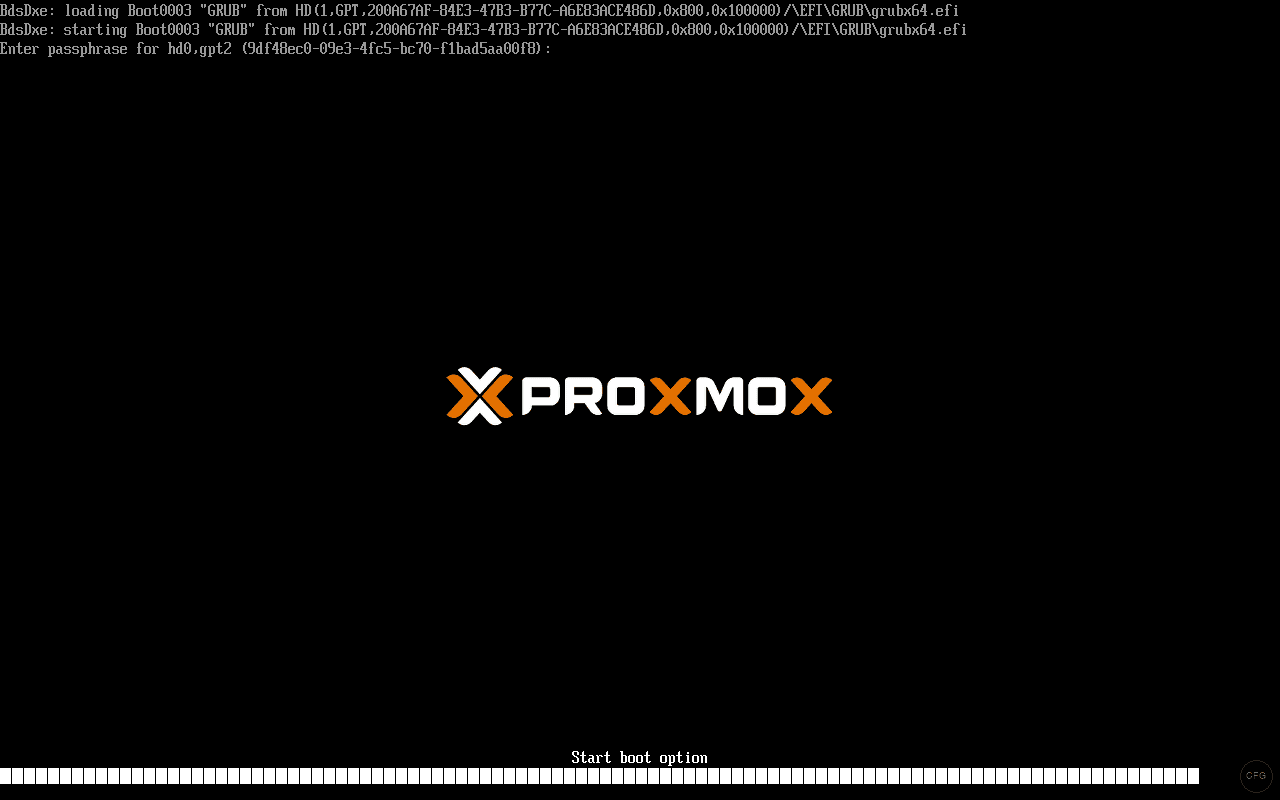
After entering the correct passphrase, GRUB loads its menu showing Arch Linux boot entries.
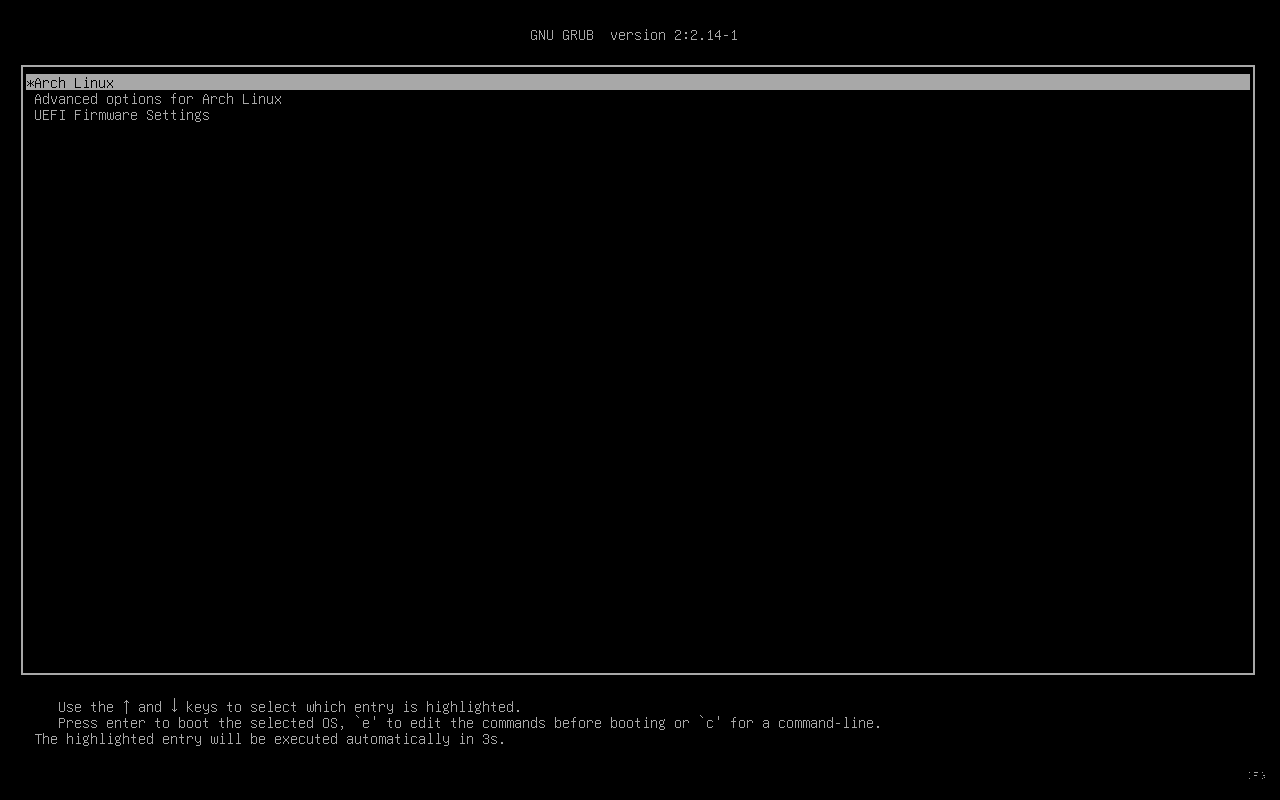
Second prompt – initramfs (kernel boot): After you select Arch Linux from the GRUB menu, the kernel loads and the initramfs runs the encrypt hook. This hook opens the LUKS container again using the kernel’s native dm-crypt (much faster). You see a message like “A password is required to access the cryptlvm volume”.
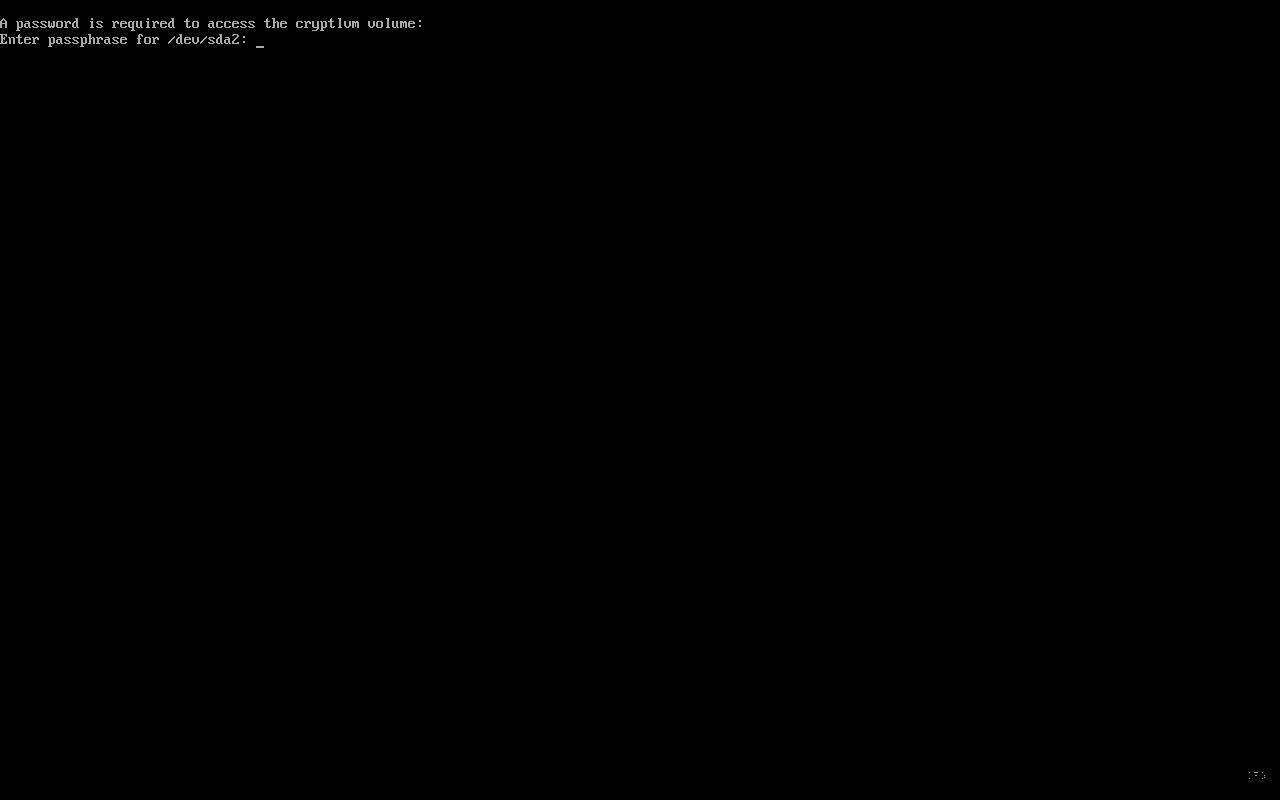
Both prompts use the same passphrase. The reason for two prompts is that GRUB and the Linux kernel are completely separate programs – GRUB’s unlock does not carry over to the kernel. You can set up a keyfile embedded in the initramfs to skip the second prompt, but that is an advanced topic for another day.
First Boot
Exit the chroot, unmount everything, and reboot into your new encrypted system.
exit
umount -R /mnt
reboot
Remove the USB drive when prompted. You will go through the two-passphrase process described above. After both prompts, the system should boot to a TTY login. Log in with the user you created earlier.
Install GNOME Desktop Environment
Once logged in, install the GNOME desktop along with GDM (the display manager) and Firefox.
sudo pacman -S gnome gdm firefoxEnable and start GDM so the graphical login appears on next boot.
sudo systemctl enable gdm
sudo systemctl start gdm
GDM launches and you land at the graphical login screen – the full boot chain from GRUB passphrase to desktop is working.
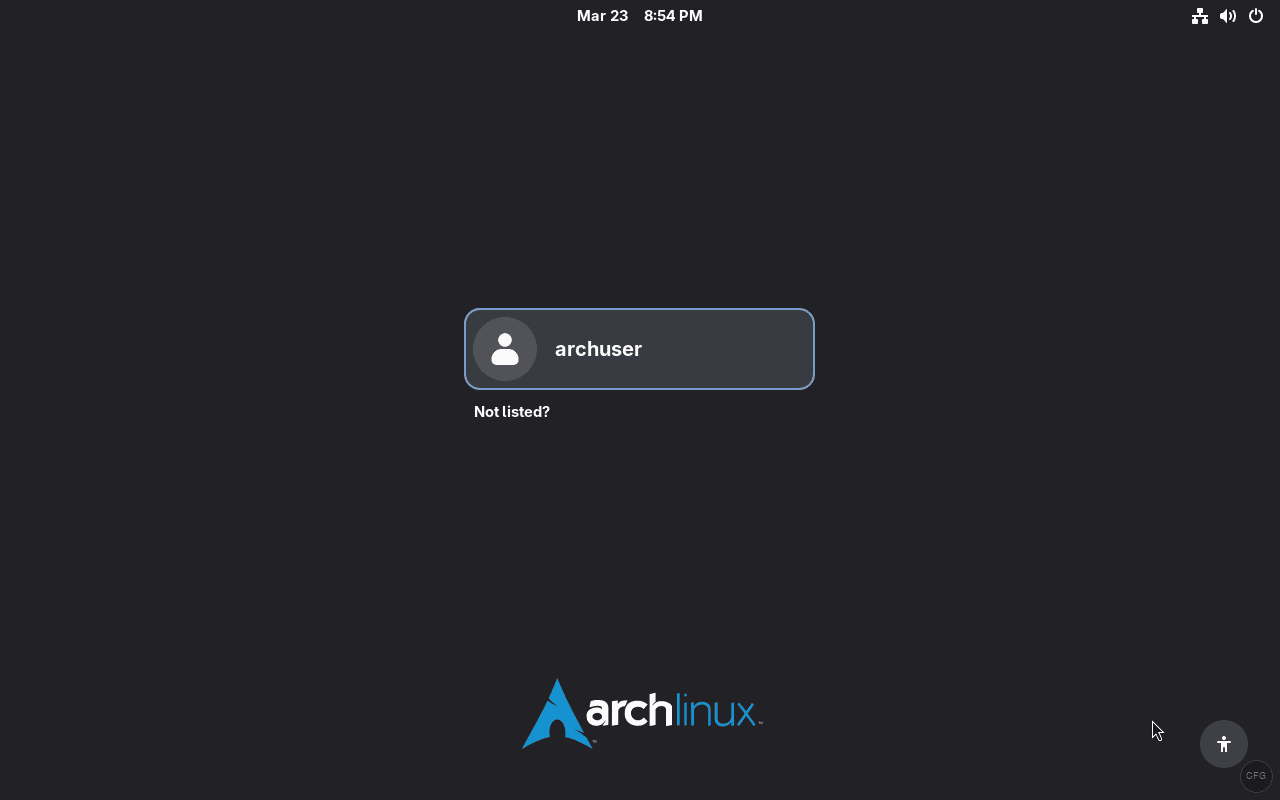
After logging in, here is the system running GNOME 48 with kernel 6.18 on the encrypted LVM setup.
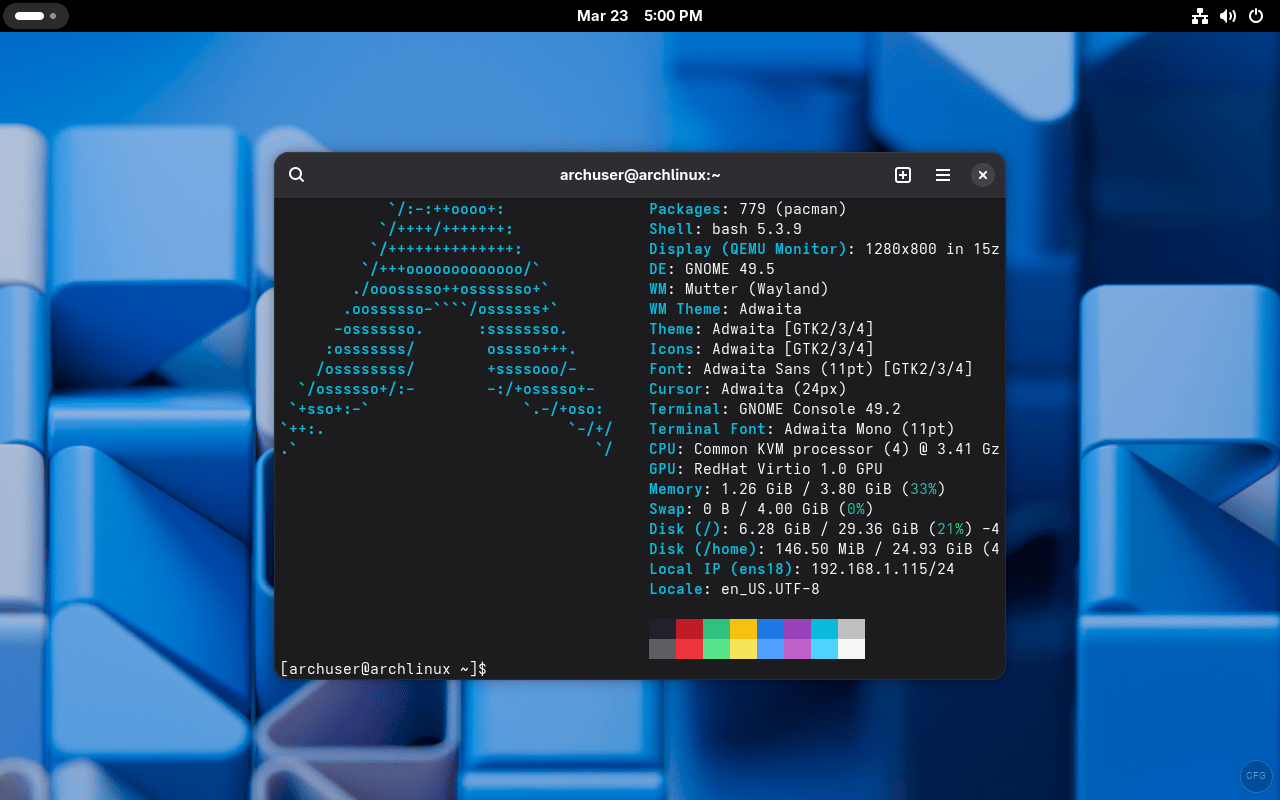
Post-Installation Essentials
With the desktop running, take care of a few important post-install tasks. For a full list, see our things to do after installing Arch Linux guide.
Install an AUR Helper
The AUR (Arch User Repository) has thousands of packages not in the official repos. Install yay to manage them.
sudo pacman -S git
git clone https://aur.archlinux.org/yay.git
cd yay
makepkg -si
Enable the Firewall
Encryption protects data at rest, but you still need a firewall for network security.
sudo pacman -S ufw
sudo ufw default deny incoming
sudo ufw default allow outgoing
sudo ufw enable
sudo systemctl enable ufw
Enable SSD TRIM (if using an SSD)
TRIM support works through LUKS. Enable the periodic trim timer for SSD longevity.
sudo systemctl enable fstrim.timer
sudo systemctl start fstrim.timer
For TRIM to pass through LUKS, you also need to open the container with the --allow-discards flag. Add :allow-discards to the end of your cryptdevice kernel parameter in /etc/default/grub and regenerate the GRUB config. Be aware that TRIM on encrypted volumes can leak information about which blocks are in use – for most desktop users, the SSD performance benefit outweighs this minor concern.
Install Multimedia Codecs
Get audio and video codecs for media playback.
sudo pacman -S gst-plugins-base gst-plugins-good gst-plugins-bad gst-plugins-ugly gst-libavVerifying the Encryption Setup
After all the work, you want to confirm the encryption is actually active and protecting your data. These commands verify the setup.
Check the status of the LUKS container.
sudo cryptsetup status cryptlvmThis shows the device is active, the type is LUKS2, and the underlying device is /dev/sda2. You can also view the full block device layout with filesystem types.
lsblk -fThe output should show sda2 as crypto_LUKS with the LVM volumes nested inside. If you see crypto_LUKS on sda2, your disk encryption is working correctly.
For more detail on the LUKS header itself, including the encryption cipher and key size, run this.
sudo cryptsetup luksDump /dev/sda2This shows the LUKS version (2), cipher (aes-xts-plain64), key size (512 bits by default), and the number of keyslots in use. For the full reference on dm-crypt configurations, see the Arch Wiki dm-crypt guide.
Troubleshooting Common Issues
“Failed to find root device” or dropping to recovery shell
This means the initramfs cannot find the root filesystem. The most common cause is missing or misordered hooks in /etc/mkinitcpio.conf. Verify that encrypt and lvm2 are both present and in the correct order. Also check that the UUID in GRUB_CMDLINE_LINUX matches the output of blkid /dev/sda2. After fixing, regenerate initramfs with mkinitcpio -P and GRUB config with grub-mkconfig -o /boot/grub/grub.cfg.
Keyboard does not respond at the passphrase prompt
The keyboard hook is either missing from the HOOKS array or placed after encrypt. It must come before encrypt so the keyboard driver loads before the passphrase prompt appears. Fix the hook order, run mkinitcpio -P, and reboot.
GRUB boots directly without asking for a passphrase
The GRUB_ENABLE_CRYPTODISK=y line is missing or still commented out in /etc/default/grub. Add or uncomment it, then run grub-install and grub-mkconfig again. GRUB must be reinstalled (not just reconfigured) for this change to take effect.
GRUB is extremely slow to accept the passphrase (20+ seconds)
This is normal. GRUB’s built-in LUKS implementation is significantly slower than the kernel’s dm-crypt. GRUB runs in a limited environment without hardware acceleration, so key derivation takes longer. The second prompt (initramfs) should be almost instant by comparison. There is no fix for this – it is a known GRUB limitation.
“error: disk ‘lvmid/…’ not found” in GRUB
This happens when GRUB cannot find the LVM volumes because the LUKS container was not opened. Make sure GRUB_ENABLE_CRYPTODISK=y is set and that you reinstalled GRUB after making the change. Also verify the GRUB config was regenerated after setting GRUB_CMDLINE_LINUX.
Wrapping Up
You now have a fully encrypted Arch Linux system with LUKS2 on top of LVM, booting via GRUB on UEFI. Every byte on the disk (except the EFI partition) is encrypted – swap, root, and home are all protected by a single passphrase. The archinstall script can also set up encryption, but doing it manually gives you full control over the partition layout and GRUB configuration.
A few security tips to keep in mind: back up your LUKS header with cryptsetup luksHeaderBackup and store it somewhere safe – if the header gets corrupted, all data is lost. Consider enabling Secure Boot to prevent tampering with the bootloader. And most importantly, use a strong passphrase that you can remember without writing it down.






Hi, I’m having an issue after the disk decryption and the grun splash screen: it tells me that the console isn’t available because “”Cannot open access to console, the root account is locked””
Have any idea what is wrong?
Boot the Arch live ISO, decrypt and mount your root, `arch-chroot /mnt`, then run `passwd` to set a root password and re-verify your wheel user exists. If root was set but you still drop to emergency, `journalctl -xb` will show the actual failure (usually a wrong UUID in `/etc/fstab` or a missing `encrypt` or `lvm2` hook in `/etc/mkinitcpio.conf` followed by `mkinitcpio -P`).
No matter what kind of configuration I try I end up with the same error.
By the way root pw was set
Is it because I’m trying on vbox?