

Welcome to this guide on how to create and use Samba / NFS / WebDAV Shares on TrueNAS. TrueNAS is a widely used open-source network-attached storage. It is efficient when managing and sharing data across a network. It supports WebDAV, NFS, AFP, iSCSI, and SMB protocols.
Samba is among the services provided by TrueNAS. It is used to create file and printer sharing across a network using the SMB(Server Message Block) protocol. It is supported on several platforms such as Windows, Solaris, AIX, Linux, and BSD variants.
Network File System, normally abbreviated as NFS is also a protocol used to create and access files across the network. It was developed in 1984 by Sun Microsystems
WebDAV an acronym for Web Distributed Authoring and Versioning, is a set of HTTP extensions that enable the client to access the remote content and enables collaboration.
All the above-mentioned protocols work using a client-server model. The TrueNAS server manages the clients and stores the files to be shared. Once connected to the server, clients are able to access the files intuitively.
By following this guide to the end, you should be able to create and use Samba / NFS / WebDAV Shares on TrueNAS.
For FTP and S3 Storage services refer to:
Before You Begin
Before you proceed to creating and using Samba / NFS / WebDAV Shares on TrueNAS, you need to have the TrueNAS server set up. The guide below illustrates how you can easily install and configure TrueNAS.
Once the TrueNAS server has been set up, proceed as below.
1. Create a Storage Pool on TrueNAS.
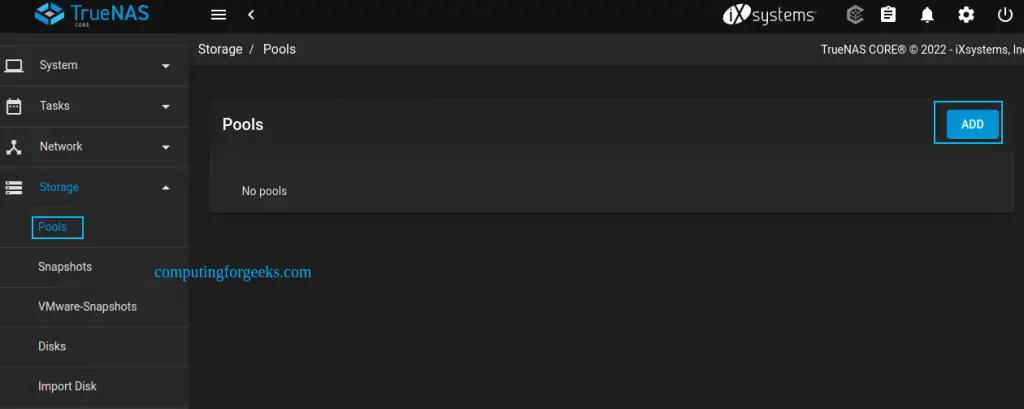
TrueNAS allows one ot use separate disks attached to act as the storage volumes. Once the disks are attached, creating a storage pool is as easy as robbing a child’s bank. Navigate to Storage->Pools->ADD.
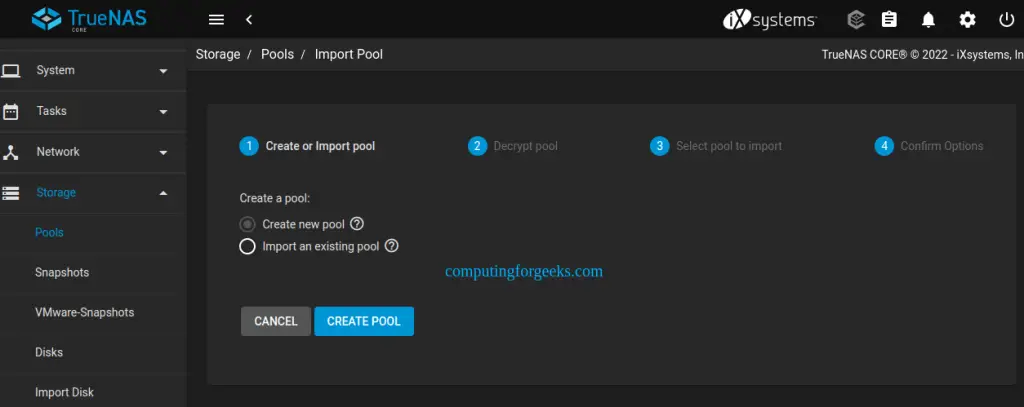
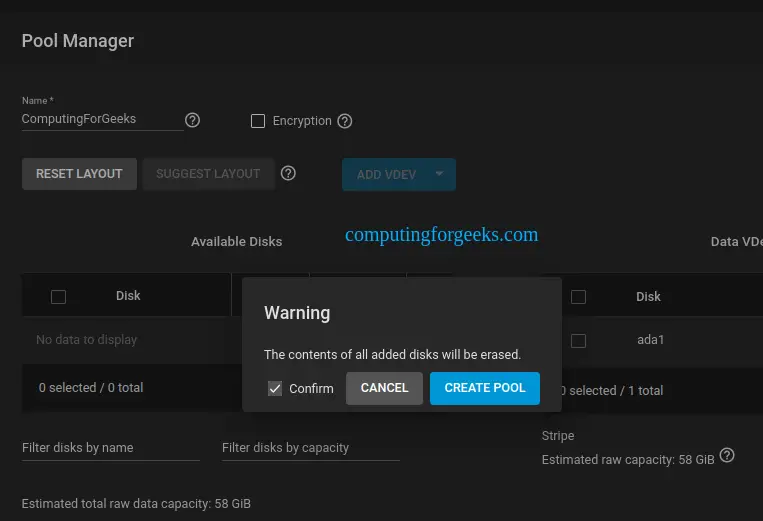
Create a new pool and begin by setting a name for the pool.
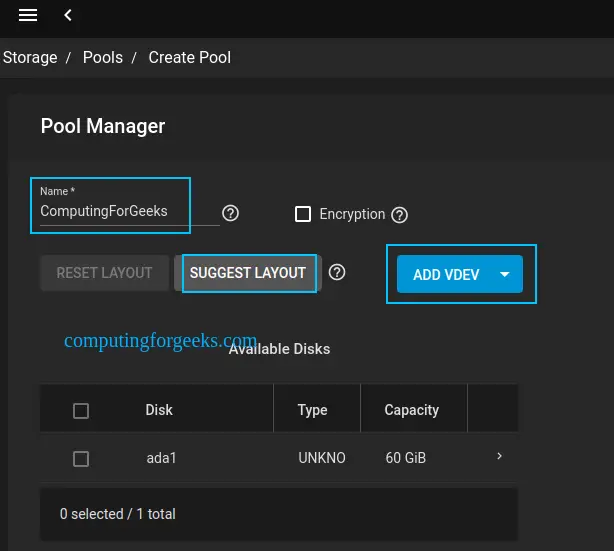
Proceed and configure VDEV. These are virtual devices that make up the pool. Here, you can click SUGGEST LAYOUT to allow TrueNAS to check the available disk and populate the primary Data VDEV with a balanced setting between storage capacity and data redundancy.
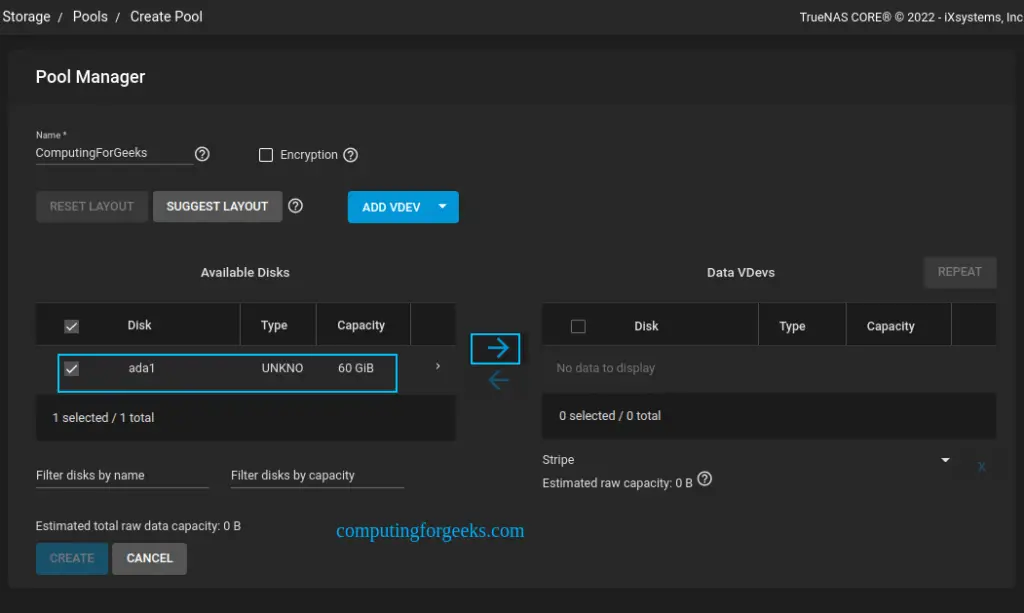
You can manually configure the pool and add VDEVs as desired. For this guide, we will suggest the layout and add the disk as below.
Confirm the prompt for the disk to be erased.
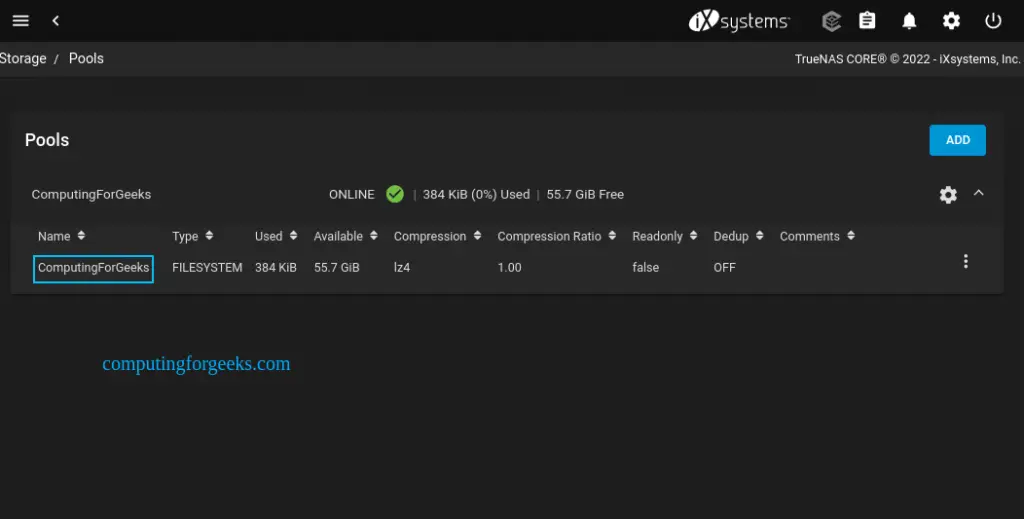
The created pool should appear as shown.
2. Create Samba / NFS / WebDAV File share
For data to be shared over the network, you need to create a share. For this guide, we will create Samba / NFS / WebDAV shares on TrueNAS.
Create a share by navigating to the Sharing tab and selecting the desired share to create.
2.1. Create an NFS share on TrueNAS
Let’s begin by creating an NFS share.
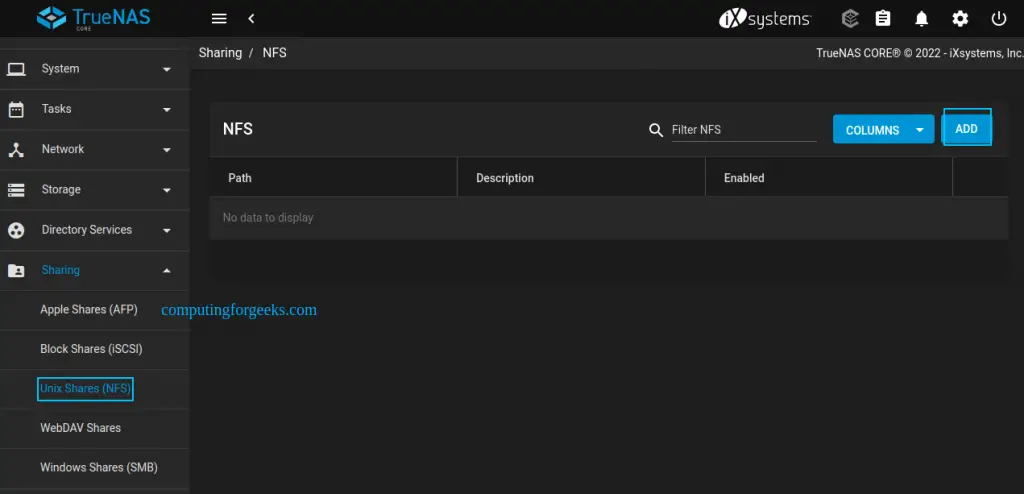
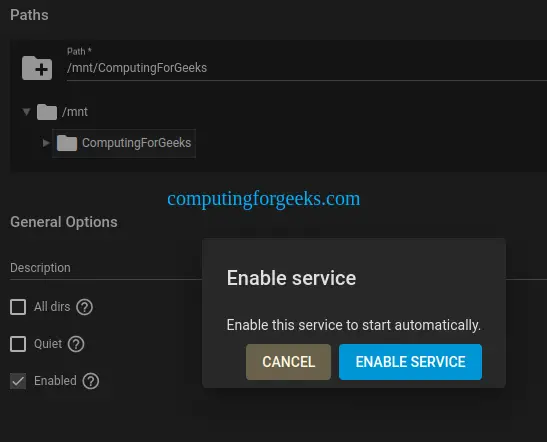
Create the share by clicking ADD. The share is created by browsing and selecting the dataset(pool) to be shared. You can also provide a description of it.
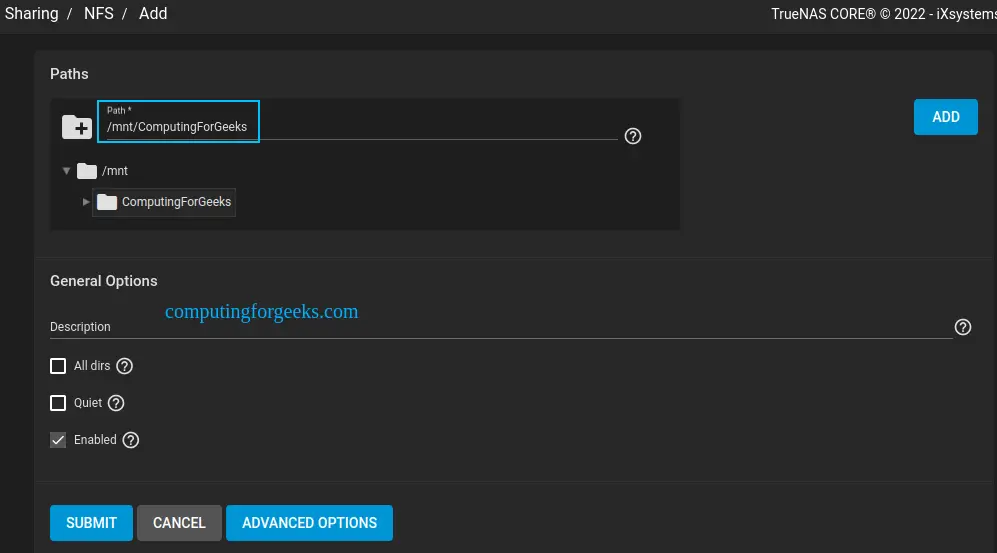
Submit the made changes and ENABLE SERVICE as below.
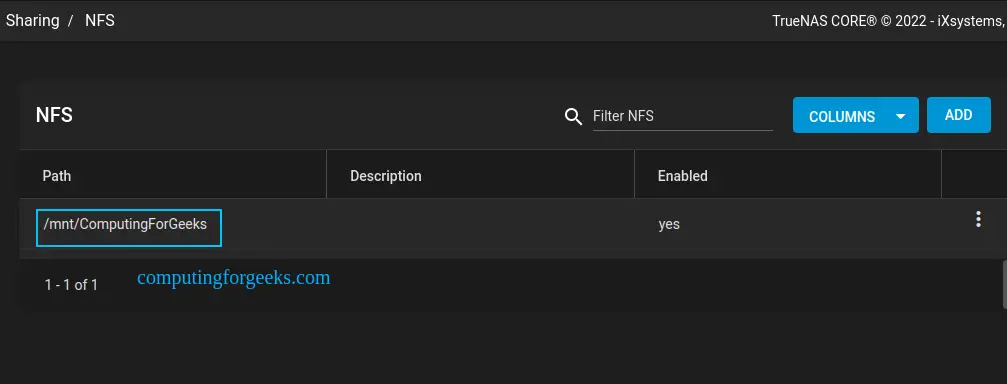
Now you will have the share created as below.
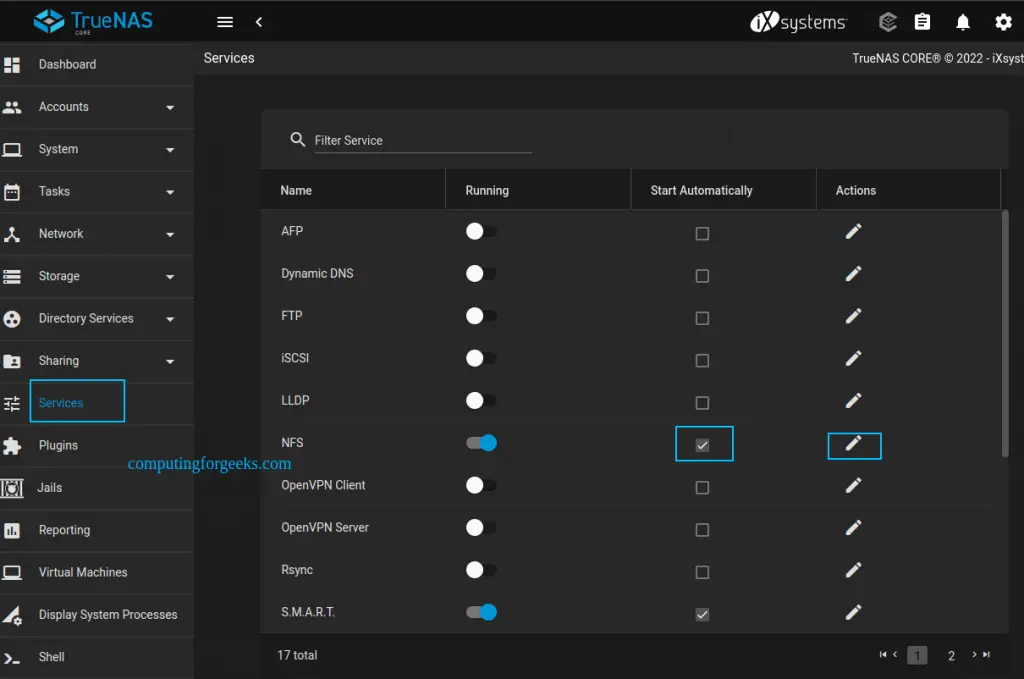
Edit the service as desired in the services tab.
2.2. Create a WebDAV share on TrueNAS.
Similar to creating an NFS share, just navigate to Sharing->WebDAV Shares->ADD
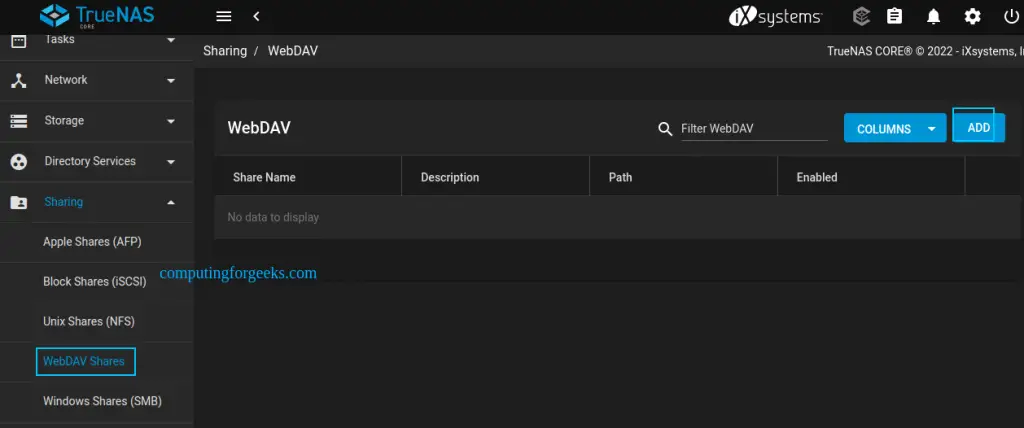
Browse and select the dataset to be shared. Provide a description for the share if need to.

The default user and Ownership permissions are set. You can enable Read Only to prevent user accounts from modifying the data. Accept the ownership prompt.
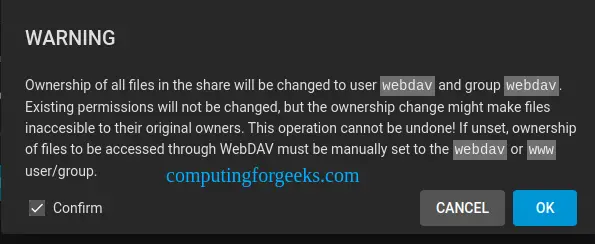
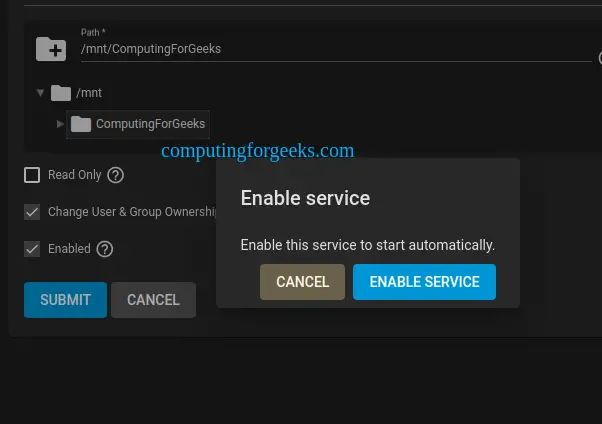
Submit the configurations and activate the service.
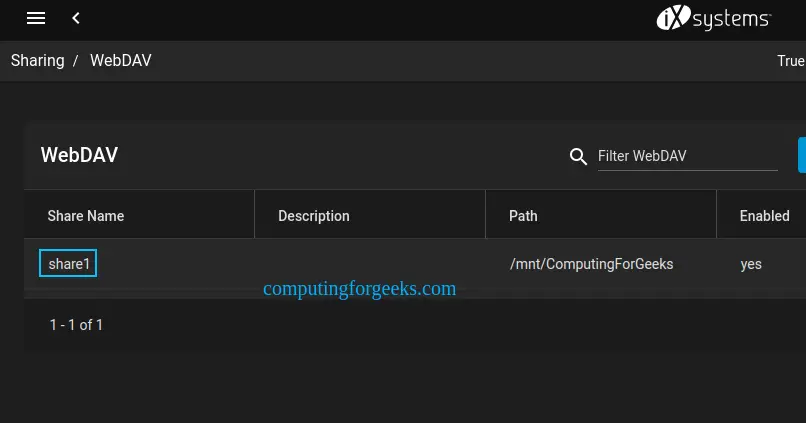
The share will be available as shown.
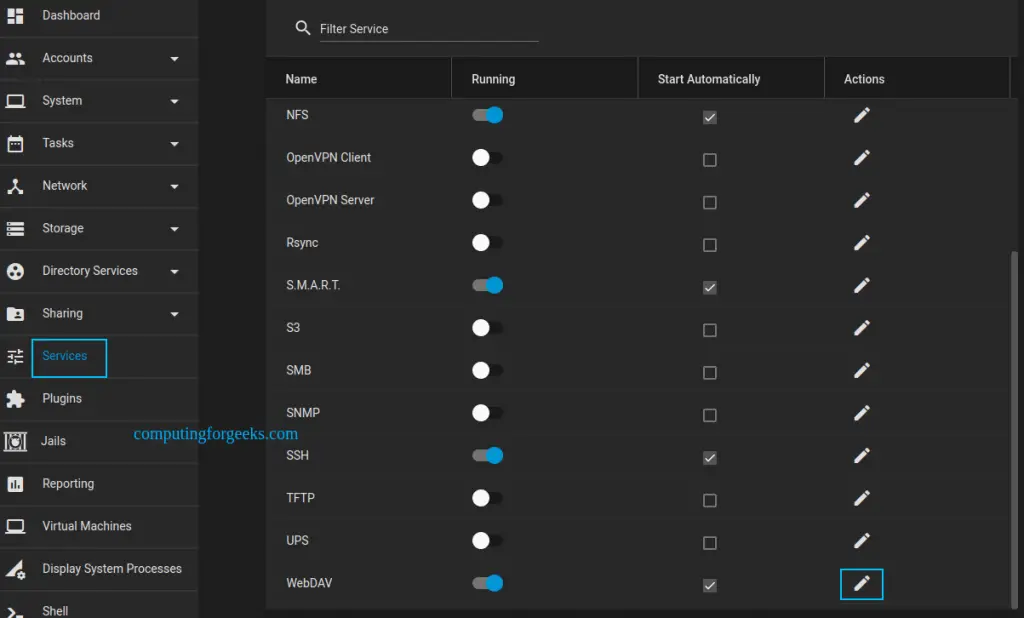
Now proceed and configure the service by clicking the edit icon in the services tab
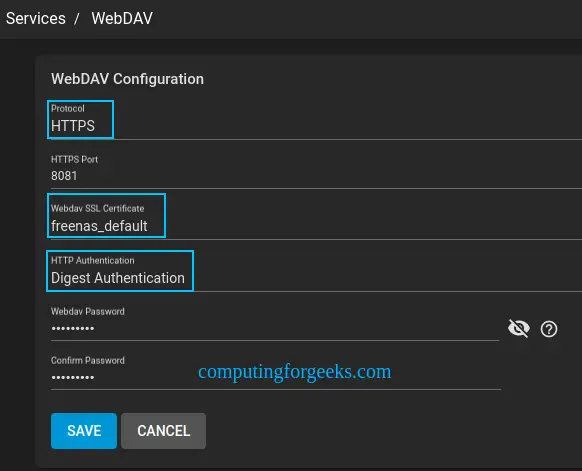
There are several settings to make here, set the connection to happen via HTTP, or securely via HTTPS, or use BOTH, set the certificate to be used for HTTPS, the authentication method, and create the WebDAV password.
2.3. Create a Samba Share on TrueNAS.
Navigate the Sharing->Windows Shares(SMB)->ADD.
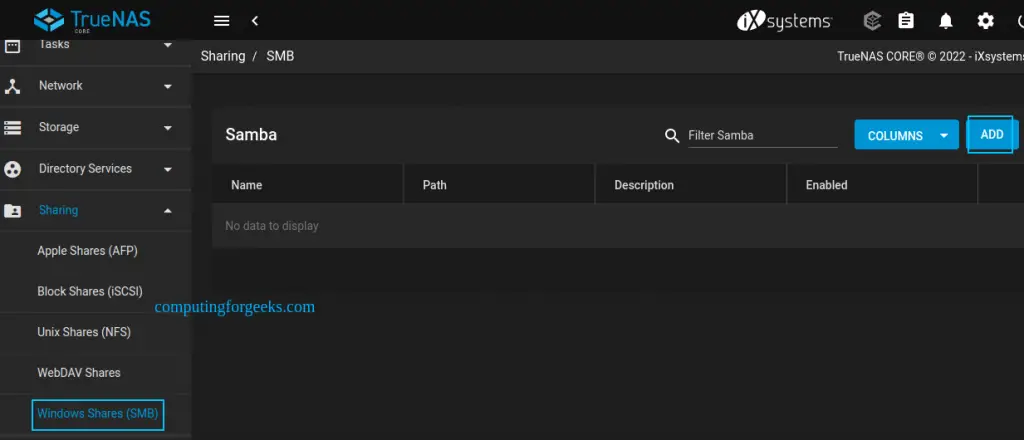
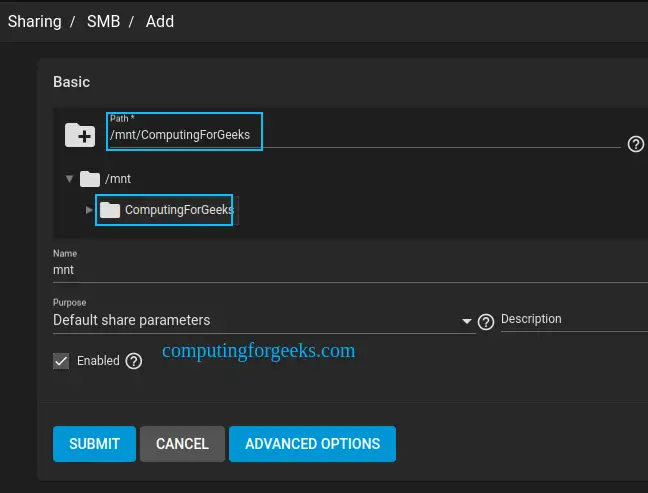
Select the preferred pool to share and submit the changes.
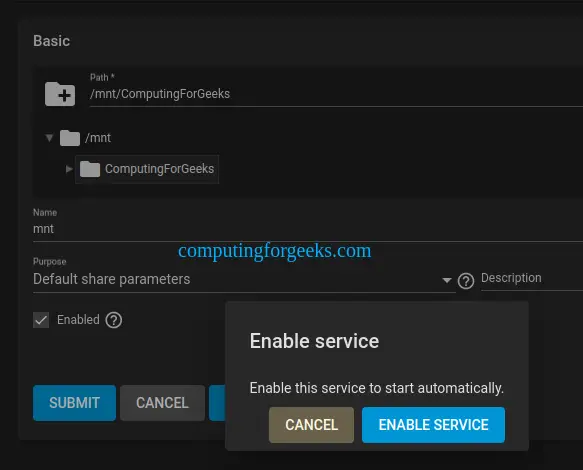
Enable the service.
The share will be available as below.
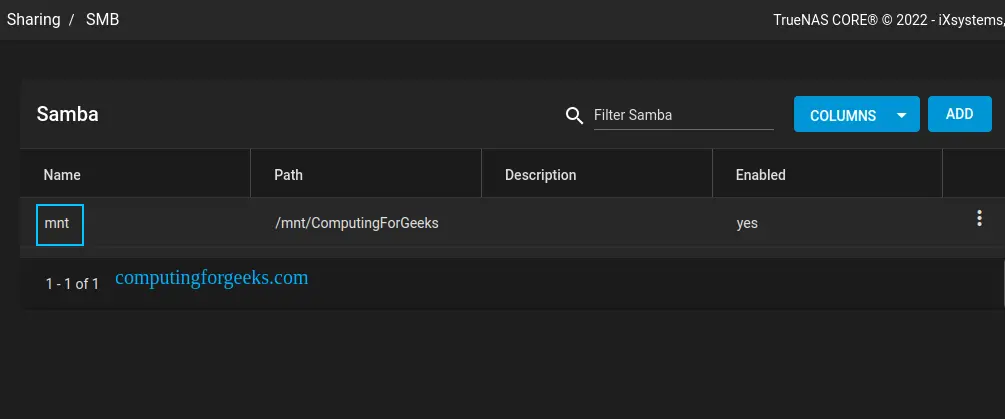
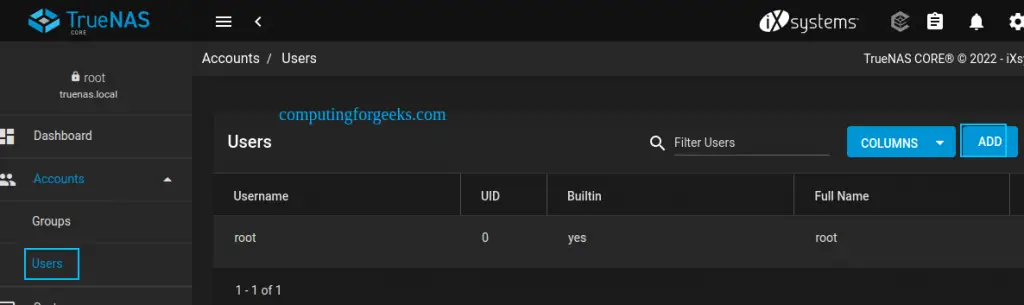
Proceed and create a user with the permissions to access the share. Navigate to Accounts->Users->ADD.
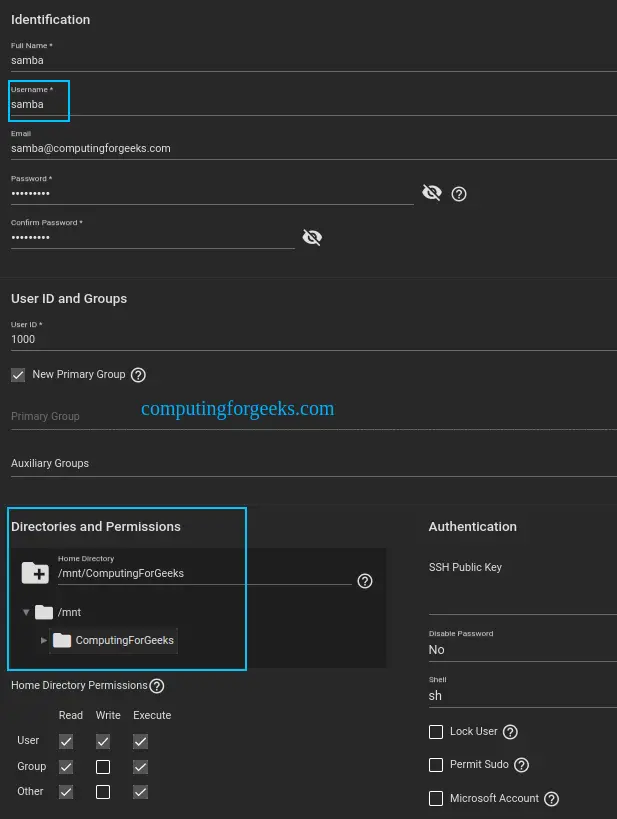
Provide the credentials and set the directory(share) and permissions as shown below.
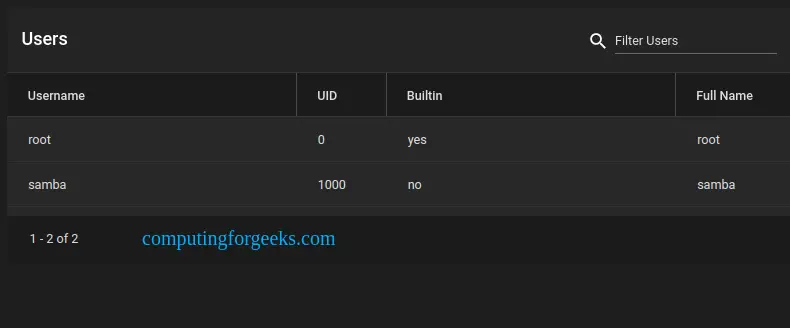
Submit the settings and you will have the user created. Remember this is a normal system user.
3. Access Samba / NFS / WebDAV Shares from Client
Once the shares have been created, as shown above, proceed and access them on Windows and Linux systems. This guide demonstrates how Samba / NFS / WebDAV shares can be accessed from the Client.
3.1. Access WebDAV Share from the Client
The WebDAV share can be accessed from a browser using the set protocol, port, and the share name. For example, in this case, the URL will be https://IP_Address:8081/share1 or http://IP_address:8080/share1
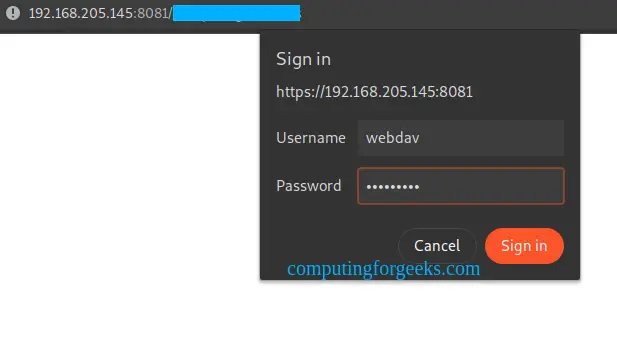
For you to sign in, you need to provide the username as webdav, and the password provided in the WebDAV service configuration.
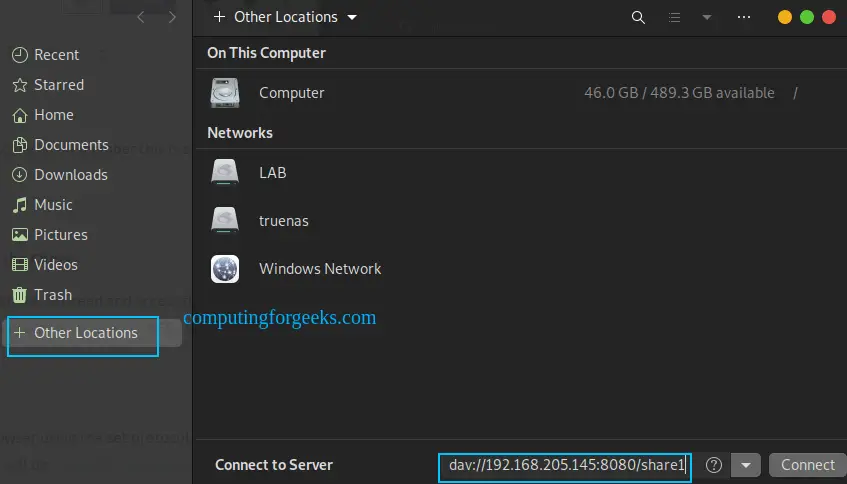
You can as well access the share by creating a new connection on Linux systems as below. But remember, you must have set WebDAV to use HTTP.
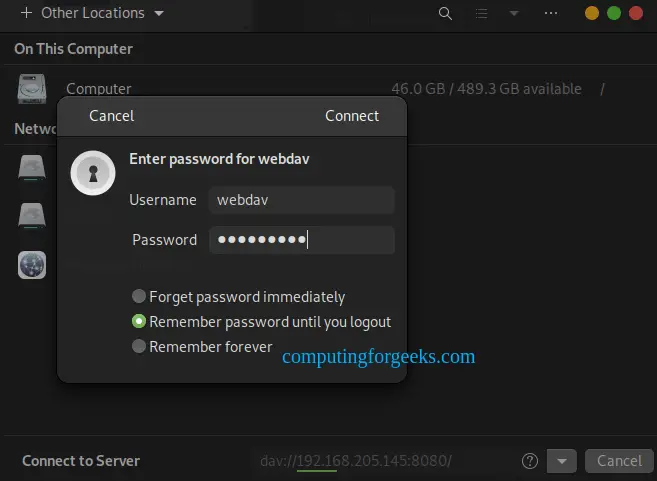
Provide the login credentials to be authenticated.
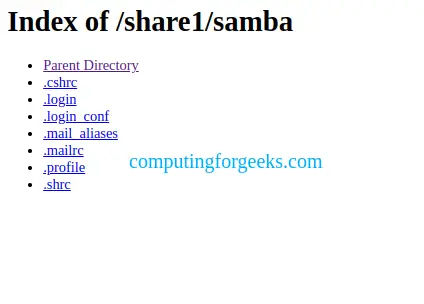
The share will be available as shown.
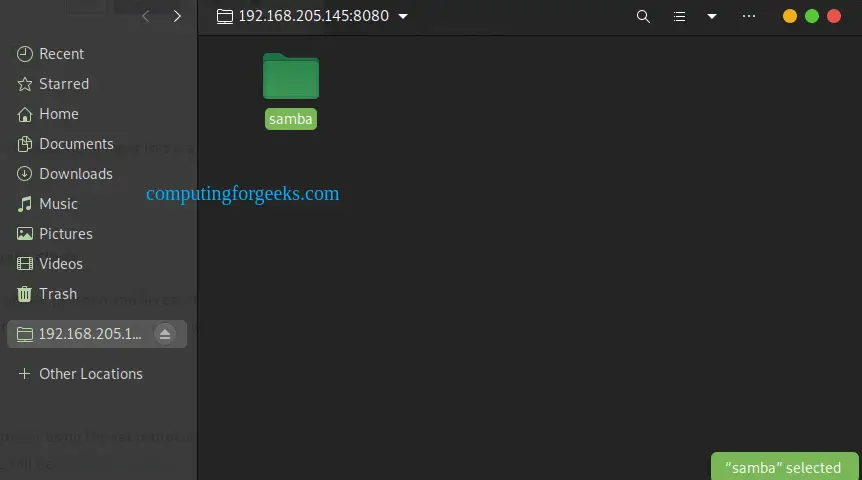
3.2. Access the NFS Share from the Client.
To be able to access the NFS Share on Linux systems, you need to install the required packages as below.
##On Debian/Ubuntu
sudo apt install nfs-common -y

##On RHEL/CentOS/Rocky Linux/ AlmaLinux
sudo dnf install nfs-utils -y
With the packages installed, add the IP Address of your TrueNAS server appropriately.
$ sudo vim /etc/idmapd.conf
# set your own domain here, if it differs from FQDN minus hostname
Domain = 192.168.205.145
Verify if the share is accessible.
$ showmount -e 192.168.205.145
Export list for 192.168.205.145:
/mnt/ComputingForGeeks (everyone)
Proceed and create a mount point for the share.
sudo mkdir /mnt/nfs_shareTo make a temporary mount for the NFS share, use the command below replacing appropriately.
sudo mount -t nfs192.168.205.145:/mnt/ComputingForGeeks /mnt/nfs_shareCheck if the share has been mounted.
$ ls -al /mnt/nfs_share/
total 9
drwxr-xr-x. 3 root  root   3 May  8 04:11 .
drwxr-xr-x. 4 root  root  40 May  8 05:17 ..
drwxr-xr-x. 2 admin admin  9 May  8 04:11 samba
For permanent mounting, you need to edit the Fstab file to accommodate the share as below.
$ sudo vim /etc/fstab
192.168.205.145:/mnt/ComputingForGeeks /mnt/nfs_share nfs auto,nofail,noatime,nolock,intr,tcp,actimeo=1800 0 0
3.3. Access the Samba Share from the Client
Samba shares can as well be accessed from both Linux and Windows systems.
3.3.1. Linux Samba Client
On Linux, you need the below packages installed.
##On Debian/Ubuntu
sudo apt install samba-client cifs-utils -y

##On RHEL/CentOS/Rocky Linux/ AlmaLinux
sudo yum install samba-client cifs-utils -y
Now access the share using the syntax:
smb://servername/Share_nameExample:
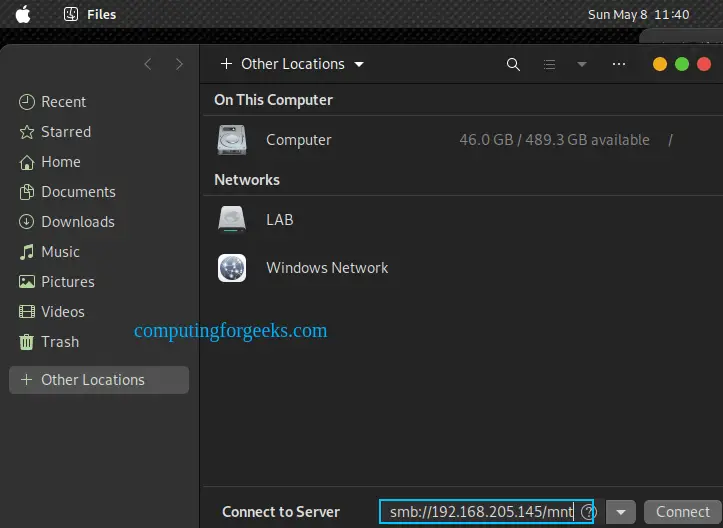
Provide the credentials for the samba user.
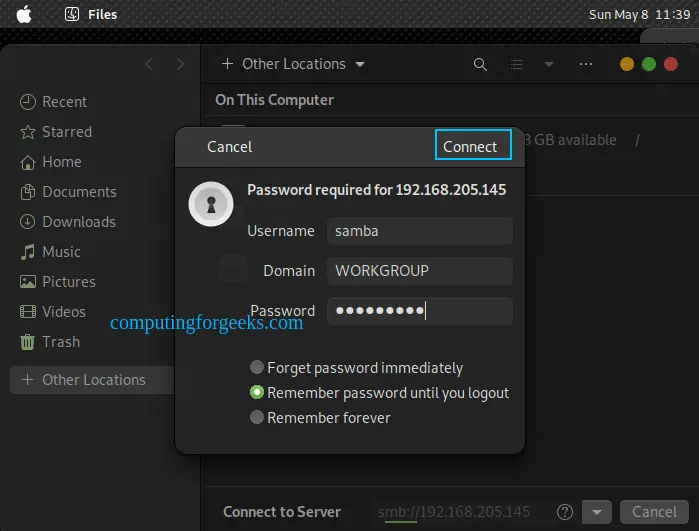
You will be able to access the share as below.

To mount the share, create a mount point.
sudo mkdir /mnt/shareCreate a temporary mount with the command:
$ sudo mount -t cifs -o user=samba //192.168.205.145/mnt /mnt/share
Password for samba@//192.168.205.145/mnt:
Verify this:
$ ls -al /mnt/share/
total 4
drwxr-xr-x 2 root root    0 May  8 04:11 .
drwxr-xr-x 3 root root 4096 May  8 05:20 ..
drwxr-xr-x 2 root root    0 May  8 04:11 samba
To make a permanent mount, edit the Fstab as below.
$ sudo vim /etc/fstab
//192.168.205.145/mnt   /mnt/share  cifs    user=<userName>,pass=<passwd> 0 0
Remember to replace credentials for the samba user and password.
3.3.2. Windows Client.
On Windows systems, access the share by launching the run box with Win+R
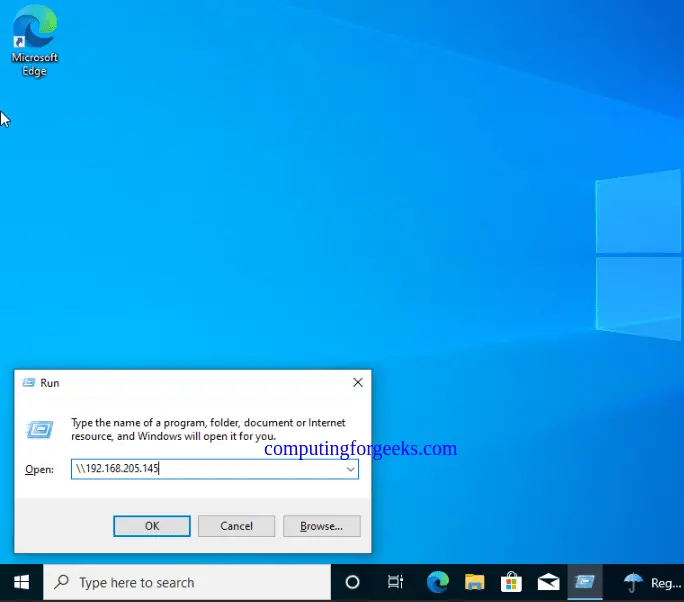
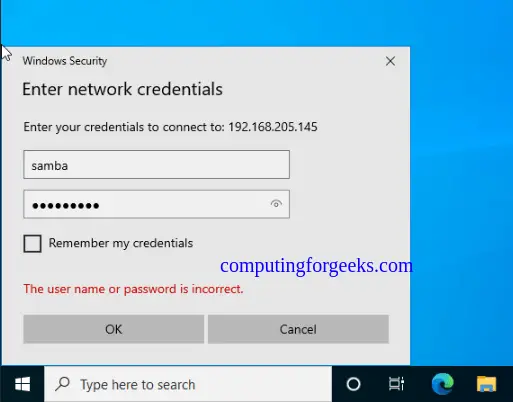
Provide the IP address of the TrueNAS server and click Ok. Provide the credentials for the samba user.
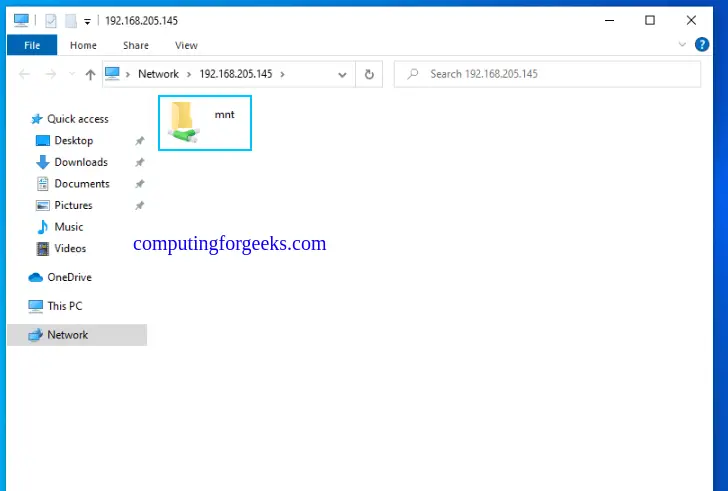
You will be granted access to the share as shown.
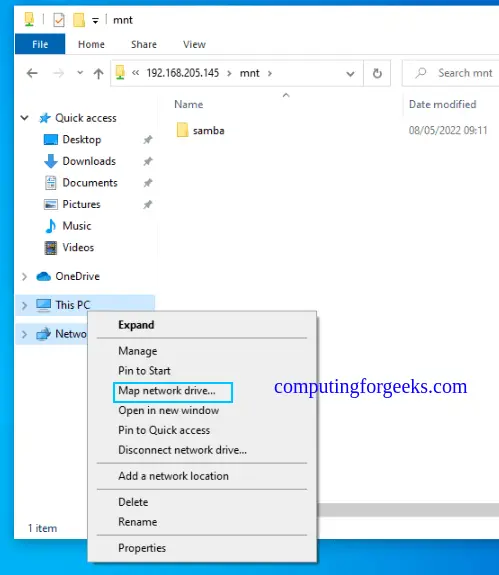
To persist the mount, right-click on This PC and select Map Network Drive.
Provide the path to be mounted as below.
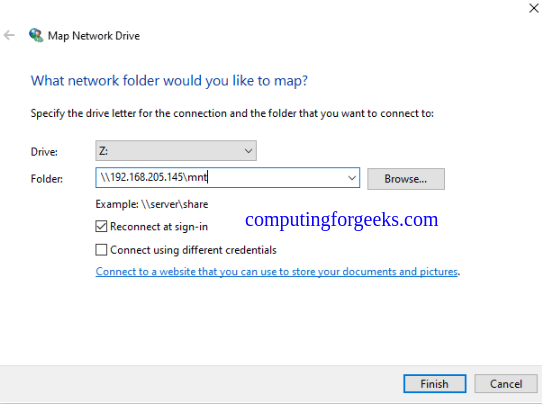
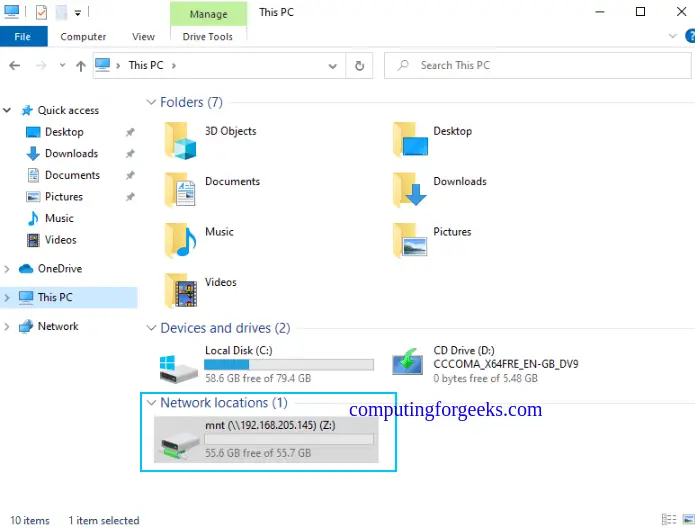
Click Finish and you will have the share mounted as shown.
Verdict.
We have triumphantly walked through how to create and use Samba / NFS / WebDAV Shares on TrueNAS. I hope this was significant. If you find any trouble with this setup, let us know in the comments below.
Related posts.
