Five keystrokes to go from a bare Ubuntu server to a fully configured WordPress site with Nginx, PHP 8.3, MariaDB 11.4, SSL, and Redis caching. That’s what WordOps does. It’s a CLI tool (forked from EasyEngine v3) that automates the entire LEMP stack deployment and ongoing WordPress management through simple terminal commands.
This guide walks through the full setup: installing WordOps, creating a WordPress site with Let’s Encrypt SSL, enabling Redis object caching, and managing the stack. Everything was tested on a fresh Ubuntu 24.04 server and the output you see is real.
Tested March 2026 | WordOps 3.22.0, Ubuntu 24.04 LTS, Nginx 1.28.2, PHP 8.3.30, MariaDB 11.4.10
What WordOps Installs
One command installs a production-grade WordPress stack. Here’s exactly what you get:
| Component | Version (tested) | Details |
|---|---|---|
| Nginx | 1.28.2 (WordOps custom build) | TLS 1.3, HTTP/3 QUIC, Brotli compression |
| PHP-FPM | 8.3.30 | Supports 8.1, 8.2, 8.3, 8.4 |
| MariaDB | 11.4.10 LTS | With mariadb-backup for non-blocking dumps |
| Redis | 7.0 | Full-page and object caching |
| WP-CLI | Latest | WordPress management from the terminal |
| Netdata | Latest | Real-time server monitoring (port 19999) |
| Let’s Encrypt | via acme.sh | Auto-issued and auto-renewed SSL certificates |
Prerequisites
- A fresh Ubuntu 24.04 LTS or 22.04 LTS server (also supports Debian 10/11/12)
- Root or sudo access
- A domain name pointing to the server’s IP (for SSL)
- Ports 80, 443, and 22 open
Install WordOps
The installer is a single script that sets up the WordOps CLI and its Python environment:
wget -qO wo wops.cc && sudo bash woWordOps uses git to version-control server configurations, so configure git before running any wo commands:
sudo git config --global user.name "Your Name"
sudo git config --global user.email "[email protected]"
Verify the installation:
sudo wo --versionYou should see:
WordOps v3.22.0
Copyright (c) 2024 WordOps.
Install the Stack
Install the recommended stack (Nginx, PHP, MariaDB, Redis, Netdata) with a single command:
sudo wo stack installThis takes 2-5 minutes depending on the server. After completion, verify all services are running:
sudo wo stack statusAll four services should show Running:
nginx     :  Running
php8.3-fpm:  Running
mariadb   :  Running
netdata   :  Running
Create a WordPress Site with SSL
Make sure your domain’s DNS A record points to the server, then create the site:
sudo wo site create example.com --wp --letsencrypt=on [email protected]WordOps handles everything: downloads WordPress, creates the database, configures Nginx, obtains the SSL certificate, and sets up HTTPS redirect. The output shows each step:
Setting up NGINX configuration   [Done]
Setting up webroot               [Done]
Downloading WordPress            [Done]
Setting up database              [Done]
Configuring WordPress            [OK]
Installing WordPress             [OK]
Installing plugin nginx-helper   [OK]
Issuing SSL cert with acme.sh    [OK]
Deploying SSL cert               [OK]
Adding HTTPS redirection         [OK]

WordPress admin user : WordOps Admin
WordPress admin password : VoD3xNkOyuaERg4FlU1q7dKW
Successfully Configured SSL on https://example.com
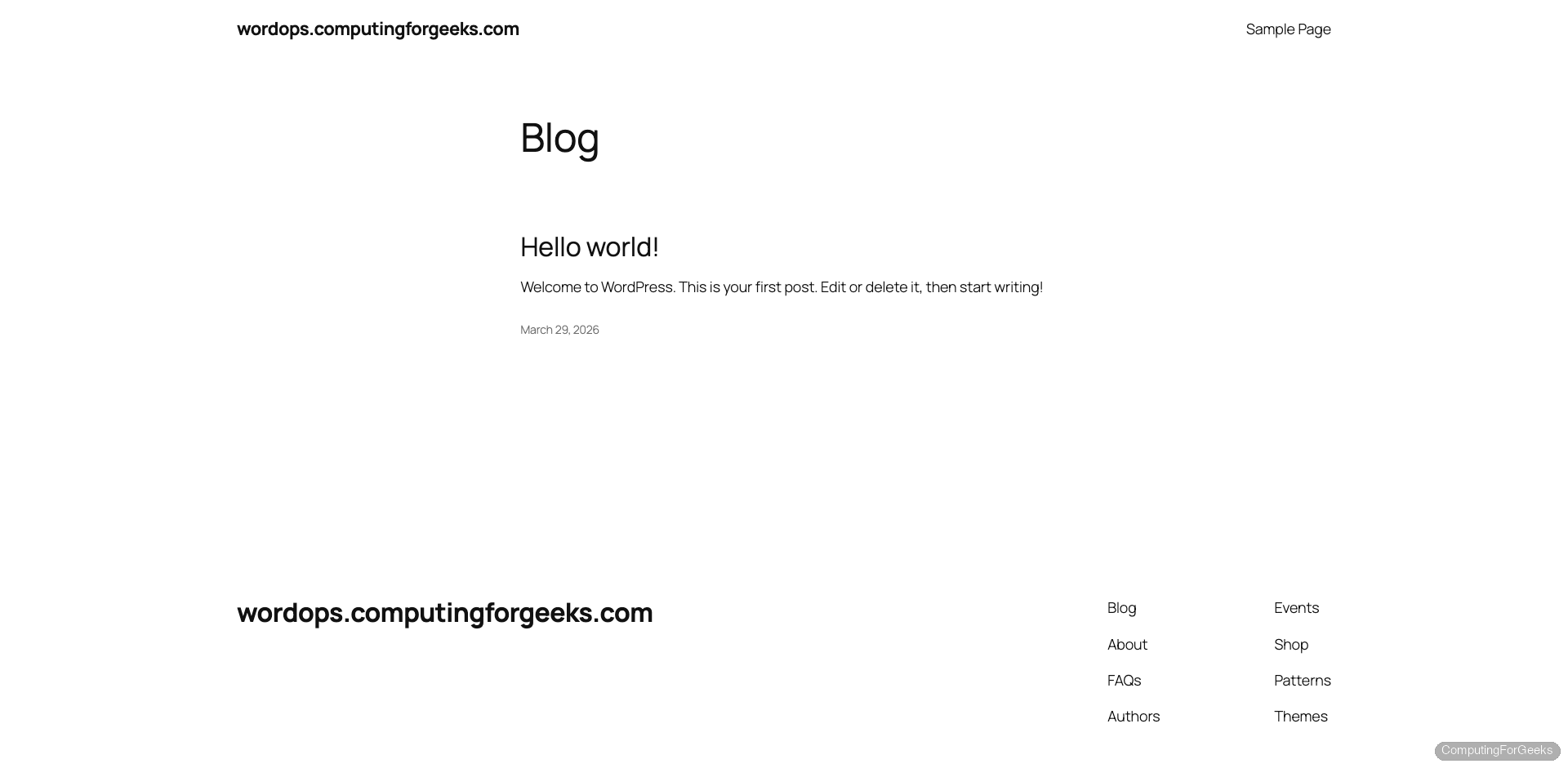
The site is live with HTTPS and HTTP/2:
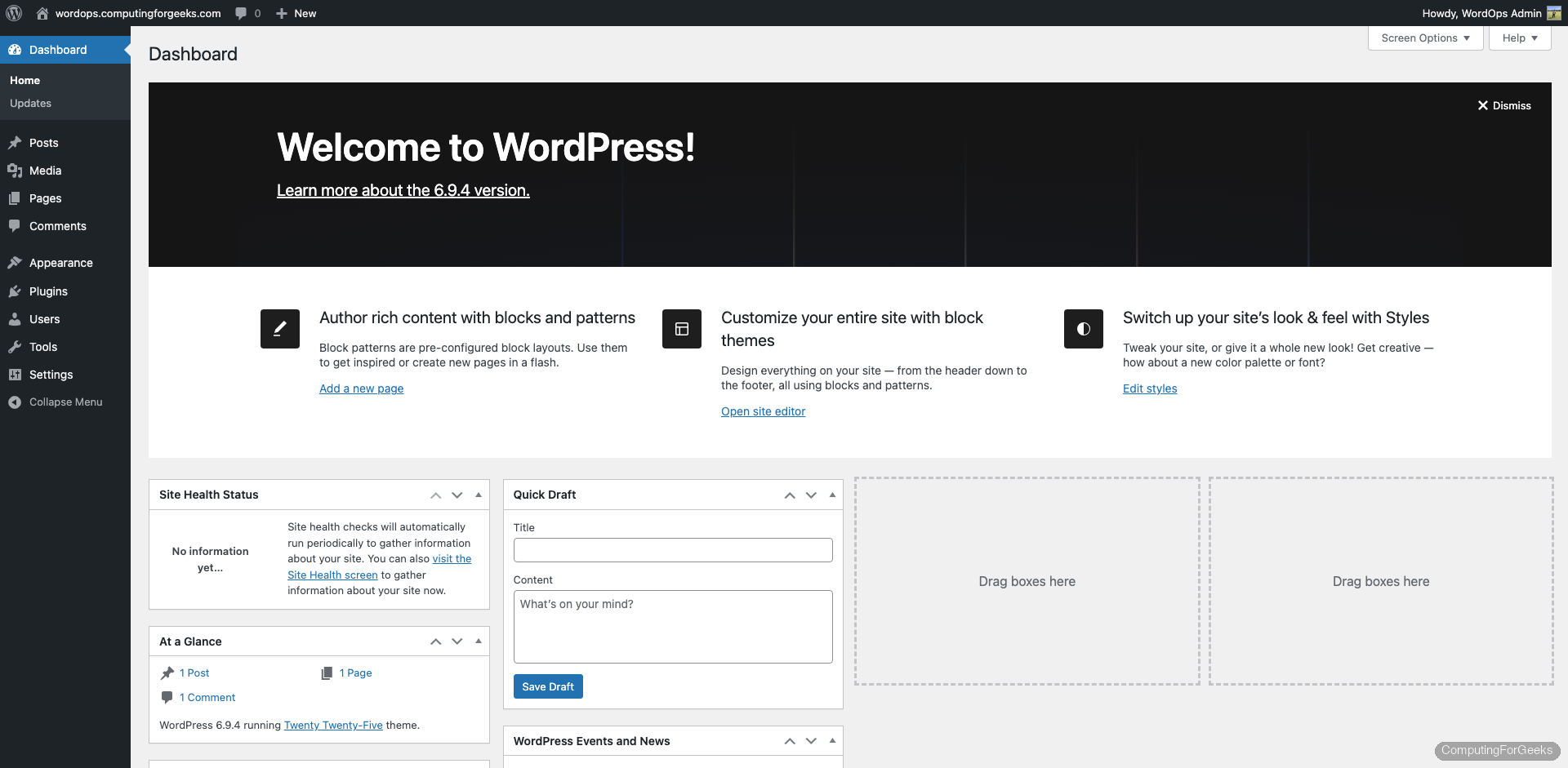
The WordPress dashboard is accessible at https://example.com/wp-admin/:
Enable Redis Object Cache
WordPress makes hundreds of database queries per page load. Redis caches these queries in memory, cutting response times significantly. Enable it with:
sudo wo site update example.com --wpredisWordOps installs Redis, configures the nginx-helper plugin, and sets up the object cache:
Installing APT packages         [OK]
Tuning Redis configuration      [OK]
Restarting redis-server         [OK]
Backup location : /var/www/example.com/backup/29Mar2026-08-37-55
Backing up database             [Done]
Setting up NGINX configuration  [Done]
Setting plugin nginx-helper     [OK]
Object Cache:    Enable
Successfully updated site http://example.com
WordOps automatically backs up the database before making changes. The backup path is printed so you can restore if needed.
Server Monitoring with Netdata
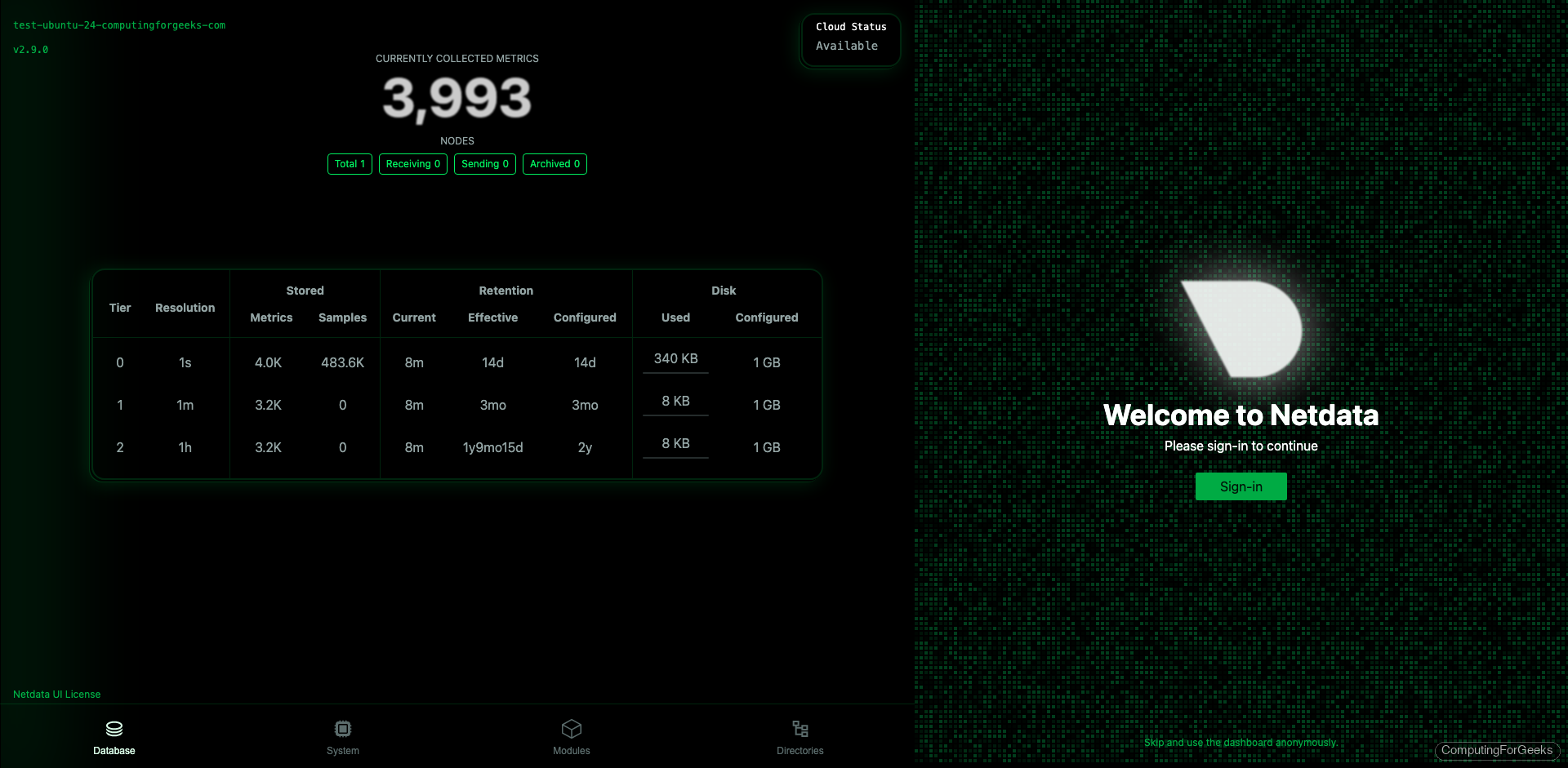
WordOps installs Netdata for real-time server monitoring. Access it at port 19999:
http://10.0.1.50:19999/The dashboard shows CPU, memory, disk I/O, network traffic, Nginx connections, PHP-FPM processes, and MariaDB queries in real time:
WordOps Command Reference
Site Management
| Command | What It Does |
|---|---|
wo site create example.com --wp | Create WordPress site (HTTP only) |
wo site create example.com --wp --letsencrypt=on | WordPress with Let’s Encrypt SSL |
wo site create example.com --wp --wpredis | WordPress with Redis object cache |
wo site create example.com --wpsubdir | WordPress Multisite (subdirectory) |
wo site create example.com --wpsubdomain | WordPress Multisite (subdomain) |
wo site update example.com --wpredis | Add Redis cache to existing site |
wo site update example.com --php83 | Switch site to PHP 8.3 |
wo site info example.com | Show site config, PHP version, SSL, DB credentials |
wo site list | List all managed sites |
wo site delete example.com | Remove site and its config (prompts for DB cleanup) |
wo site enable example.com | Enable a disabled site |
wo site disable example.com | Disable a site (keeps files) |
Stack Management
| Command | What It Does |
|---|---|
wo stack install | Install recommended stack (Nginx, PHP, MariaDB, Netdata) |
wo stack install --redis | Install Redis server |
wo stack install --php84 | Install PHP 8.4 alongside existing version |
wo stack status | Show service status (running/stopped) |
wo stack restart | Restart all services |
wo stack restart --nginx | Restart only Nginx |
wo stack upgrade | Upgrade stack packages |
wo stack remove | Remove stack packages |
SSL and Security
| Command | What It Does |
|---|---|
wo site update example.com -le=on | Add Let’s Encrypt SSL to existing site |
wo site update example.com -le=wildcard | Issue wildcard SSL (requires DNS API) |
wo secure --sshport 2222 | Change SSH port |
wo secure --port 22222 | Change WordOps backend port |
Site Creation Options
WordOps supports several WordPress configurations out of the box. Each flag configures Nginx differently for optimal performance:
# Standard WordPress
sudo wo site create example.com --wp

# WordPress with fastcgi_cache (full-page Nginx caching)
sudo wo site create example.com --wpfc

# WordPress with Redis full-page + object cache
sudo wo site create example.com --wpredis

# WordPress with WP Super Cache plugin
sudo wo site create example.com --wpsc

# WooCommerce-optimized WordPress
sudo wo site create example.com --wp --wpredis

# WordPress with specific PHP version
sudo wo site create example.com --wp --php84
For production sites serving significant traffic, --wpredis gives the best performance because both full-page caching and object caching run from memory instead of disk.
Troubleshooting
Error: “WordOps (wo) require an username”
This happens when git isn’t configured. WordOps uses git to track server configuration changes. Fix it with:
sudo git config --global user.name "Admin"
sudo git config --global user.email "[email protected]"
SSL certificate fails to issue
The domain must resolve to the server’s IP before running the site create command. WordOps uses the webroot challenge, which requires Nginx to serve the ACME challenge file on port 80. Verify DNS resolves correctly with dig example.com and that port 80 is open.
WordOps vs Manual LEMP Stack
| Task | Manual LEMP | WordOps |
|---|---|---|
| Install full stack | 30-60 min (apt, config files, systemd) | wo stack install (5 min) |
| Create WordPress site + SSL | 15-20 min (vhost, DB, WP download, certbot) | One command (2 min) |
| Enable Redis cache | Install Redis, configure plugin, edit wp-config | wo site update --wpredis |
| Switch PHP version | Install new PHP, update vhost, restart | wo site update --php84 |
| Server monitoring | Install and configure Netdata/Prometheus | Included by default |
| SSL renewal | Configure cron for certbot | Auto-managed by acme.sh |
WordOps makes sense when you manage multiple WordPress sites on a single VPS and want consistent configuration without writing Nginx vhosts by hand. For single-site setups or non-WordPress applications, a manual LEMP stack gives you more flexibility. For related WordPress tools, see the WPScan security scanner guide for hardening your WordPress installations. If you need a reverse proxy in front of multiple WordPress sites, the WordPress with Nginx on Ubuntu guide covers the manual approach.