DokuWiki is a lightweight, open-source wiki application written in PHP that stores data in plain text files – no database required. It ships with built-in access controls, over 50 language translations, and a large plugin ecosystem, making it a solid choice for internal documentation, knowledge bases, and project wikis.
This guide walks through installing DokuWiki 2025-05-14b “Librarian” on Rocky Linux 10 / AlmaLinux 10 with Nginx as the web server, PHP-FPM for processing, and a free Let’s Encrypt SSL certificate via Certbot. We also cover SELinux contexts and firewall rules so everything works in a hardened environment.
Prerequisites
- A server running Rocky Linux 10 or AlmaLinux 10 with root or sudo access
- A registered domain name (e.g.
wiki.example.com) with a DNS A record pointing to the server IP - Minimum 1 GB RAM and 1 vCPU
- Ports 80/tcp and 443/tcp open on the firewall
Step 1: Update the System
Start by updating all packages to their latest versions.
sudo dnf -y updateInstall a few utilities needed later in the setup.
sudo dnf -y install vim curl wget tar unzipSet the hostname to match your domain.
sudo hostnamectl set-hostname wiki.example.comStep 2: Install Nginx and PHP-FPM
DokuWiki needs a web server and PHP to run. Install Nginx along with PHP-FPM and the required PHP extensions. If you have worked with a LEMP stack on Rocky Linux before, this will be familiar.
sudo dnf -y install nginx php-fpm php-gd php-xml php-mbstring php-json php-intlVerify the installed PHP version.
$ php --version
PHP 8.3.20 (cli) (built: May 27 2025 00:00:00) (NTS gcc aarch64)
Copyright (c) The PHP Group
Zend Engine v4.3.20, Copyright (c) Zend Technologies
Configure PHP-FPM to run as the nginx user. Open the pool configuration file.
sudo vi /etc/php-fpm.d/www.confFind and update the following directives.
user = nginx
group = nginx
listen = /run/php-fpm/www.sock
listen.owner = nginx
listen.group = nginx
Enable and start both services.
sudo systemctl enable --now nginx php-fpmConfirm they are running.
sudo systemctl status nginx php-fpmStep 3: Download and Install DokuWiki on Rocky Linux 10
Download the latest stable release of DokuWiki from the official download page.
wget https://download.dokuwiki.org/src/dokuwiki/dokuwiki-stable.tgz -O /tmp/dokuwiki-stable.tgzCreate the document root directory and extract the archive into it.
sudo mkdir -p /var/www/dokuwiki
sudo tar xzf /tmp/dokuwiki-stable.tgz --strip-components=1 -C /var/www/dokuwiki/
Set ownership so Nginx can read and write the necessary files.
sudo chown -R nginx:nginx /var/www/dokuwikiVerify that the DokuWiki files are in place.
ls /var/www/dokuwiki/You should see directories like bin, conf, data, inc, lib, and the install.php file.
Step 4: Configure SELinux for DokuWiki
Rocky Linux 10 and AlmaLinux 10 ship with SELinux in enforcing mode by default. Rather than disabling SELinux, set the correct file contexts so DokuWiki can function properly.
sudo semanage fcontext -a -t httpd_sys_rw_content_t "/var/www/dokuwiki/conf(/.*)?"
sudo semanage fcontext -a -t httpd_sys_rw_content_t "/var/www/dokuwiki/data(/.*)?"
sudo semanage fcontext -a -t httpd_sys_rw_content_t "/var/www/dokuwiki/lib/plugins(/.*)?"
sudo semanage fcontext -a -t httpd_sys_rw_content_t "/var/www/dokuwiki/lib/tpl(/.*)?"
sudo restorecon -Rv /var/www/dokuwiki/
Allow Nginx to make network connections (needed for plugins that fetch remote data).
sudo setsebool -P httpd_can_network_connect onIf the semanage command is not found, install the policycoreutils-python-utils package first.
sudo dnf -y install policycoreutils-python-utilsStep 5: Configure Nginx for DokuWiki
Create an Nginx server block for DokuWiki.
sudo vi /etc/nginx/conf.d/dokuwiki.confAdd the following configuration. Replace wiki.example.com with your actual domain.
server {
    listen 80;
    server_name wiki.example.com;
    root /var/www/dokuwiki;
    index doku.php;

    client_max_body_size 20M;

    location / {
        try_files $uri $uri/ @dokuwiki;
    }

    location @dokuwiki {
        rewrite ^/_media/(.*) /lib/exe/fetch.php?media=$1 last;
        rewrite ^/_detail/(.*) /lib/exe/detail.php?media=$1 last;
        rewrite ^/_export/([^/]+)/(.*) /doku.php?do=export_$1&id=$2 last;
        rewrite ^/(.*) /doku.php?id=$1&$args last;
    }

    location ~ \.php$ {
        fastcgi_pass unix:/run/php-fpm/www.sock;
        fastcgi_param SCRIPT_FILENAME $document_root$fastcgi_script_name;
        include fastcgi_params;
    }

    # Deny access to sensitive directories
    location ~ /(data|conf|bin|inc|vendor)/ {
        deny all;
    }

    # Deny access to hidden files
    location ~ /\.ht {
        deny all;
    }
}
Test the Nginx configuration for syntax errors.
sudo nginx -tExpected output:
nginx: the configuration file /etc/nginx/nginx.conf syntax is ok
nginx: configuration file /etc/nginx/nginx.conf test is successful
Reload Nginx to apply the new configuration.
sudo systemctl reload nginxStep 6: Configure the Firewall
Open ports 80 (HTTP) and 443 (HTTPS) in firewalld.
sudo firewall-cmd --permanent --add-service=http
sudo firewall-cmd --permanent --add-service=https
sudo firewall-cmd --reload
Verify the rules are active.
sudo firewall-cmd --list-servicesYou should see http and https in the output.
Step 7: Run the DokuWiki Web Installer
Open your browser and navigate to http://wiki.example.com/install.php. The DokuWiki installer page loads where you configure the wiki name, superuser account, and ACL policy.
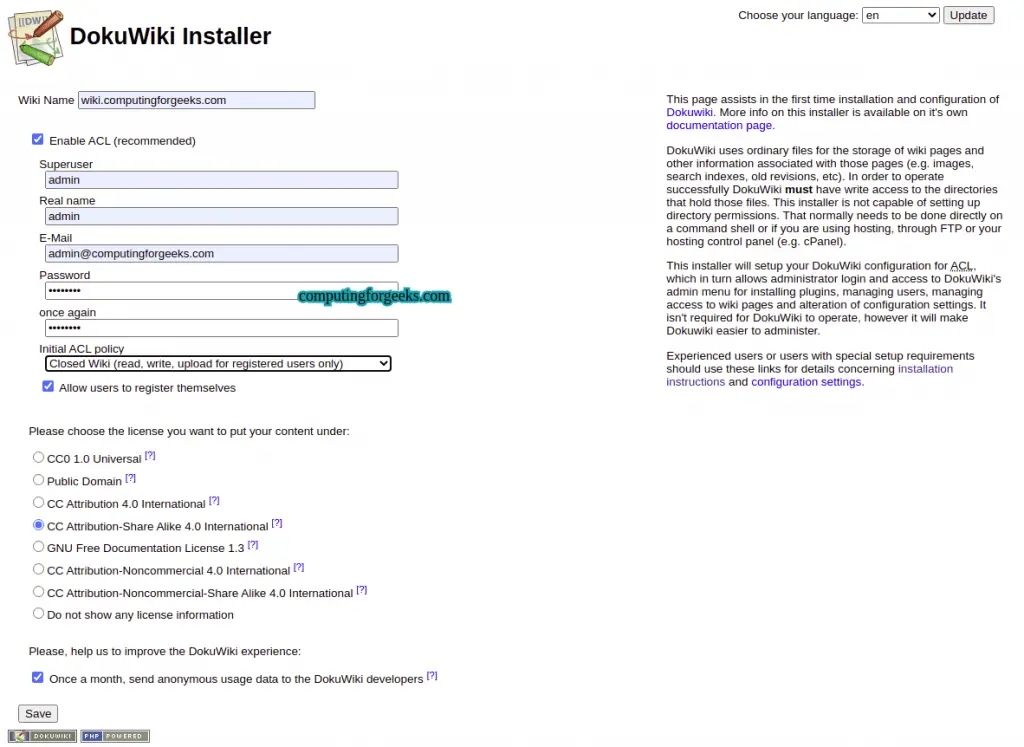
Fill in the following fields:
- Wiki Name – the title of your wiki
- Superuser – the admin username, email, and password
- Initial ACL Policy – choose based on your needs:
- Open Wiki – everyone can read and edit
- Public Wiki – everyone reads, only registered users edit
- Closed Wiki – only registered users can access
Click Save to complete the initial setup. The installer confirms that DokuWiki is ready.
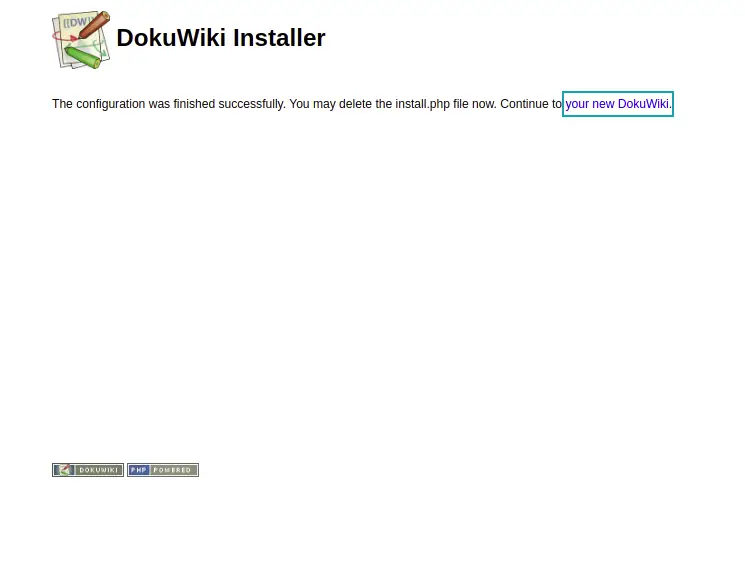
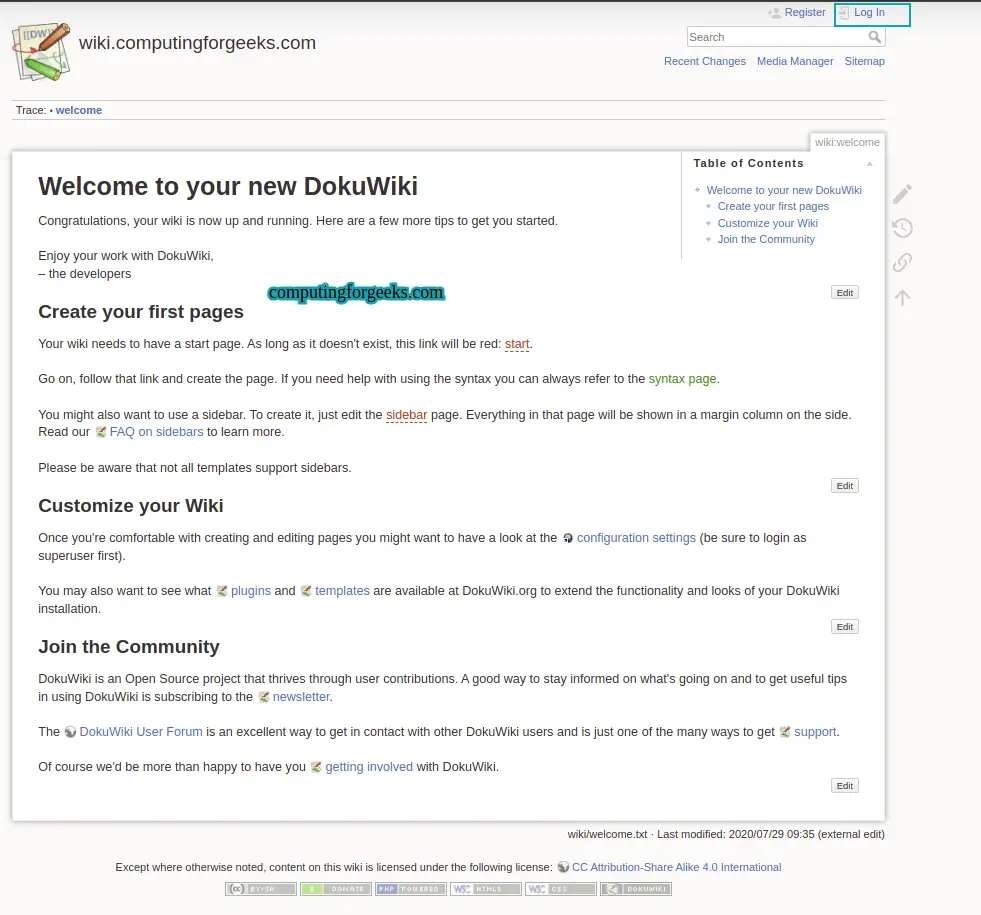
Click your new DokuWiki to reach the homepage, then log in with the superuser credentials you just created.
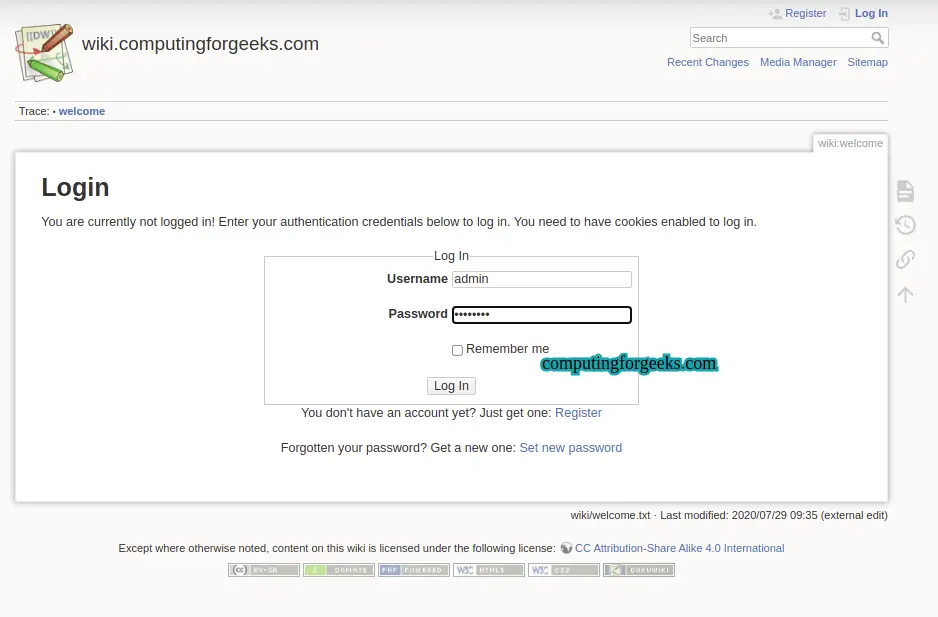
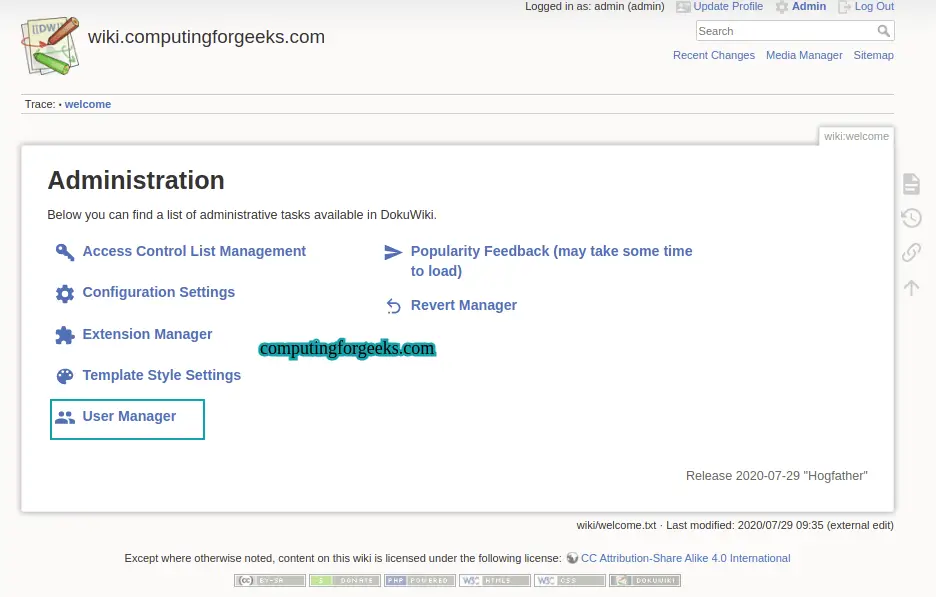
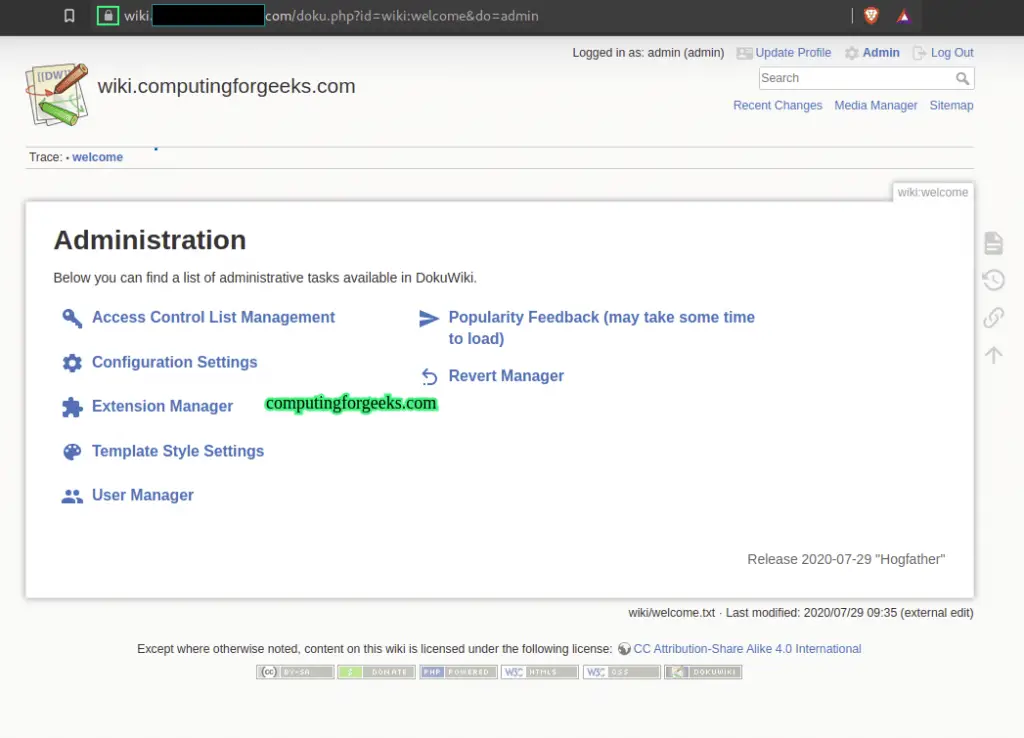
After logging in, the admin panel gives access to User Manager, Access Control Lists, plugin management, and site configuration.
Once the web installer finishes, remove the install.php file for security.
sudo rm /var/www/dokuwiki/install.phpStep 8: Secure DokuWiki with Let’s Encrypt SSL
Install Certbot and the Nginx plugin to obtain a free Let’s Encrypt SSL certificate. Make sure the EPEL repository is enabled first.
sudo dnf -y install epel-release
sudo dnf -y install certbot python3-certbot-nginx
Request the certificate for your domain. Certbot automatically configures Nginx to use SSL and sets up HTTP-to-HTTPS redirection.
sudo certbot --nginx -d wiki.example.comFollow the prompts to provide your email address, agree to the terms of service, and select whether to redirect HTTP to HTTPS (recommended). Successful output looks like this:
Successfully received certificate.
Certificate is saved at: /etc/letsencrypt/live/wiki.example.com/fullchain.pem
Key is saved at:         /etc/letsencrypt/live/wiki.example.com/privkey.pem
This certificate expires on 2026-06-19.
Certbot has set up a scheduled task to automatically renew this certificate in the background.

Deploying certificate
Successfully deployed certificate for wiki.example.com to /etc/nginx/conf.d/dokuwiki.conf
Verify that automatic renewal works.
sudo certbot renew --dry-runCertbot installs a systemd timer that handles renewal automatically. Confirm it is active.
sudo systemctl list-timers certbot*Now access DokuWiki at https://wiki.example.com and confirm the padlock icon appears in the browser address bar.
Conclusion
DokuWiki is now running on Rocky Linux 10 / AlmaLinux 10 behind Nginx with PHP-FPM and secured with a Let’s Encrypt SSL certificate. The setup uses proper SELinux contexts instead of permissive mode, and firewalld is configured to allow only HTTP and HTTPS traffic.
For production use, set up regular backups of the /var/www/dokuwiki/data directory (which holds all wiki content), enable fail2ban to protect the login page, and consider placing Nginx behind a reverse proxy with rate limiting if the wiki is public-facing. If you are running other applications on the same server, you may want to look at DokuWiki on Ubuntu for Debian-based deployments.