

Samba is the open-source SMB/CIFS implementation that turns a Linux box into a file server Windows, macOS, and other Linux clients can all mount natively. On Debian, it takes one apt install, a few lines of smb.conf, a dedicated Samba user, and a firewall rule. Twenty minutes from a freshly-provisioned Debian server to a working share that survives reboots.
This guide walks through a production-oriented Samba file server on Debian 13 (trixie). The same commands run cleanly on Debian 12 (bookworm), and the notes at the end cover the tiny differences on Ubuntu 26.04 and Ubuntu 24.04 if you are coming from an Ubuntu background. We focus on authenticated shares backed by the sambashare system group, because guest-only shares are almost always the wrong default outside a home lab.
Tested April 2026 on Debian 13.1 (trixie) with Samba 4.x and UFW 0.36 backed by nftables. Same flow verified on Debian 12 (bookworm).
If you are coming from Ubuntu, the matching refresh is Install and Configure Samba on Ubuntu 26.04. For RHEL-based distros, see Samba on AlmaLinux / Oracle Linux. If you need an NFS alternative instead, the NFS server on Debian guide covers the Unix-native path.
Prerequisites
- A Debian 13 (trixie) or Debian 12 (bookworm) server with root or sudo access. A fresh Debian install works; so does any $6/month DigitalOcean droplet with 1 GB RAM. Storage scales with what you plan to share.
- Network reachability from the clients that will mount the share. SMB traffic uses TCP 445 (and 139 for the legacy NetBIOS path) plus UDP 137 and 138 for name resolution.
- A non-root user or sudo rights for everything below. All commands assume you are root; prefix with
sudootherwise. - Tested on: Debian 13.1 (kernel 6.12), Samba 4.22.8, cifs-utils 7.4, UFW 0.36.
Step 1: Set reusable shell variables
Every command below uses shell variables so you change one block and paste the rest as-is. Export them once at the top of your SSH session:
export SHARE_NAME="shared"
export SHARE_DIR="/srv/samba/${SHARE_NAME}"
export SAMBA_USER="sambauser"
export SAMBA_PASS="Samba#Cfg2026"
export LAN_SUBNET="192.168.1.0/24"
Swap the values for your real share name, user, password, and LAN range, then sanity-check the variables before running anything destructive:
echo "Share name: ${SHARE_NAME}"
echo "Share dir:  ${SHARE_DIR}"
echo "Samba user: ${SAMBA_USER}"
echo "LAN subnet: ${LAN_SUBNET}"
These variables only hold for the current shell session. Re-export them if you reconnect or jump into a new root shell.
Step 2: Install Samba on Debian
Debian ships Samba in the main repo, so no third-party source is needed. Refresh the package index and pull in the server plus the two client utilities you will use for testing:
apt update
apt install -y samba smbclient cifs-utils
Confirm the Samba daemon version so you know what you are configuring against:
smbd --versionThe release matches the Debian security channel:
Version 4.22.8-Debian-4.22.8+dfsg-0+deb13u1The install creates a sambashare system group. That group is the linchpin of the permission model below, so resist the urge to skip it in favour of chmod 777 on the share directory.
Samba ships two enabled-by-default units: smbd (file/print sharing) and nmbd (NetBIOS name resolution). Both start automatically after install:
systemctl status smbd nmbd --no-pager | head -10If either shows inactive, start them now and move on:
systemctl enable --now smbd nmbdWith the daemon running and enabled at boot, you are ready to lay down the share directory and its permission model.
Step 3: Create the shared directory
Create the directory under /srv/samba so it lives on the system partition and is easy to back up. Any path works, but keeping shares under a single parent makes snapshot and backup rules simpler later on.
mkdir -p "${SHARE_DIR}"
chown -R root:sambashare "${SHARE_DIR}"
chmod 2775 "${SHARE_DIR}"
Two small things matter here. The sambashare group ownership means any user you later add to that group automatically gets write access. The 2 in front of 775 is the setgid bit: every file or folder created inside /srv/samba/shared inherits the sambashare group, which stops permission drift the first time a user drops a file through a mount.
Verify the directory permissions:
ls -ld "${SHARE_DIR}"Output shows the setgid bit as an s in the group column:
drwxrwsr-x 2 root sambashare 4096 Apr 18 20:09 /srv/samba/sharedWith the directory in place, the next step is telling Samba about it through smb.conf.
Step 4: Add the share to smb.conf
Back up the default smb.conf before editing it. Even though the default is regenerated by the package, keeping a timestamped copy is the cheapest insurance policy around:
cp /etc/samba/smb.conf "/etc/samba/smb.conf.bak.$(date +%s)"Open the config with your editor of choice:
nano /etc/samba/smb.confScroll to the bottom and append the share stanza. Replace shared and the path with whatever your SHARE_NAME and SHARE_DIR hold if you changed the variables in Step 1:
[shared]
   comment = Debian Samba Share
   path = /srv/samba/shared
   browseable = yes
   read only = no
   guest ok = no
   create mask = 0664
   directory mask = 2775
   valid users = @sambashare
The valid users = @sambashare line is the access control. Only users in the sambashare group can list, read, or write the share. Dropping that line is how homelabs accidentally expose shares to every authenticated user on the server.
Save and close the editor. The config is inert until we add a user, so the share is defined but still unreachable from the outside.
Step 5: Create a Samba user
Samba keeps its own password database separate from /etc/shadow. Each Samba login maps to a real Unix user, but the password can be different. For a file-server-only account, it is good practice to give the Unix side no login shell so nobody can SSH in with it.
Create the system user, set its shell to nologin, and add it to sambashare:
useradd -M -s /usr/sbin/nologin -G sambashare "${SAMBA_USER}"
id "${SAMBA_USER}"
Confirm the user picked up the secondary group:
uid=1052(sambauser) gid=1053(sambauser) groups=1053(sambauser),988(sambashare)Now set the Samba password. The interactive smbpasswd -a prompts twice, which is awkward to script, so feed the password through printf and pipe it to sudo smbpasswd. printf sidesteps the bash subshell pattern, which breaks the moment a reader prefixes the line with sudo (sudo (echo ...; echo ...) is a syntax error):
printf '%s\n%s\n' "${SAMBA_PASS}" "${SAMBA_PASS}" | sudo smbpasswd -s -a "${SAMBA_USER}"The command returns a simple confirmation:
Added user sambauser.Enumerate the Samba user database to sanity-check:
pdbedit -LYou should see one line per Samba user, listed as username:uid:fullname.
Need a dedicated service account for a particular client? Pick a descriptive Unix name, repeat the useradd + smbpasswd dance, and add it to sambashare. A shared team account with its password sitting in a team password manager like 1Password or Bitwarden is the least-worst option if multiple humans genuinely need the same login.
Step 6: Validate the config with testparm
testparm reads smb.conf, applies the parser that smbd itself uses, and prints the effective configuration. It catches syntax errors and deprecated directives in a single pass, which saves you from finding them later via failed service restarts.
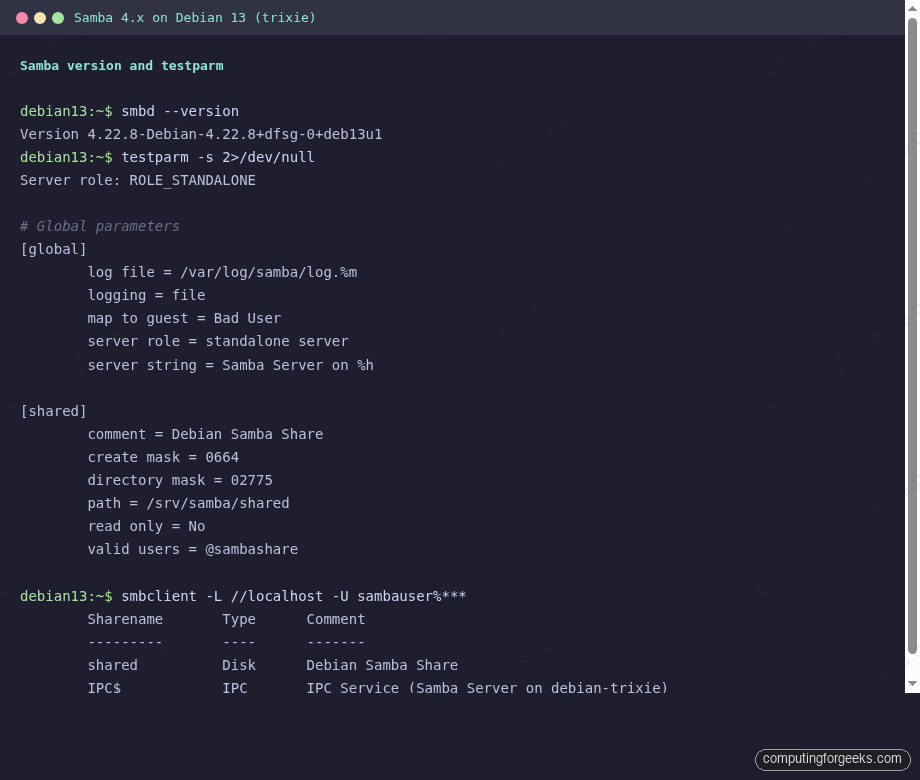
testparm -sOn a healthy config the output opens with Loaded services file OK. and ends with a clean dump of each share:
Loaded services file OK.
Weak crypto is allowed by GnuTLS (e.g. NTLM as a compatibility fallback)

Server role: ROLE_STANDALONE

# Global parameters
[global]
        log file = /var/log/samba/log.%m
        logging = file
        map to guest = Bad User
        max log size = 1000
        server role = standalone server
        server string = Samba Server on %h

[shared]
        comment = Debian Samba Share
        create mask = 0664
        directory mask = 02775
        path = /srv/samba/shared
        read only = No
        valid users = @sambashare
If testparm complains about a specific line, fix it before moving on. The common culprits are stray tabs in indentation, a missing closing bracket on the share name, or a typo in a directive (for example readonly with no space).
Step 7: Restart Samba and verify over loopback
Restart both daemons so the new share becomes live:
systemctl restart smbd nmbd
systemctl status smbd --no-pager | head -6
The unit should report active and list the smbd PID:
● smbd.service - Samba SMB Daemon
     Loaded: loaded (/usr/lib/systemd/system/smbd.service; enabled; preset: enabled)
     Active: active (running) since Sat 2026-04-18 20:10:52 EAT; 8ms ago
       Docs: man:smbd(8)
             man:samba(7)
             man:smb.conf(5)
   Main PID: 15817 (smbd)
With the daemon running, use smbclient -L to enumerate shares as the Samba user. This talks to the server over the local loopback, which means the firewall is not yet in the picture:
smbclient -L //localhost -U "${SAMBA_USER}%${SAMBA_PASS}"The response lists the new share plus the built-in IPC channel:
        Sharename       Type      Comment
        ---------       ----      -------
        shared          Disk      Debian Samba Share
        IPC$            IPC       IPC Service (Samba Server on debian-trixie)
SMB1 disabled -- no workgroup available
The SMB1 disabled line is a good thing. Modern Samba no longer speaks SMB1 by default because of known security weaknesses. Only enable it if you still have Windows XP or Windows Server 2003 on the network, and even then, retire those hosts instead.
The screenshot below captures the two key verification steps on the test server: testparm -s parsing the config cleanly, and smbclient -L returning the configured share.
Now mount the share via the kernel CIFS client to confirm read/write works end to end:
mkdir -p /mnt/sambatest
mount -t cifs "//localhost/${SHARE_NAME}" /mnt/sambatest \
  -o "user=${SAMBA_USER},pass=${SAMBA_PASS},vers=3.0"
mount | grep sambatest
The kernel prints the CIFS mount line with all negotiated options:
//localhost/shared on /mnt/sambatest type cifs (rw,relatime,vers=3.0,cache=strict,upcall_target=app,username=sambauser,uid=0,noforceuid,gid=0,noforcegid,addr=::1,file_mode=0755,dir_mode=0755,soft,nounix,serverino,mapposix,reparse=nfs,rsize=4194304,wsize=4194304,bsize=1048576)Write a file through the mount and read it back from the underlying filesystem to prove both sides agree:
echo "hello from cifs mount" > /mnt/sambatest/hello.txt
cat /mnt/sambatest/hello.txt
ls -la "${SHARE_DIR}"
The file shows up on the underlying share directory with sambauser:sambashare ownership, which is exactly what the setgid bit promised:
hello from cifs mount
total 12
drwxrwsr-x 2 root      sambashare 4096 Apr 18 20:11 .
drwxr-xr-x 5 root      root       4096 Apr 18 20:09 ..
-rw-rw-r-- 1 sambauser sambashare   22 Apr 18 20:11 hello.txt
Unmount the loopback test before moving on so the next test uses a real network path:
umount /mnt/sambatestThe server itself is happy. The firewall is what stands between the share and every other host on your LAN.
Step 8: Open the firewall
The loopback test worked because no firewall sits between smbclient and smbd on the same host. As soon as another machine tries to mount the share, Debian’s firewall has to allow the Samba ports. UFW ships a ready-made application profile called Samba that covers all four ports at once.
List the ports UFW will open:
ufw app info SambaThe profile covers the full SMB/CIFS + NetBIOS port set:
Profile: Samba
Title: LanManager-like file and printer server for Unix
Description: The Samba software suite is a collection of programs that
implements the SMB/CIFS protocol for unix systems, allowing you to serve
files and printers to Windows, NT, OS/2 and DOS clients.

Ports:
  137,138/udp
  139,445/tcp
Allow the profile only from your trusted LAN subnet. Exposing Samba to the public internet is almost always wrong, which is why the rule is scoped:
ufw allow from "${LAN_SUBNET}" to any app Samba
ufw status verbose | head -20
The new rule appears in the list:
Status: active
...
To                         Action      From
--                         ------      ----
Samba                      ALLOW IN    192.168.1.0/24
If UFW is not enabled yet, run ufw enable first. And if SSH is how you reach the box, add an ufw allow 22/tcp before enabling UFW so you do not lock yourself out.
Prefer raw nftables over UFW? Debian 13 uses nftables as the in-kernel backend regardless of which front-end you pick. The equivalent ruleset lives in /etc/nftables.conf:
table inet filter {
  chain input {
    type filter hook input priority 0; policy drop;
    iif "lo" accept
    ct state established,related accept

    ip saddr 192.168.1.0/24 tcp dport { 139, 445 } accept
    ip saddr 192.168.1.0/24 udp dport { 137, 138 } accept
  }
}
Apply and persist the config with:
nft -f /etc/nftables.conf
systemctl enable --now nftables.service
The broader firewall configuration guide for Debian walks through the full nftables and firewalld options side by side if you want more context.
Step 9: Mount the share from another host
Now that the firewall is open, mount the share from any other Linux host on the LAN. Install cifs-utils on the client if it is not already there:
apt install -y cifs-utilsCreate a credentials directory first so the file lands with restrictive permissions from the start:
install -d -m 0700 /root/.sambaNow write the credentials file. Open /root/.samba/shared.creds in your editor and add two lines with the Samba username and password:
username=sambauser
password=Samba#Cfg2026
Tighten the file permissions so only root can read the password:
chmod 600 /root/.samba/shared.credsMount using the credentials file:
SERVER_IP=10.0.1.50
mkdir -p /mnt/samba-shared
mount -t cifs "//${SERVER_IP}/${SHARE_NAME}" /mnt/samba-shared \
  -o credentials=/root/.samba/shared.creds,vers=3.0,uid=1000,gid=1000
ls /mnt/samba-shared
For permanent mounts that survive reboot, add a line to /etc/fstab:
//10.0.1.50/shared /mnt/samba-shared cifs credentials=/root/.samba/shared.creds,vers=3.0,uid=1000,gid=1000,_netdev 0 0The _netdev flag tells systemd to wait for the network before mounting. Without it, boot-time mounts race the network stack and fail about half the time.
Step 10: Connect from Windows and macOS
From Windows, open File Explorer, type \\10.0.1.50\shared into the address bar, then enter the Samba username and password when prompted. To make the mapping permanent, right-click “This PC” and pick “Map network drive”. Tick “Connect using different credentials” if the Samba username differs from your Windows login.
From macOS, open Finder and press Cmd+K, type smb://10.0.1.50/shared, and enter the Samba credentials. macOS remembers the mapping in Keychain once you check the box.
If you only need to hit the share from your laptop occasionally and your Samba server is not on the same physical LAN, putting everything behind a Tailscale mesh gives you private SMB access from anywhere without exposing port 445 to the public internet.
Troubleshooting
Three issues catch people the first time they spin up Samba on Debian. All three have surfaced in real production incidents on this site.
NT_STATUS_LOGON_FAILURE when mounting from another host
The system user exists but the Samba password database does not have a matching entry, or the Unix user is not in sambashare. Re-run both:
sudo pdbedit -L | grep "${SAMBA_USER}"
sudo usermod -aG sambashare "${SAMBA_USER}"
printf '%s\n%s\n' "${SAMBA_PASS}" "${SAMBA_PASS}" | sudo smbpasswd -s -a "${SAMBA_USER}"
If the user shows in pdbedit -L but the password still fails, double-check that smb.conf references @sambashare in valid users and that the Unix user actually belongs to it (id ${SAMBA_USER}).
mount.cifs: Connection timed out
The client can reach the server’s IP but the Samba ports are closed. Test from the client:
nc -zv 10.0.1.50 445A timeout means the firewall is dropping traffic. Re-run the UFW rule scoped to the client’s subnet, or check nft list ruleset if you are on pure nftables. A “Connection refused” means Samba itself is not listening. Confirm with ss -tlnp | grep 445 on the server.
Files written through the share end up root-owned
The setgid bit on /srv/samba/shared fell off, or someone created a subdirectory without chmod 2775. Reset recursively:
chown -R root:sambashare "${SHARE_DIR}"
find "${SHARE_DIR}" -type d -exec chmod 2775 {} \;
find "${SHARE_DIR}" -type f -exec chmod 0664 {} \;
Also check create mask and directory mask in the share stanza. If someone lowered them to 0600 or 0700, new files stop being group-writeable and the problem comes back.
AppArmor blocking a non-standard share path
Debian 13 ships an AppArmor profile for smbd. The default profile covers /srv/samba/ and /home/. If you point a share at an unusual path such as /data/nas, AppArmor denies access even though Unix permissions look correct. Check the logs first:
journalctl -k | grep -i 'apparmor.*smbd' | tail -5If there are matching denials, add the path to /etc/apparmor.d/local/usr.sbin.smbd and reload the profile:
echo '  /data/nas/** rwk,' >> /etc/apparmor.d/local/usr.sbin.smbd
apparmor_parser -r /etc/apparmor.d/usr.sbin.smbd
Re-run the failing mount after the reload. If journalctl still shows denials, widen the glob or add a sibling path for log directories.
Notes for Debian 12, Ubuntu 26.04, and Ubuntu 24.04
The flow above works unchanged on Debian 12 (bookworm) because Samba 4.x is the shipping version on both releases. The only visible difference is the package version string in smbd --version and the kernel version in uname -r.
On Ubuntu 26.04 and Ubuntu 24.04, every command here runs as-is. Ubuntu also ships samba, smbclient, and cifs-utils in main, and UFW’s Samba app profile is identical. If you prefer iptables-persistent over UFW on Ubuntu, the manual nftables ruleset above works there too. The matching article for an Ubuntu-only reader is the Ubuntu 26.04 Samba guide.
Running a hardened box on a small cloud provider instead of on-prem? Hetzner Cloud CPX11 instances ($4.50/month, 40 GB SSD) handle a small-team Samba server comfortably if you only need a few GB of shared storage and you keep the firewall rule tight.
Next steps
A working authenticated share on a single host is the baseline. Common follow-ups are: adding per-user private shares on top of the group share, pointing Time Machine at a Samba share for macOS backups (fruit: directives and a dedicated .TMBackup share), wiring Samba to Active Directory with winbind if you run a hybrid environment, or swapping the backing filesystem for ZFS so you get snapshots and scrub reporting for free. Most of those build directly on the share and user model you configured above.
For a full Debian 13 server bring-up, the initial setup checklist covers the other hardening pieces (SSH keys, unattended-upgrades, fail2ban) that pair naturally with an internet-facing file server.
Need a Samba server, Active Directory integration, or migration off Windows file servers done right the first time? The ComputingForGeeks team deploys and supports file-sharing infrastructure for teams in AWS, GCP, Hetzner, and on-prem. Reach us at [email protected].



This was super helpful but I’m running into a problem when trying to create or edit files from the windows file explorer. I followed your guide up to that point and had no problems, but when I try to log in to the /private folder from windows I get:
“\\192.168.1.5\private is not accessible. You might not have permission to use this network resource.”
I can map the network location and open files inside, but any time I try to edit them or create a new file I get permissions errors.
Here’s my permissions settings for my shared folders:
drwxrwsr-x 2 root smbshare 4096 May 19 09:20 public
drwxrws— 2 root smbshare 4096 May 19 08:45 private
Ok I think it’s working now. I had to run these commands:
sudo chown -R my_username /public
chmod -R a+w /public
sudo systemctl restart nmbd
Now when I map the network drive in windows (\\192.168.1.5\public) I have write privileges.
Starting here:
Now edit the Samba conf and add the two directories.
sudo vim /etc/samba/smb.conf
At the end of the file, add the shares and authentication methods to access it.
I have no idea as to what directory or where in the directory tree to put these /public and /private directories.
The instructions on the linux side worked flawlessly for me on Raspberry Pi OS:
# lsb_release -a
No LSB modules are available.
Distributor ID: Raspbian
Description: Raspbian GNU/Linux 11 (bullseye)
Release: 11
Codename: bullseye
I have an old embroidery machine that mounts as a DOS disk via USB and that’s the only way to transfer files to the machine for sewing / embroidery. Using a Raspberry Pi and a wifi dongle, I was able to create a samba share using these instructions and then mount that share on my remote MacOS MacBook Pro. I can now create the files on the MacBook and transmit them over to the rPi using samba. I could not get the DOS disk to directly work as the share, so there is still an intermediary step of having to copy them from the rPi storage to the mounted embroidery machine, but that is really easy-peasy compared to having to bring the laptop over to the machine, plug it in via USB, etc. Thank you!
Happy to hear such good feedback on working installations. Thanks!
This is a really great guide, thanks so much for posting it!
Thank you.
I’m running into this error when trying to set the password
“sudo (echo “${SAMBA_PASS}”; echo “${SAMBA_PASS}”) | smbpasswd -s -a “${SAMBA_USER}”
-bash: syntax error near unexpected token `echo’
Not sure what the problem is in this case.
Bash cannot parse “sudo (subshell)” because “(” is not a command argument. Either run the whole step as root (sudo -i) or move sudo to the right side of the pipe:
(echo “${SAMBA_PASS}”; echo “${SAMBA_PASS}”) | sudo smbpasswd -s -a “${SAMBA_USER}”
Or cleaner with printf:
printf ‘%s\n%s\n’ “${SAMBA_PASS}” “${SAMBA_PASS}” | sudo smbpasswd -s -a “${SAMBA_USER}”
Tested on Debian 13. Article updated to use the printf form.