Bareos (Backup Archiving Recovery Open Sourced) is a network backup solution that handles backup, recovery, and verification of data across multiple systems. It is an actively maintained fork of Bacula 5.2 with a modular architecture – Director, Storage Daemon, File Daemon, and a PostgreSQL catalog – that scales from single-server setups to large enterprise environments.
This guide walks through installing Bareos backup on Debian 13 (Trixie) and Debian 12 (Bookworm). We cover adding the Bareos repository, installing all core daemons with a PostgreSQL catalog backend, configuring Director/Storage/FileDaemon, running backup and restore jobs from bconsole, setting up Bareos WebUI behind Nginx, and opening the required firewall ports.
Prerequisites
- A server running Debian 13 or Debian 12 with root or sudo access
- At least 2 GB RAM and 20 GB free disk space for backup storage
- A static IP address or resolvable hostname
- TCP ports 9101-9103 open for Bareos daemons
- Port 80/443 open if setting up Bareos WebUI
Bareos Architecture Overview
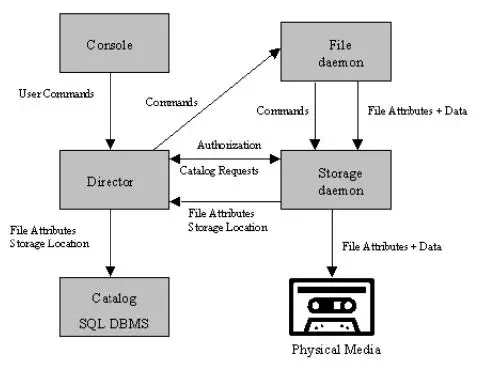
Bareos consists of several interacting components:
- Bareos Director (bareos-dir) – the central daemon that schedules and controls all backup, restore, and verify jobs
- Bareos Storage Daemon (bareos-sd) – manages the physical storage media (disk volumes, tape devices) where backup data is written
- Bareos File Daemon (bareos-fd) – runs on each client machine, reads files requested by the Director, and sends them to the Storage Daemon
- Bareos Console (bconsole) – command-line interface for interacting with the Director
- Catalog (PostgreSQL) – stores file indexes, job records, and volume metadata in a database
Step 1: Update the System
Start by updating all packages to the latest versions.
sudo apt update && sudo apt upgrade -yStep 2: Add the Bareos Repository on Debian
Bareos is not available in the default Debian repositories. Download and run the official repository setup script from the Bareos project community repository.
For Debian 13 (Trixie):
wget https://download.bareos.org/current/Debian_13/add_bareos_repositories.sh
sudo bash add_bareos_repositories.sh
For Debian 12 (Bookworm):
wget https://download.bareos.org/current/Debian_12/add_bareos_repositories.sh
sudo bash add_bareos_repositories.sh
The script adds the repository configuration and imports the GPG signing key automatically. Update the package index after adding the repository.
sudo apt updateVerify the Bareos repository is active by checking available packages:
apt-cache policy bareosYou should see the Bareos package listed with the download.bareos.org repository as the source:
bareos:
  Installed: (none)
  Candidate: 25.0.3~pre51.cd3792b91-36
  Version table:
     25.0.3~pre51.cd3792b91-36 500
        500 https://download.bareos.org/current/Debian_13 / Packages
Step 3: Install Bareos Backup and PostgreSQL on Debian
Install the core Bareos packages along with PostgreSQL for the catalog database. The bareos meta-package pulls in the Director, Storage Daemon, File Daemon, and bconsole. If you manage your databases with a dedicated PostgreSQL server on Debian, install only the specific packages you need on each host.
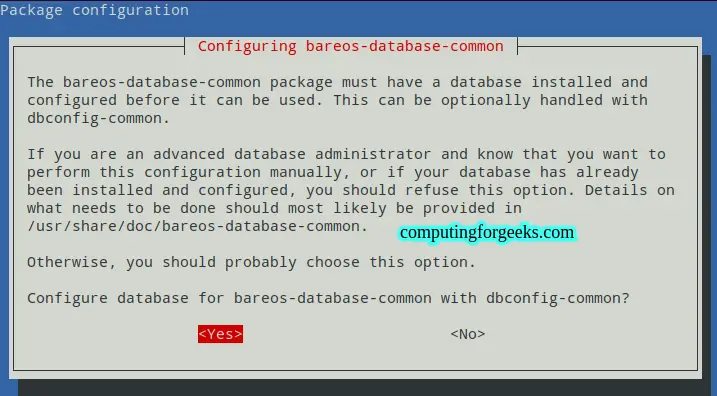
sudo apt install -y bareos bareos-database-postgresql postgresqlDuring installation, dbconfig-common prompts you to configure the Bareos database automatically. Select Yes to let it create the PostgreSQL database, tables, and grant privileges.
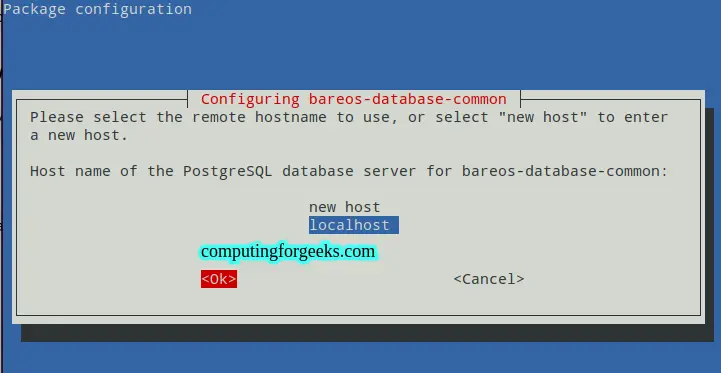
Select PostgreSQL as the database backend:
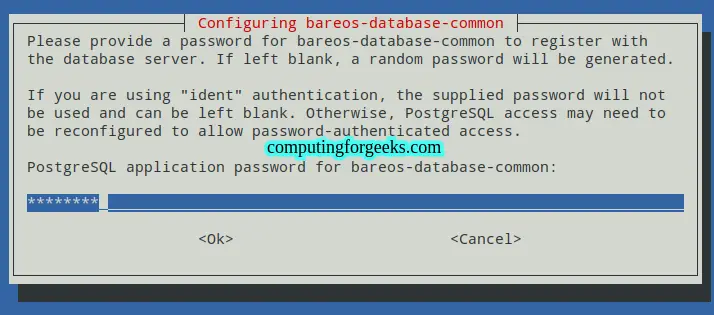
Set a password for the Bareos database user:
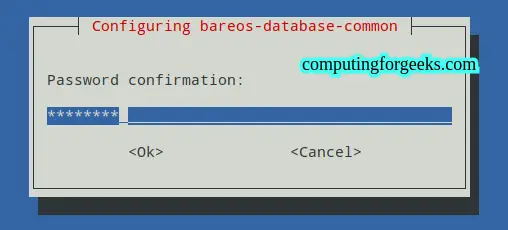
Confirm the password:
After installation, verify the Bareos configuration directory was created:
ls /etc/bareos/The directory contains subdirectories for each daemon’s configuration:
bareos-dir.d bareos-dir-export bareos-fd.d bareos-sd.d bconsole.confStep 4: Configure Bareos Director, Storage, and FileDaemon
The default Bareos configuration works for a single-server setup where Director, Storage Daemon, and File Daemon all run on the same host. The key configuration files are organized under /etc/bareos/ in resource-based subdirectories.
Director Configuration
The Director configuration lives in /etc/bareos/bareos-dir.d/. The main settings are spread across multiple resource files. Check the director daemon settings:
sudo cat /etc/bareos/bareos-dir.d/director/bareos-dir.confThe default configuration includes a pre-configured backup job, schedule, fileset, and pool definitions. For a basic setup, the defaults are sufficient to run your first backup.
Storage Daemon Configuration
The Storage Daemon config is in /etc/bareos/bareos-sd.d/. The default storage device writes backup data to /var/lib/bareos/storage/. Verify the storage directory exists and has proper permissions:
ls -ld /var/lib/bareos/storage/The directory should be owned by the bareos user:
drwxr-x--- 2 bareos bareos 4096 Mar 22 10:00 /var/lib/bareos/storage/File Daemon Configuration
The File Daemon runs on each machine you want to back up. On the Bareos server itself, it is installed and configured automatically. The config is in /etc/bareos/bareos-fd.d/. For remote clients, install only the bareos-filedaemon package and configure it to connect to your Director.
Step 5: Start and Enable Bareos Services
Enable and start all three Bareos daemons so they persist across reboots.
sudo systemctl enable --now bareos-dir bareos-sd bareos-fdVerify all services are running:
sudo systemctl status bareos-dir bareos-sd bareos-fdAll three services should show active (running):
● bareos-director.service - Bareos Director Daemon service
     Loaded: loaded (/lib/systemd/system/bareos-director.service; enabled; preset: enabled)
     Active: active (running)
   Main PID: 14947 (bareos-dir)

● bareos-storage.service - Bareos Storage Daemon service
     Loaded: loaded (/lib/systemd/system/bareos-storage.service; enabled; preset: enabled)
     Active: active (running)
   Main PID: 14956 (bareos-sd)

● bareos-filedaemon.service - Bareos File Daemon service
     Loaded: loaded (/lib/systemd/system/bareos-filedaemon.service; enabled; preset: enabled)
     Active: active (running)
   Main PID: 14963 (bareos-fd)
Step 6: Configure Firewall for Bareos (Ports 9101-9103)
Bareos daemons communicate over three TCP ports. Open them in the firewall to allow backup traffic from remote clients. If you are running an NFS server on your Debian system or other network services, manage your firewall rules carefully to avoid conflicts.
| Port | Daemon | Purpose |
|---|---|---|
| 9101/tcp | Director | Accepts console connections and WebUI requests |
| 9102/tcp | File Daemon | Receives backup/restore instructions from Director |
| 9103/tcp | Storage Daemon | Receives backup data from File Daemons |
If you use ufw (default on Debian):
sudo ufw allow 9101:9103/tcp comment "Bareos backup daemons"
sudo ufw reload
If you use nftables directly, add the rule to your ruleset:
sudo nft add rule inet filter input tcp dport { 9101, 9102, 9103 } acceptVerify the ports are open:
sudo ss -tlnp | grep -E '910[1-3]'Each Bareos daemon should be listening on its respective port:
LISTEN  0  128  *:9101  *:*  users:(("bareos-dir",pid=14947,fd=5))
LISTEN  0  128  *:9102  *:*  users:(("bareos-fd",pid=14963,fd=4))
LISTEN  0  128  *:9103  *:*  users:(("bareos-sd",pid=14956,fd=5))
Step 7: Run a Backup Job with bconsole
Connect to the Bareos Director using bconsole to manage backup and restore operations. The default installation includes a pre-configured backup job called DefaultJob that backs up the Bareos server itself.
sudo bconsoleThe console connects to the Director on port 9101 with TLS encryption:
Connecting to Director localhost:9101
 Encryption: TLS_CHACHA20_POLY1305_SHA256 TLSv1.3
1000 OK: bareos-dir Version: 25.0.3
You are connected using the default console

Enter a period (.) to cancel a command.
*
Check the Director status to confirm everything is healthy:
* status dirRun a backup job. The run command lists available jobs and lets you select one:
* runSelect the job number and confirm with yes. The backup starts and gets assigned a Job ID. Monitor the job progress:
* status dirWait for the job to complete and check messages:
* wait jobid=1
* messages
List completed jobs to confirm the backup finished successfully:
* list jobsStep 8: Restore Files with bconsole
To verify your backups work, run a test restore. The restore all command marks all backed-up files for restoration. By default, files are restored to /tmp/bareos-restores/ on the client. Consider using Restic alongside Bareos for a defense-in-depth backup strategy with off-site storage.
* restore allThe restore wizard prompts you to select the backup to restore from. Choose option 5 (Select the most recent backup) and confirm. After the restore job completes, verify the files were recovered:
* messagesExit bconsole:
* exitCheck the restored files on the filesystem:
ls /tmp/bareos-restores/The restored directory tree mirrors the original file paths from the backup.
Common bconsole Commands Reference
| Command | Purpose |
|---|---|
| status dir | Show Director status and running jobs |
| status client | Show File Daemon client status |
| status storage | Show Storage Daemon status |
| show filesets | Display configured file sets |
| list jobs | List all completed jobs |
| run | Start a new backup job |
| restore | Restore files (interactive selection) |
| restore all | Restore all files from selected backup |
| reload | Reload Director configuration |
| messages | Show pending messages |
| rerun jobid=N | Re-run a failed job |
Step 9: Install Bareos WebUI on Debian
Bareos WebUI is a PHP-based web interface for managing backup and restore jobs through a browser. It communicates with the Director over port 9101.
sudo apt install -y bareos-webuiThis installs the WebUI along with Apache and PHP dependencies by default. We will set up Nginx as the web server instead for better performance.
Create a WebUI Admin User
Before configuring the web server, create a console user for WebUI authentication. Open bconsole:
sudo bconsoleCreate the admin console with the webui-admin profile. Replace SecurePass123 with a strong password:
* configure add console name=admin password=SecurePass123 profile=webui-admin tlsenable=falseThe Director creates the console resource file and confirms:
Created resource config file "/etc/bareos/bareos-dir.d/console/admin.conf":
Console {
  Name = "admin"
  Password = "SecurePass123"
  Profile = webui-admin
  TLS Enable = false
}
Exit bconsole and restart the Director to load the new console:
sudo systemctl restart bareos-dirConfigure Nginx for Bareos WebUI
Stop and disable Apache (installed as a dependency), then install Nginx and PHP-FPM. If you already have Nginx with PHP-FPM installed, skip the installation step.
sudo systemctl stop apache2
sudo systemctl disable apache2
sudo apt install -y nginx php-fpm php-curl php-intl
Determine the PHP-FPM socket path for your PHP version:
ls /run/php/php*-fpm.sockCreate the Nginx server block for Bareos WebUI:
sudo vi /etc/nginx/sites-available/bareos-webui.confAdd the following configuration. Adjust the fastcgi_pass socket path to match your PHP version:
server {
    listen 80;
    server_name bareos.example.com;

    root /usr/share/bareos-webui/public;
    index index.php;

    location / {
        try_files $uri $uri/ /index.php?$query_string;
    }

    location ~ \.php$ {
        include fastcgi_params;
        fastcgi_param SCRIPT_FILENAME $document_root$fastcgi_script_name;
        fastcgi_pass unix:/run/php/php8.2-fpm.sock;
    }

    location ~ /\.ht {
        deny all;
    }
}
Enable the site and test the Nginx configuration:
sudo ln -s /etc/nginx/sites-available/bareos-webui.conf /etc/nginx/sites-enabled/
sudo nginx -t
The configuration test should pass with no errors:
nginx: the configuration file /etc/nginx/nginx.conf syntax is ok
nginx: configuration file /etc/nginx/nginx.conf test is successful
Reload Nginx and ensure PHP-FPM is running:
sudo systemctl reload nginx
sudo systemctl enable --now php8.2-fpm
Access Bareos WebUI
Open your browser and navigate to http://your-server-ip/ (or the hostname you configured). The Bareos WebUI login page appears.
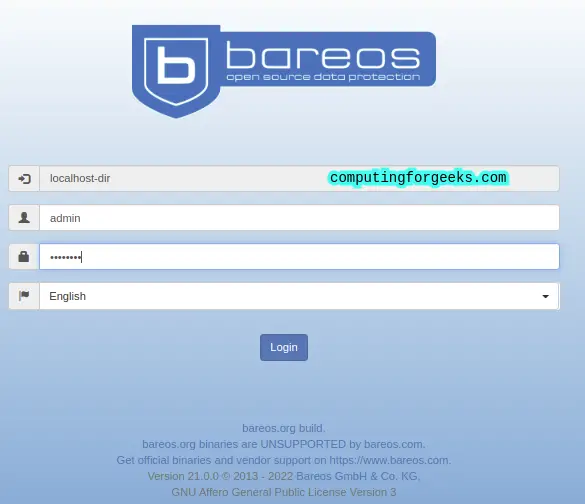
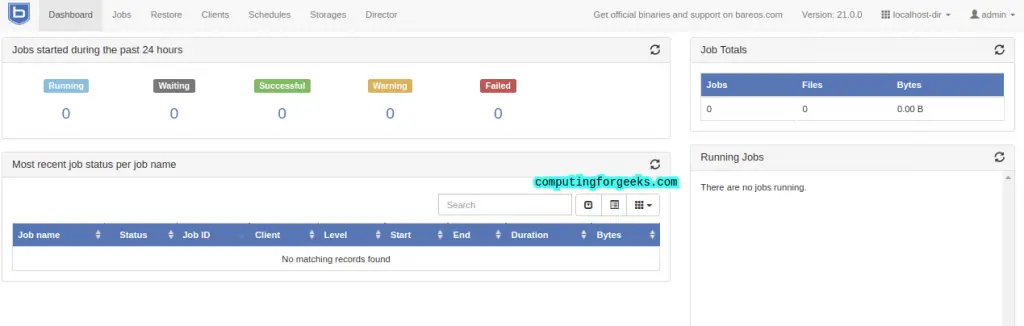
Log in with the admin credentials you created earlier. The dashboard shows an overview of backup jobs, clients, and storage status.
Step 10: Run Backup and Restore from WebUI
To run a backup from the WebUI, go to Jobs > Run. Select the job, client, fileset, and storage, then submit.
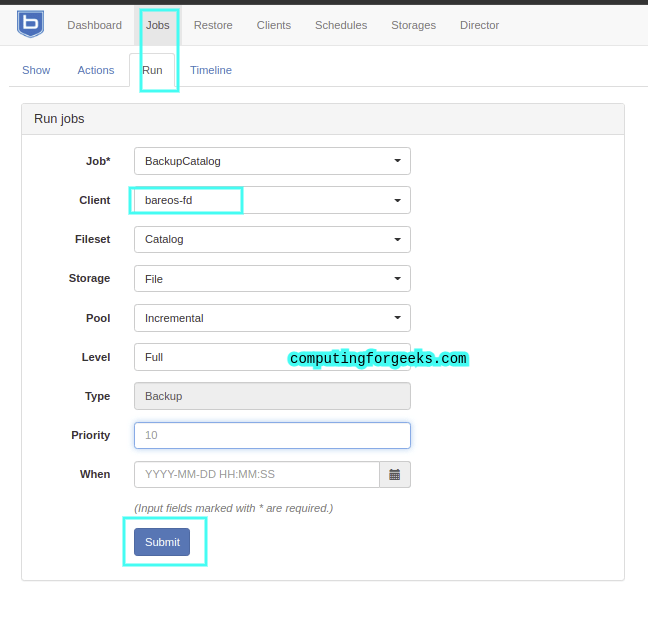
The job starts and gets assigned an ID. Monitor its progress from the Jobs page.
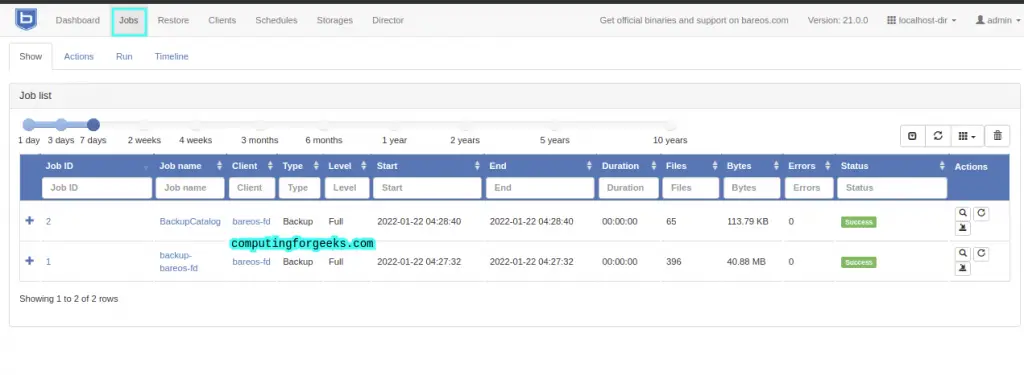
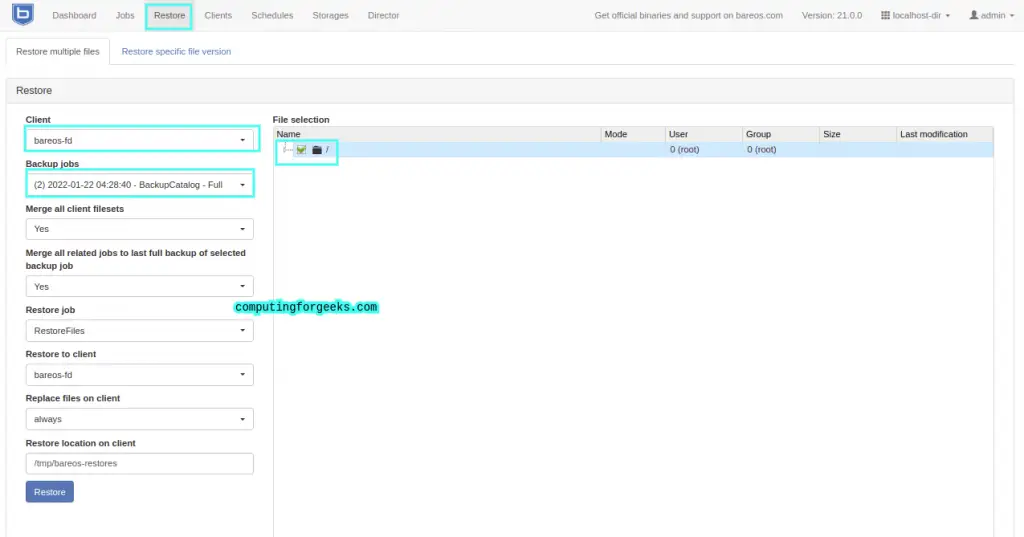
For restores, navigate to Restore. Select the client, backup job, and files to restore.
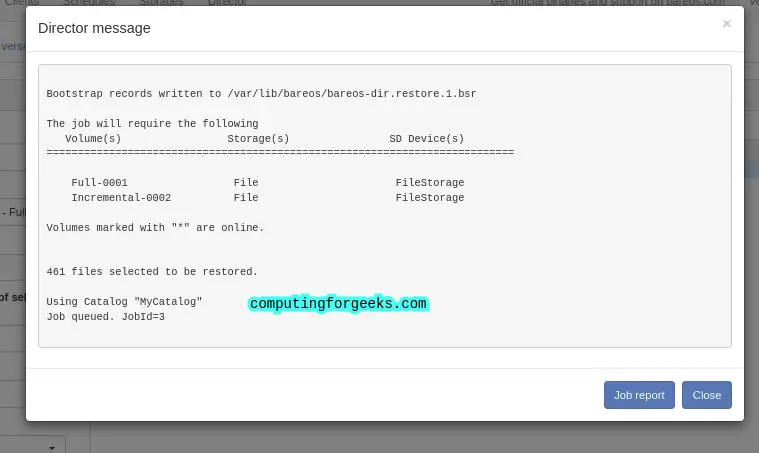
The restore job also gets a unique ID for tracking.
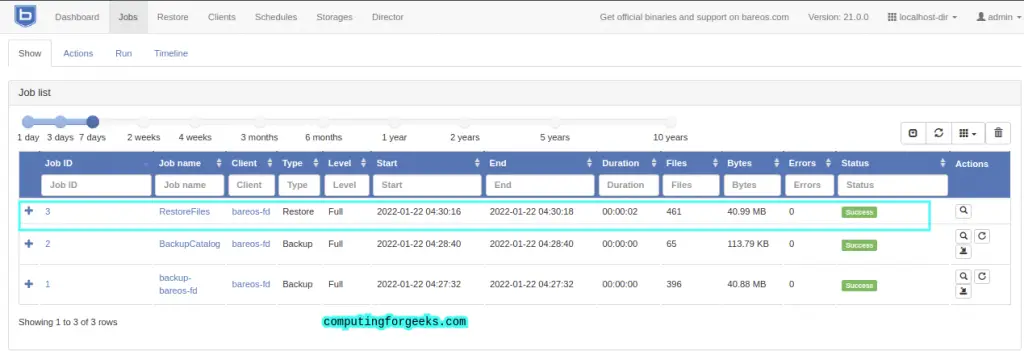
Track the restore progress from the Jobs page:
Conclusion
Bareos is now installed and running on your Debian 13 or Debian 12 server with a PostgreSQL catalog, all three daemons configured, and the WebUI accessible through Nginx. You can manage backup and restore jobs from both bconsole and the web interface.
For production use, enable TLS encryption between all Bareos daemons, set up regular catalog database backups with off-site storage to S3 or SFTP, configure email notifications for failed jobs, and add remote File Daemon clients to expand your backup coverage across all servers.