Zabbix is an open-source enterprise monitoring platform that tracks servers, networks, applications, and cloud infrastructure in real time. Zabbix 7.0 LTS (released June 2024) is the current long-term support release with full support through June 2027 and limited support until June 2029.
This guide walks through a complete Zabbix 7.0 LTS server installation on Rocky Linux 10 or AlmaLinux 10 using the official Zabbix repository. We cover PostgreSQL as the database backend, Nginx with PHP-FPM for the web frontend, Zabbix Agent 2 on the same host, firewall rules, and SELinux configuration.
Prerequisites
- A server running Rocky Linux 10 or AlmaLinux 10 with root or sudo access
- Minimum 2 GB RAM and 2 CPU cores (4 GB+ recommended for 100+ hosts)
- At least 20 GB free disk space for the database
- A fully qualified domain name (FQDN) pointing to the server (optional but recommended for HTTPS)
- Ports 80 (HTTP), 443 (HTTPS), 10050 (Zabbix agent), and 10051 (Zabbix server) open in the firewall
Step 1: Install Zabbix 7.0 LTS Repository on Rocky Linux 10 / AlmaLinux 10
Zabbix provides official RPM packages for RHEL-based distributions. Install the Zabbix 7.0 LTS repository package first.
sudo dnf install -y https://repo.zabbix.com/zabbix/7.0/rhel/10/x86_64/zabbix-release-latest-7.0.el10.noarch.rpmClean the dnf cache to pick up the new repository metadata:
sudo dnf clean allIf you have EPEL enabled, it ships an older Zabbix build that conflicts with official packages. Disable the Zabbix packages from EPEL before proceeding:
sudo dnf config-manager --save --setopt=epel.excludepkgs='zabbix*'Step 2: Install Zabbix Server, Frontend, and Agent Packages
Install the Zabbix server with PostgreSQL support, the web frontend, Nginx configuration, SQL scripts, SELinux policy, and Zabbix Agent 2:
sudo dnf install -y zabbix-server-pgsql zabbix-web-pgsql zabbix-nginx-conf zabbix-sql-scripts zabbix-selinux-policy zabbix-agent2 zabbix-agent2-plugin-*This installs Zabbix server (database-connected daemon), the PHP-based web frontend, Nginx virtual host config, database schema scripts, SELinux policy modules, and the Zabbix Agent 2 with all available plugins for extended monitoring.
Step 3: Install and Configure PostgreSQL
Rocky Linux 10 and AlmaLinux 10 ship PostgreSQL in the AppStream repository. Install and initialize it. If you need a newer PostgreSQL version, see our guide on installing PostgreSQL 17 on Rocky Linux 10 / AlmaLinux 10.
sudo dnf install -y postgresql-server postgresqlInitialize the PostgreSQL database cluster:
sudo postgresql-setup --initdbStart and enable PostgreSQL to survive reboots:
sudo systemctl enable --now postgresqlVerify PostgreSQL is running:
sudo systemctl status postgresqlThe output should show the service as active (running):
● postgresql.service - PostgreSQL database server
     Loaded: loaded (/usr/lib/systemd/system/postgresql.service; enabled; preset: disabled)
     Active: active (running)
Create the Zabbix Database and User
Switch to the postgres system user and create a dedicated database user and database for Zabbix:
sudo -u postgres createuser --pwprompt zabbixEnter a strong password when prompted – you will need this password later for the Zabbix server configuration. Next, create the database owned by the zabbix user:
sudo -u postgres createdb -O zabbix zabbixImport the Zabbix Database Schema
The zabbix-sql-scripts package includes the initial schema. Import it into the Zabbix database. This takes a few minutes depending on disk speed:
zcat /usr/share/zabbix-sql-scripts/postgresql/server.sql.gz | sudo -u zabbix psql zabbixWhen the import finishes, you should see a long list of CREATE and INSERT statements with no errors.
Configure PostgreSQL Authentication
Rocky Linux defaults to ident authentication for TCP connections in PostgreSQL. The Zabbix server connects via TCP to localhost, so you need to switch the authentication method to scram-sha-256 (password-based). Without this change, Zabbix will fail to start with a “password authentication failed” error.
Edit the PostgreSQL host-based authentication file:
sudo vi /var/lib/pgsql/data/pg_hba.confFind the IPv4 and IPv6 local connection lines and change ident to scram-sha-256:
# IPv4 local connections:
host    all             all             127.0.0.1/32            scram-sha-256
# IPv6 local connections:
host    all             all             ::1/128                 scram-sha-256
Restart PostgreSQL to apply the authentication change:
sudo systemctl restart postgresqlThis is a step that catches many people on Rocky/AlmaLinux. On Ubuntu, PostgreSQL defaults to scram-sha-256 out of the box, but RHEL-based distributions default to ident which only works with OS-level user matching and rejects password connections.
Step 4: Configure Zabbix Server
Edit the Zabbix server configuration file to set the database password:
sudo vi /etc/zabbix/zabbix_server.confFind the DBPassword line and set it to the password you created for the zabbix PostgreSQL user:
DBPassword=your_zabbix_db_passwordThe other default values work for a single-server setup. Key defaults already set in the config file:
DBHost=localhost– connects to PostgreSQL on the same serverDBName=zabbix– the database name we createdDBUser=zabbix– the database user we createdListenPort=10051– port for incoming agent connections
Step 5: Configure Nginx for Zabbix Frontend
The zabbix-nginx-conf package installs a preconfigured Nginx virtual host at /etc/nginx/conf.d/zabbix.conf. Edit it to set your server name and listening port:
sudo vi /etc/nginx/conf.d/zabbix.confUncomment and update the listen and server_name directives:
server {
        listen          8080;
        server_name     zabbix.example.com;
        ...
Replace zabbix.example.com with your actual server FQDN or IP address. Change 8080 to 80 if Zabbix is the only web application on this server. If you use port 80, remove or rename the default Nginx server block:
sudo mv /etc/nginx/conf.d/default.conf /etc/nginx/conf.d/default.conf.bak 2>/dev/nullTest the Nginx configuration for syntax errors:
sudo nginx -tA valid configuration returns:
nginx: the configuration file /etc/nginx/nginx.conf syntax is ok
nginx: configuration file /etc/nginx/nginx.conf test is successful
Step 6: Configure PHP-FPM for Zabbix
The Zabbix frontend requires specific PHP settings. The package installs a PHP-FPM pool configuration at /etc/php-fpm.d/zabbix.conf. Edit it to set your timezone:
sudo vi /etc/php-fpm.d/zabbix.confFind the php_value[date.timezone] line, uncomment it, and set your timezone:
php_value[date.timezone] = Africa/NairobiReplace Africa/Nairobi with your server’s timezone. You can find valid timezone strings with:
timedatectl show --property=Timezone --valueStep 7: Configure SELinux for Zabbix
Rocky Linux 10 and AlmaLinux 10 have SELinux enabled in enforcing mode by default. The zabbix-selinux-policy package handles most policies, but you need to set additional SELinux booleans so Zabbix and the web frontend can communicate properly:
sudo setsebool -P httpd_can_connect_zabbix on
sudo setsebool -P httpd_can_network_connect_db on
The first boolean allows the PHP frontend (running under httpd context) to connect to the Zabbix server. The second allows it to reach PostgreSQL. Verify the booleans are set:
getsebool httpd_can_connect_zabbix httpd_can_network_connect_dbBoth should show on:
httpd_can_connect_zabbix --> on
httpd_can_network_connect_db --> on
Step 8: Configure Firewall Rules
If your server was provisioned from a minimal or cloud image, firewalld may not be installed. Install and enable it first:
sudo dnf install -y firewalld
sudo systemctl enable --now firewalld
Open the required ports in firewalld. Zabbix server listens on TCP port 10051 for agent connections, and the web frontend needs HTTP/HTTPS access:
sudo firewall-cmd --permanent --add-port=10051/tcp
sudo firewall-cmd --permanent --add-service=http
sudo firewall-cmd --permanent --add-service=https
sudo firewall-cmd --reload
If you also want to monitor the Zabbix server itself with the agent, open the agent port too:
sudo firewall-cmd --permanent --add-port=10050/tcp
sudo firewall-cmd --reload
Verify all rules are active:
sudo firewall-cmd --list-allThe output should include your newly added ports and services under the public zone:
public (active)
  target: default
  services: cockpit dhcpv6-client http https ssh
  ports: 10051/tcp 10050/tcp
Step 9: Start Zabbix Server and Related Services
Enable and start all required services – Zabbix server, Zabbix Agent 2, Nginx, and PHP-FPM:
sudo systemctl enable --now zabbix-server zabbix-agent2 nginx php-fpmCheck each service is running without errors:
sudo systemctl status zabbix-server zabbix-agent2 nginx php-fpmAll four services should show active (running). If zabbix-server fails to start, check the log at /var/log/zabbix/zabbix_server.log – the most common cause is a wrong database password in /etc/zabbix/zabbix_server.conf.
Step 10: Complete the Zabbix Web Setup Wizard
Open a web browser and navigate to http://your-server-ip (or http://your-server-ip:8080 if you kept the default port). The Zabbix initial setup wizard starts automatically.
The wizard walks through these steps:
- Welcome – Select your preferred language and click “Next step”
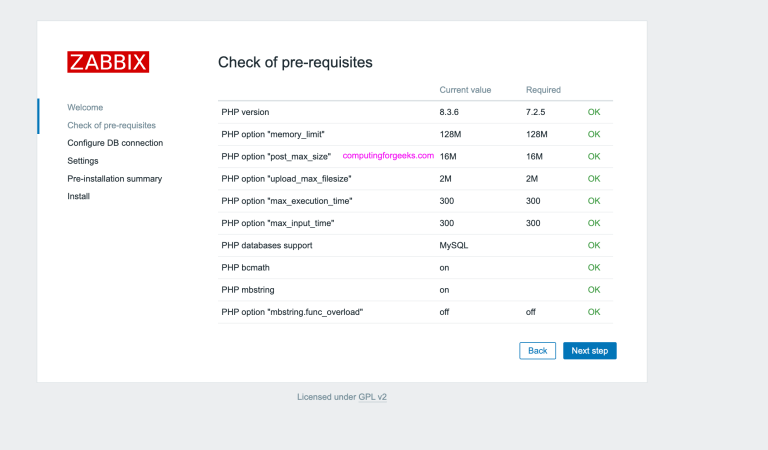
- Check of pre-requisites – All PHP requirements should show “OK”. If any fail, go back and verify PHP-FPM settings
- Configure DB connection – Set Database type to PostgreSQL. Host stays
localhost, Port5432, Database namezabbix, Userzabbix, and enter the database password you set earlier - Settings – Set the Zabbix server name (displayed in the top-right of the frontend). Set the default timezone
- Pre-installation summary – Review all settings and click “Next step”
- Install – The wizard writes
/etc/zabbix/web/zabbix.conf.phpwith your database credentials
After setup completes, the Zabbix login page appears:
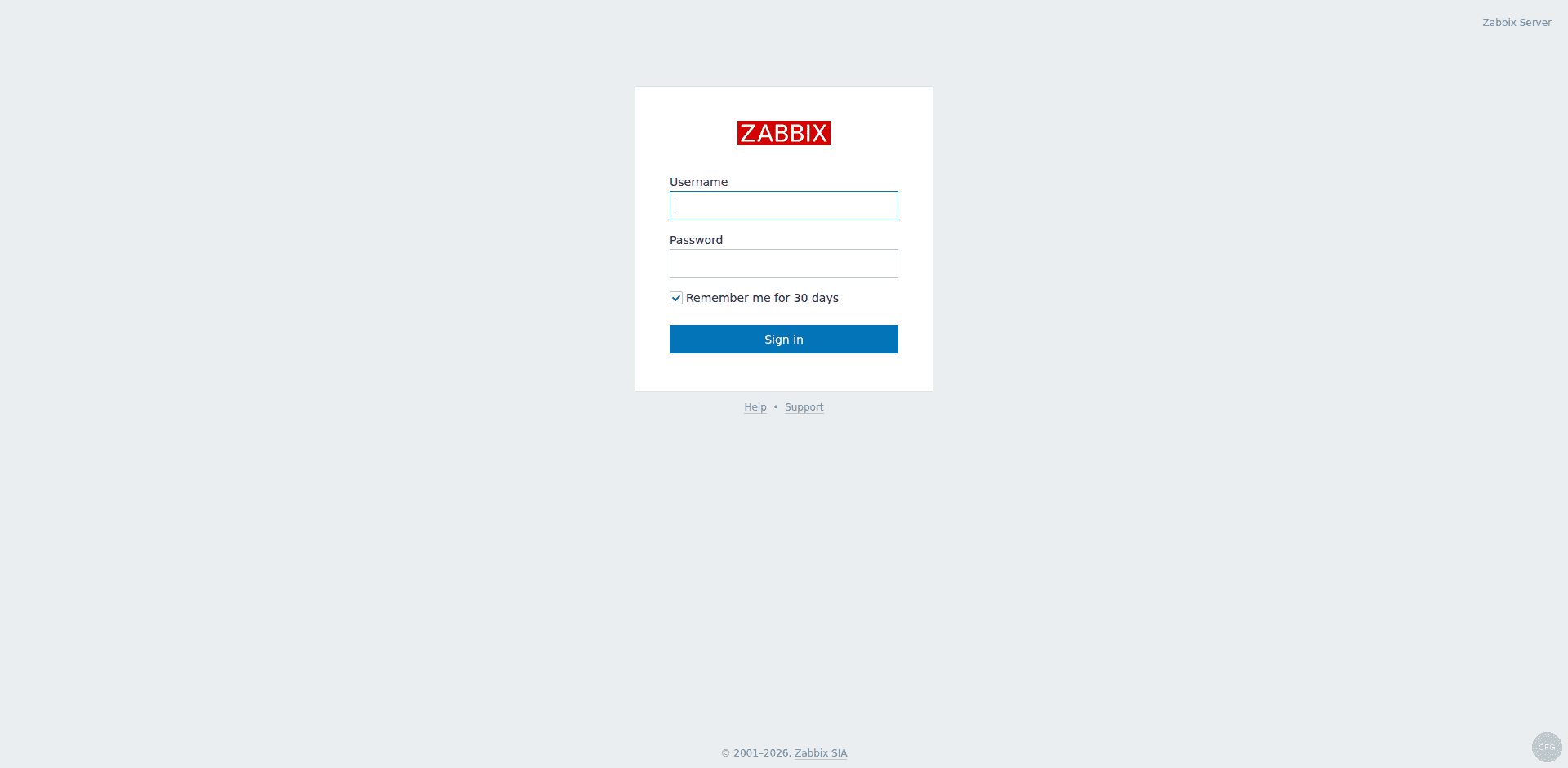
Log in with the default credentials:
- Username: Admin
- Password: zabbix
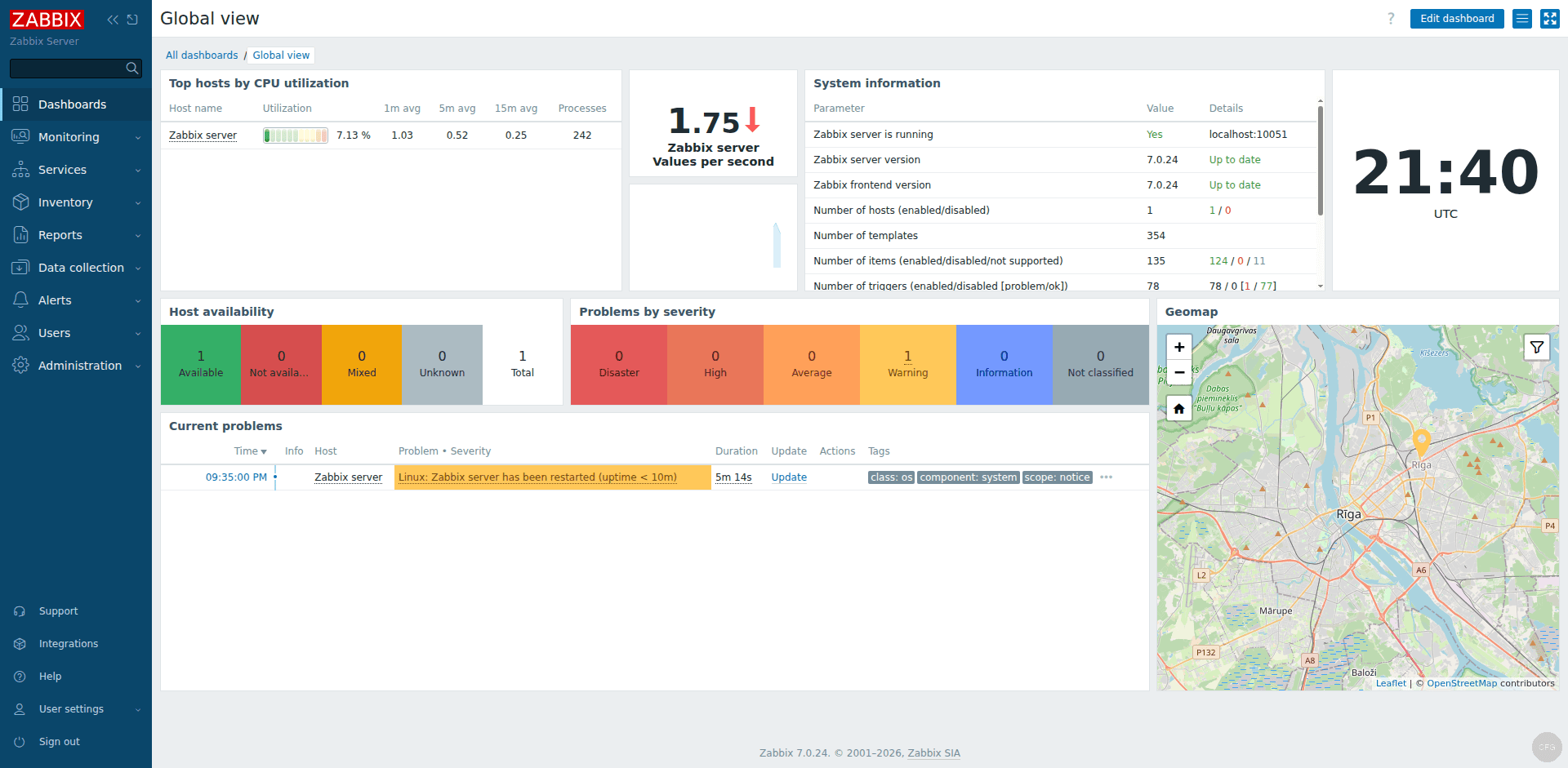
Change the default Admin password immediately after first login by navigating to Users – Users – Admin – Change password. After login you land on the Global View dashboard:
Step 11: Configure Zabbix Agent 2 on the Server
Since we installed Zabbix Agent 2 on the same host, configure it to report to the local Zabbix server. Edit the agent configuration:
sudo vi /etc/zabbix/zabbix_agent2.confVerify or set these directives:
Server=127.0.0.1
ServerActive=127.0.0.1
Hostname=Rocky10-Zabbix
Set Hostname to match the hostname you configure in the Zabbix frontend for this host. The Server directive controls which Zabbix server can send passive check requests to this agent. ServerActive tells the agent where to send active check results.
Restart the agent to apply changes:
sudo systemctl restart zabbix-agent2Step 12: Add the Zabbix Server as a Monitored Host
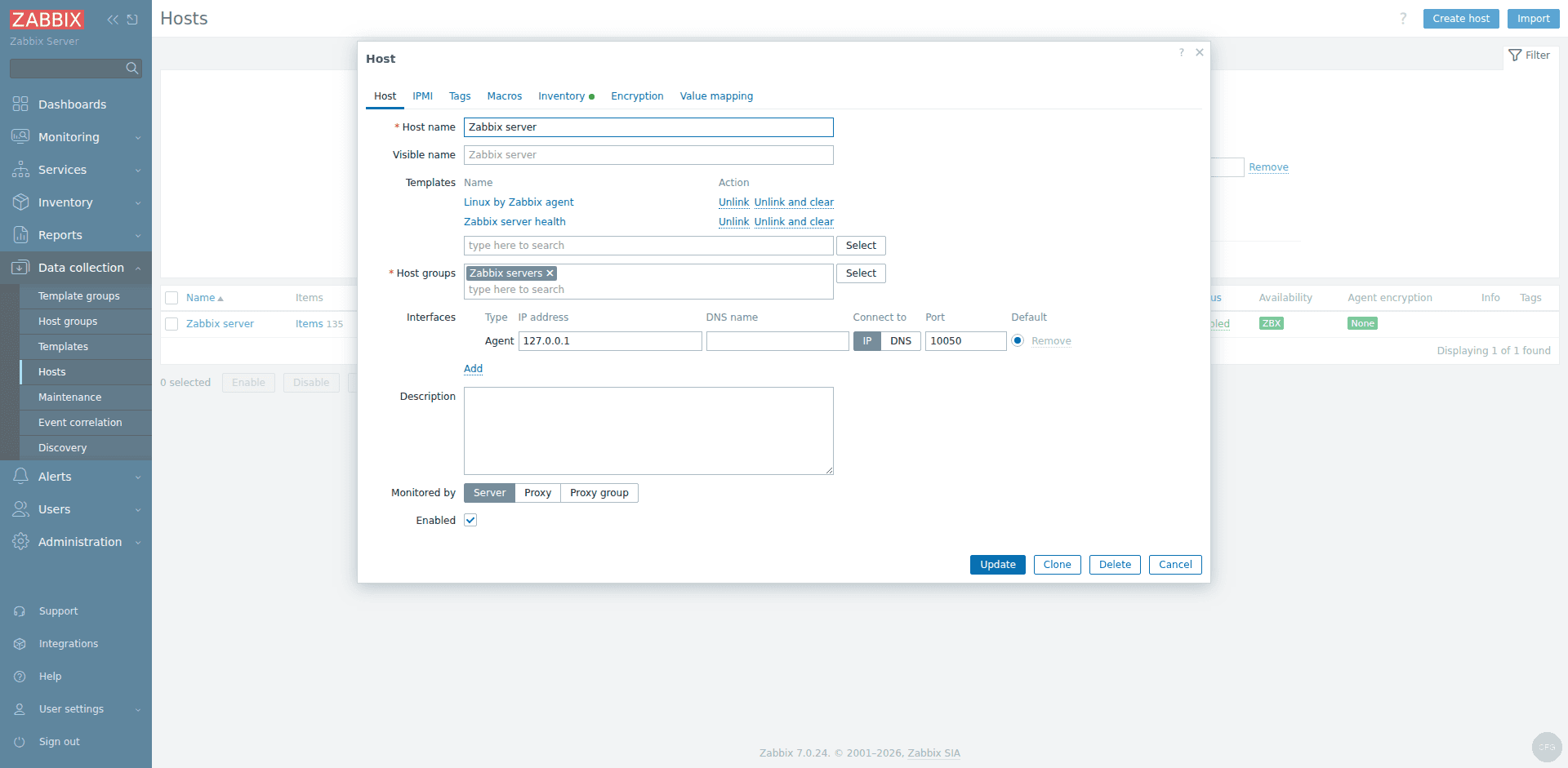
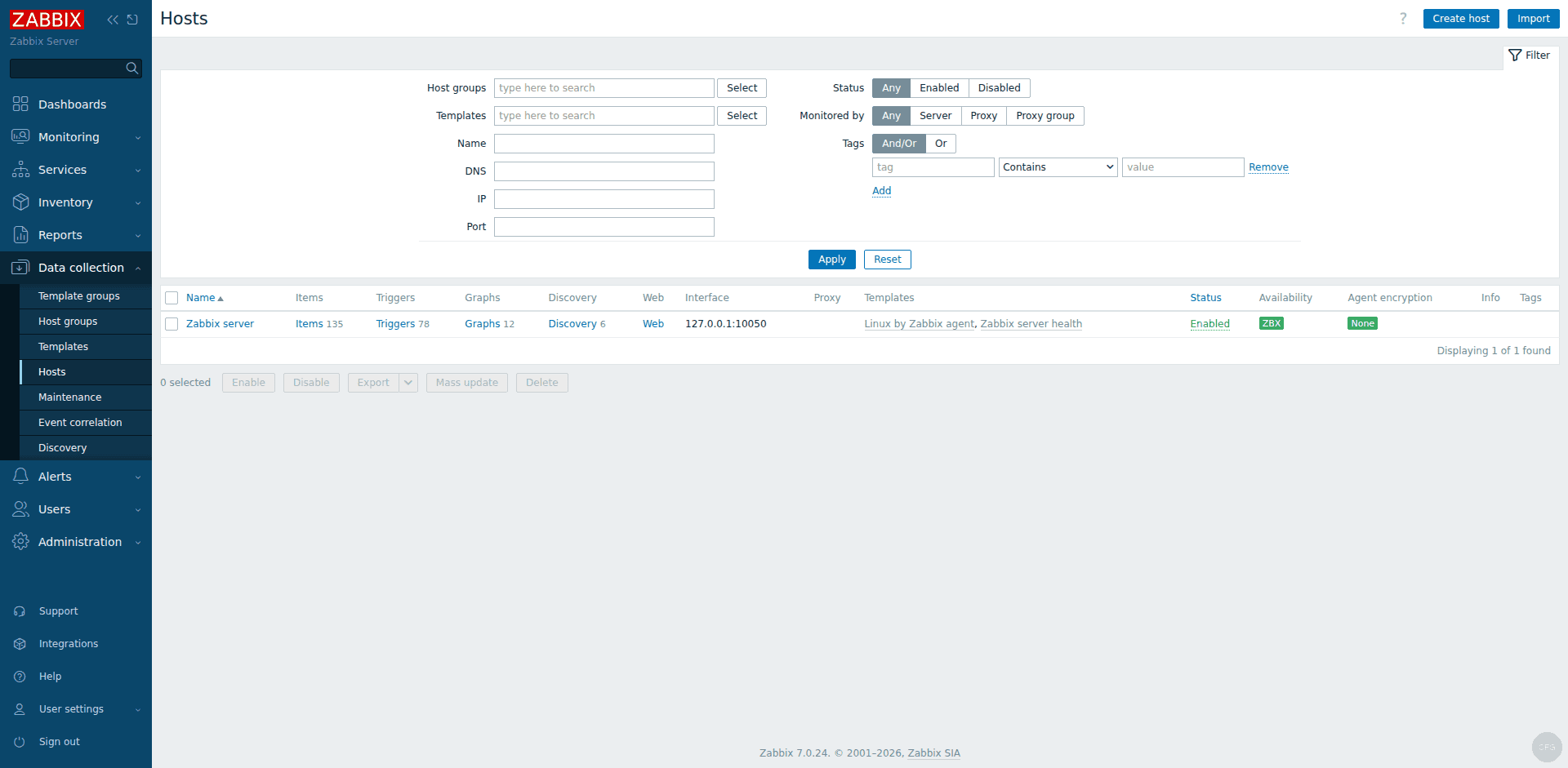
In the Zabbix web frontend, go to Data collection – Hosts. You will see a preconfigured “Zabbix server” host. Click on it to edit.
Set the Host name to match the Hostname value in zabbix_agent2.conf (e.g., Rocky10-Zabbix). Under Interfaces, make sure an Agent interface exists with IP 127.0.0.1 and port 10050.
Under Templates, link the built-in templates for comprehensive monitoring:
- Linux by Zabbix agent – CPU, memory, disk, network, process monitoring
- Zabbix server health – internal Zabbix server metrics (queue length, cache usage, etc.)
- PostgreSQL by Zabbix agent 2 – database monitoring (connections, transactions, locks)
Click “Update” to save. Within a few minutes, the host status turns green (ZBX icon) confirming the agent is communicating with the server.
The Monitoring – Hosts page shows all configured hosts with their availability status:
Step 13: Verify Zabbix Monitoring is Working
Verify the Zabbix server process is running and check the log for any errors:
sudo tail -20 /var/log/zabbix/zabbix_server.logA healthy server log shows startup messages like:
Starting Zabbix Server. Zabbix 7.0.24 (revision xxxxx).
server #0 started [main process]
server #1 started [configuration syncer #1]
...
Check that the agent is also communicating properly:
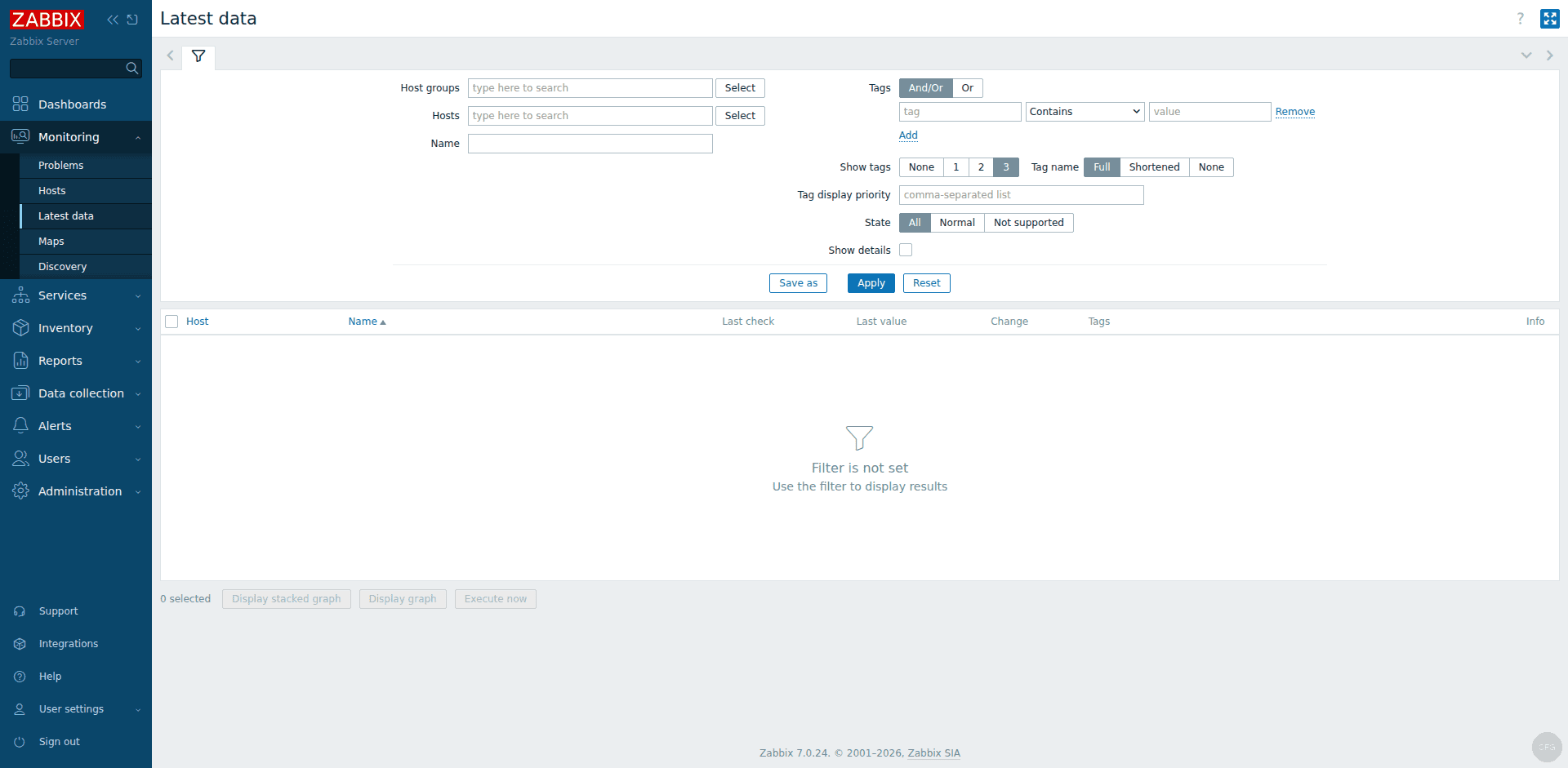
sudo tail -10 /var/log/zabbix/zabbix_agent2.logIn the Zabbix frontend, navigate to Monitoring – Hosts. The Zabbix server host should show a green ZBX availability icon, confirming the agent is responding. Navigate to Monitoring – Latest data and select your host to see incoming metrics like CPU utilization, memory usage, disk space, and network traffic.
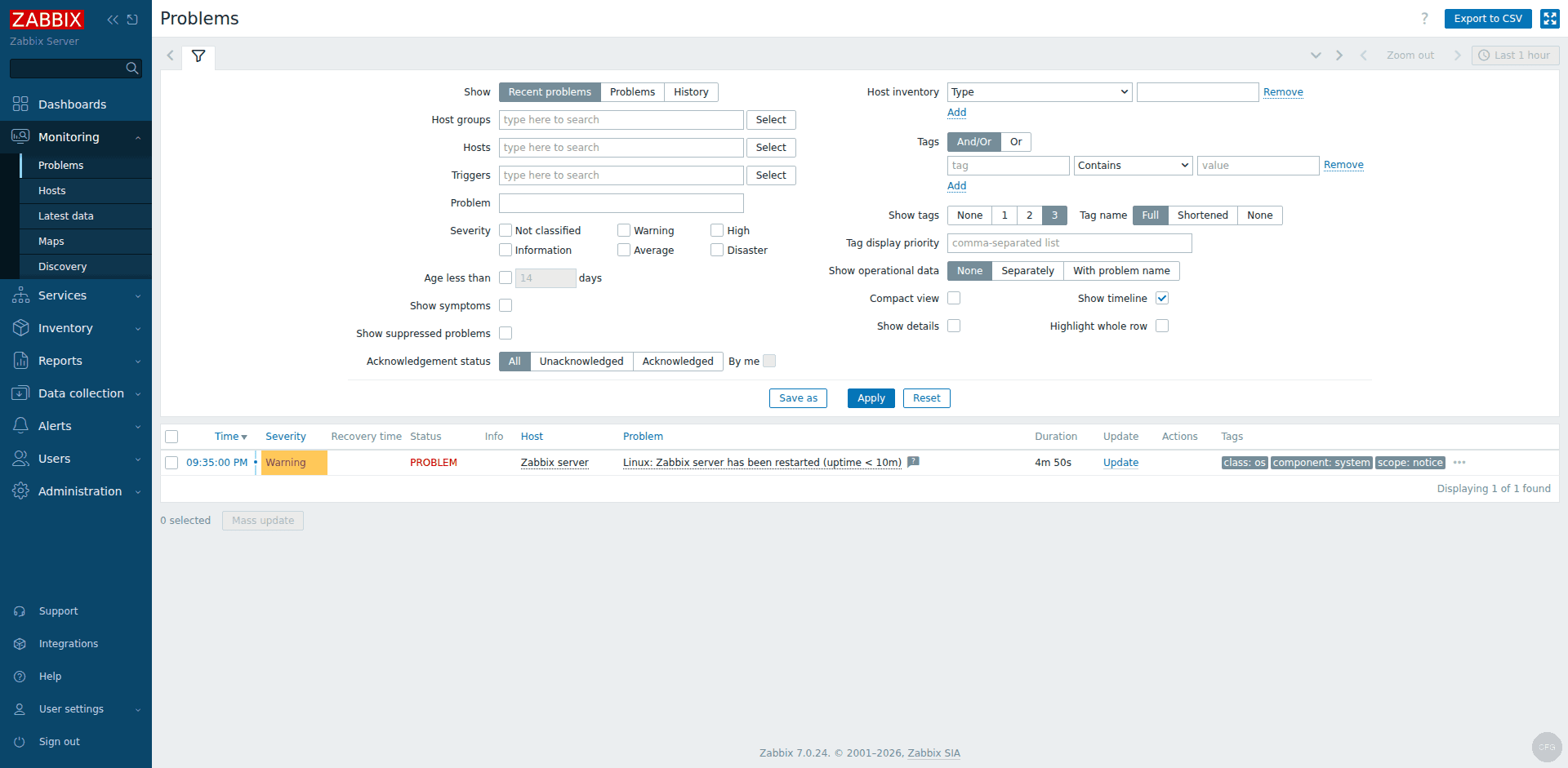
The Monitoring – Problems page shows active alerts with severity levels:
Test agent connectivity from the command line:
zabbix_get -s 127.0.0.1 -k system.uptimeThis returns the server uptime in seconds, confirming the agent is responding to queries:
3542If zabbix_get is not installed, add it with:
sudo dnf install -y zabbix-getZabbix Server Ports Reference
| Port | Protocol | Purpose |
|---|---|---|
| 10051 | TCP | Zabbix server – receives data from agents (active checks) and proxy connections |
| 10050 | TCP | Zabbix agent – accepts passive check requests from the server |
| 80 | TCP | HTTP – Zabbix web frontend access |
| 443 | TCP | HTTPS – Zabbix web frontend (when SSL/TLS is configured) |
| 5432 | TCP | PostgreSQL – database connections (localhost only by default) |
Troubleshooting Common Issues
Zabbix server fails to start – Check /var/log/zabbix/zabbix_server.log. The most common issue is a wrong DBPassword in /etc/zabbix/zabbix_server.conf. Also verify PostgreSQL is running and the zabbix database exists.
Web frontend shows “Connection refused” – Verify Nginx and PHP-FPM are running. Check /var/log/nginx/error.log for socket connection issues. Make sure the SELinux boolean httpd_can_connect_zabbix is set to on.
Agent shows red ZBX icon – Confirm the hostname in zabbix_agent2.conf matches the host name in the Zabbix frontend. Check that port 10050 is open and the agent is listening:
ss -tlnp | grep 10050You should see zabbix_agent2 listening on port 10050:
LISTEN 0 4096 *:10050 *:* users:(("zabbix_agent2",pid=xxxx,fd=7))SELinux denials – If you see AVC denial messages in /var/log/audit/audit.log, the zabbix-selinux-policy package may need updating. Check for pending denials and generate a custom policy if needed:
sudo ausearch -m avc -ts recent | grep zabbixSecure the Frontend with HTTPS (Let’s Encrypt)
Serving the Zabbix frontend over plain HTTP exposes admin credentials and monitoring data on the wire. Set up HTTPS with a free Let’s Encrypt certificate to fix this.
Install EPEL (if not already installed) and certbot. Rocky Linux base repos do not include certbot:
sudo dnf install -y epel-release
sudo dnf install -y certbot python3-certbot-dns-cloudflare
If your server has a public IP and a DNS A record pointing to it, use the standalone HTTP-01 challenge:
sudo certbot certonly --standalone -d zabbix.example.com --non-interactive --agree-tos -m [email protected]For servers behind a firewall or on private networks, use the Cloudflare DNS-01 challenge. Create a credentials file with your Cloudflare API token:
sudo mkdir -p /etc/letsencrypt
echo "dns_cloudflare_api_token = YOUR_CLOUDFLARE_API_TOKEN" | sudo tee /etc/letsencrypt/cloudflare.ini
sudo chmod 600 /etc/letsencrypt/cloudflare.ini
Obtain the certificate via DNS validation:
sudo certbot certonly --dns-cloudflare --dns-cloudflare-credentials /etc/letsencrypt/cloudflare.ini -d zabbix.example.com --non-interactive --agree-tos -m [email protected]Allow Nginx to make outbound network connections (needed for SSL):
sudo setsebool -P httpd_can_network_connect onReplace the contents of /etc/nginx/conf.d/zabbix.conf with the SSL configuration. Note that Nginx 1.26+ (shipped with Rocky Linux 10) uses http2 on; as a separate directive instead of the older listen ... http2 syntax:
sudo vi /etc/nginx/conf.d/zabbix.confAdd the following SSL configuration:
server {
    listen 443 ssl;
    http2 on;
    server_name zabbix.example.com;

    ssl_certificate /etc/letsencrypt/live/zabbix.example.com/fullchain.pem;
    ssl_certificate_key /etc/letsencrypt/live/zabbix.example.com/privkey.pem;

    ssl_session_timeout 1d;
    ssl_session_cache shared:SSL:10m;
    ssl_protocols TLSv1.2 TLSv1.3;

    root /usr/share/zabbix;
    index index.php;

    location = /favicon.ico {
        log_not_found off;
    }

    location / {
        try_files $uri $uri/ =404;
    }

    location /assets {
        access_log off;
        expires 10d;
    }

    location ~ /\.ht {
        deny all;
    }

    location ~ /(api\/|conf[^\.]|include|locale) {
        deny all;
        return 404;
    }

    location /vendor {
        deny all;
        return 404;
    }

    location ~ [^/]\.php(/|$) {
        fastcgi_pass unix:/run/php-fpm/zabbix.sock;
        fastcgi_split_path_info ^(.+\.php)(/.+)$;
        fastcgi_index index.php;

        fastcgi_param DOCUMENT_ROOT /usr/share/zabbix;
        fastcgi_param SCRIPT_FILENAME /usr/share/zabbix$fastcgi_script_name;
        fastcgi_param PATH_TRANSLATED /usr/share/zabbix$fastcgi_script_name;

        include fastcgi_params;
        fastcgi_param QUERY_STRING $query_string;
        fastcgi_param REQUEST_METHOD $request_method;
        fastcgi_param CONTENT_TYPE $content_type;
        fastcgi_param CONTENT_LENGTH $content_length;

        fastcgi_intercept_errors on;
        fastcgi_ignore_client_abort off;
        fastcgi_connect_timeout 60;
        fastcgi_send_timeout 180;
        fastcgi_read_timeout 180;
        fastcgi_buffer_size 128k;
        fastcgi_buffers 4 256k;
        fastcgi_busy_buffers_size 256k;
        fastcgi_temp_file_write_size 256k;
    }
}

server {
    listen 80;
    server_name zabbix.example.com;
    return 301 https://$host$request_uri;
}
Note the PHP-FPM socket path difference from Ubuntu: Rocky Linux uses /run/php-fpm/zabbix.sock while Ubuntu uses /var/run/php/zabbix.sock.
Test and reload Nginx:
sudo nginx -t && sudo systemctl reload nginxVerify the certificate auto-renews correctly:
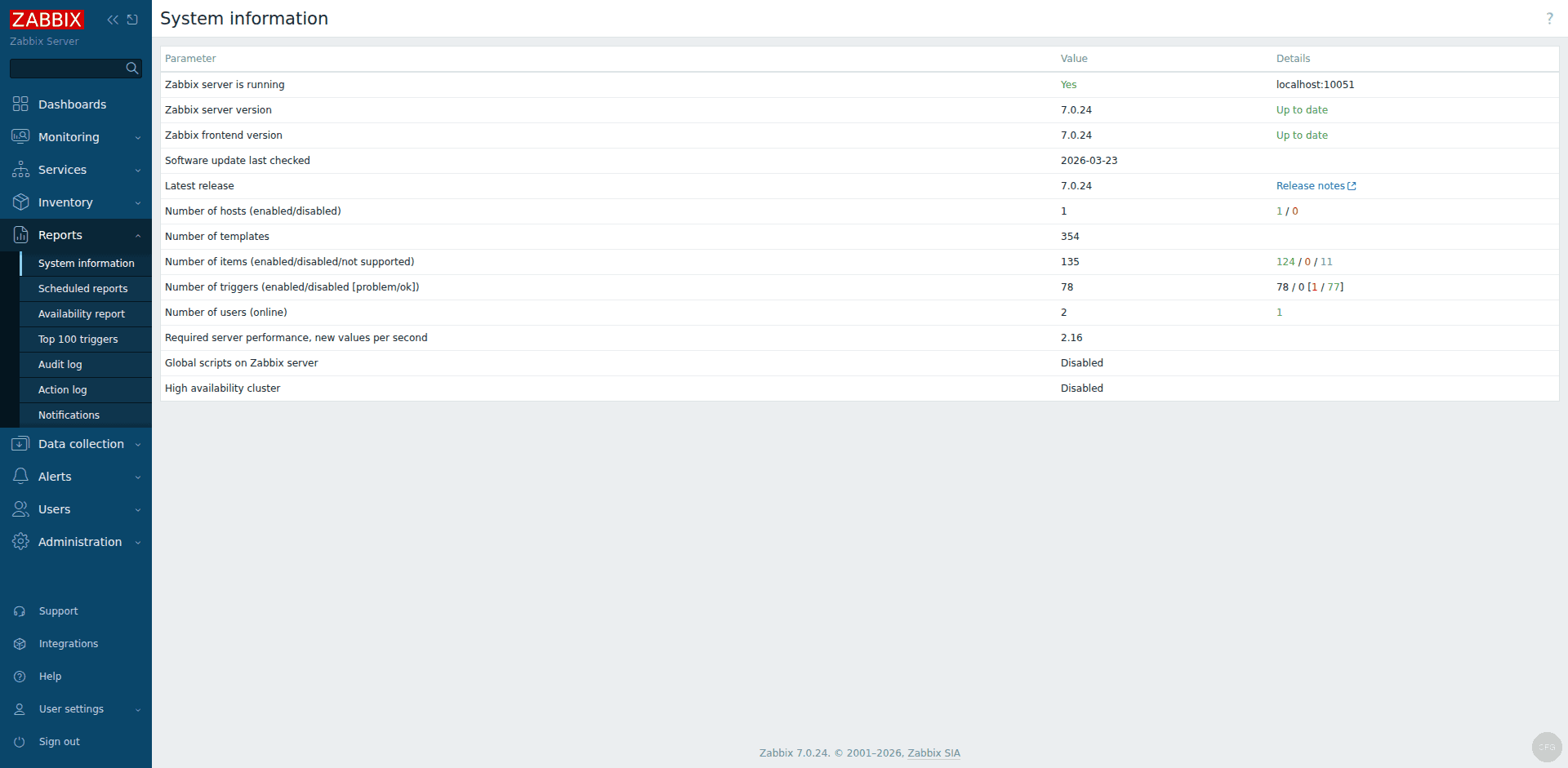
sudo certbot renew --dry-runThe Zabbix frontend is now accessible at https://zabbix.example.com. All HTTP traffic is automatically redirected to HTTPS. The Reports – System information page confirms the server version and status:
Conclusion
Zabbix 7.0 LTS is now running on your Rocky Linux 10 / AlmaLinux 10 server with PostgreSQL, Nginx, and Zabbix Agent 2 collecting system metrics. The server is ready to monitor additional hosts – install Zabbix Agent on remote Rocky Linux / AlmaLinux hosts and add them through the frontend.
For production deployments, integrate Grafana with Prometheus on Rocky Linux / AlmaLinux for advanced visualization dashboards, set up PostgreSQL streaming replication for database redundancy, enable email or Slack notifications for alerts, and schedule regular database backups. Refer to the official Zabbix 7.0 documentation for advanced configuration options including proxy setup, high availability, and SNMP monitoring. Zabbix 7.0 LTS is supported with full updates until June 2027 and security patches until June 2029 per the Zabbix lifecycle policy.