

Arch Linux is a rolling-release distribution that gives you complete control over every package on your system. Unlike Ubuntu or Fedora, Arch starts with nothing and lets you build exactly what you need. Combine that with LVM (Logical Volume Manager) for flexible disk management on a modern UEFI system, and you get a setup that’s both powerful and easy to resize later when your needs change.
This guide covers the full installation process from a blank disk to a working GNOME 48.5 desktop with Wayland, tested on a real UEFI system with kernel 6.18. Every command here has been verified, so you can follow along on physical hardware or a virtual machine and end up with a fully functional Arch Linux system with LVM storage, GRUB bootloader, networking, SSH, and a polished GNOME desktop environment.
What You Need
Before starting the installation, make sure you have the following ready.
- RAM: 2 GB minimum (4 GB recommended for GNOME desktop)
- Disk space: 20 GB minimum (60 GB recommended for comfortable use)
- UEFI-capable system with Secure Boot disabled (or configured for custom keys)
- Internet connection – wired Ethernet is easiest, WiFi works too
- Arch Linux ISO downloaded from archlinux.org/download
- USB drive (2 GB or larger) for creating bootable media
Creating a Bootable USB Drive
Once you have the Arch Linux ISO downloaded, write it to a USB drive. On a Linux system, use dd to create the bootable drive. Replace /dev/sdX with your actual USB device – triple-check the device name with lsblk first, because dd will overwrite whatever you point it at.
sudo dd bs=4M if=archlinux-2026.03.01-x86_64.iso of=/dev/sdX conv=fsync oflag=direct status=progressOn Windows, use Rufus with GPT partition scheme and DD mode. On macOS, the same dd command works but use /dev/rdiskN (the raw device) for faster writes.
Booting into the Live Environment
Plug in the USB drive and boot from it. You may need to press F2, F12, Del, or Esc during POST to access the boot menu or UEFI firmware settings. Select the USB drive and choose Arch Linux install medium from the GRUB menu. After a few seconds, you’ll land at the root shell prompt.
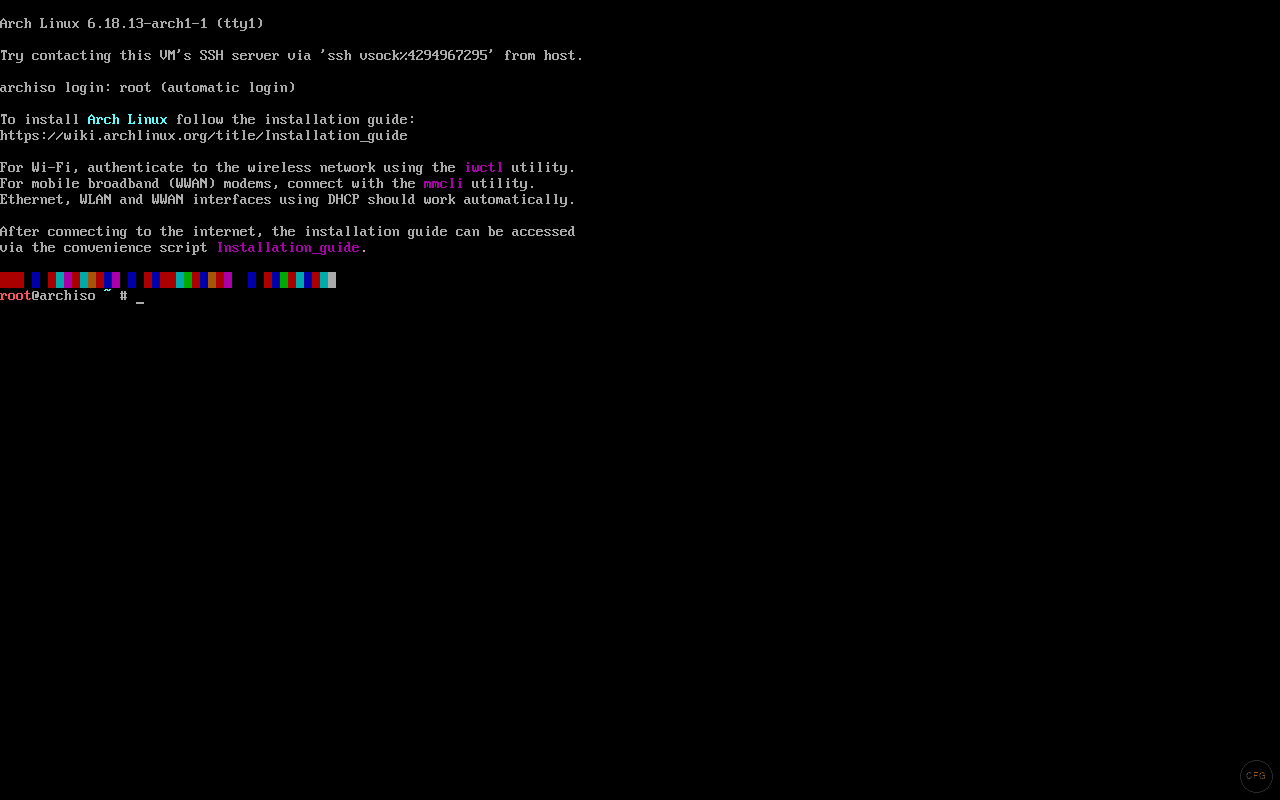
First thing to check – confirm you’re booted in UEFI mode. If this directory exists and contains files, you’re good.
ls /sys/firmware/efi/efivarsIf you get “No such file or directory”, you booted in legacy BIOS mode. Reboot and check your firmware settings to enable UEFI boot.
Connecting to the Internet
The installer needs an internet connection to download packages. If you’re on wired Ethernet, DHCP should have already configured your connection automatically.
Verify connectivity with a quick ping test.
ping -c 3 archlinux.orgIf you’re on WiFi, use iwctl to connect.
iwctl
station wlan0 scan
station wlan0 get-networks
station wlan0 connect "YourNetworkName"
exit
After connecting, verify with the ping test above.
Setting Keyboard Layout and System Clock
The default keyboard layout is US. If you need a different layout, load it with loadkeys. List available layouts with localectl list-keymaps.
loadkeys usEnable NTP to sync the system clock. Accurate time matters for package signature verification.
timedatectl set-ntp trueConfirm the clock is synchronized by checking the status.
timedatectl statusPartitioning the Disk with GPT
UEFI systems require a GPT (GUID Partition Table) disk layout. We’ll create two partitions: a 512 MB EFI System Partition for the bootloader, and a second partition spanning the rest of the disk for LVM. This keeps things clean – the EFI partition stays small and dedicated, while LVM handles all the flexible storage management on the second partition.
We’ll use sgdisk which is a scriptable GPT partitioning tool – much easier to reproduce than interactive tools like fdisk or gdisk. First, wipe any existing partition table.
sgdisk --zap-all /dev/sdaNow create the EFI partition (512 MB, type EF00) and the LVM partition (remaining space, type 8E00).
sgdisk --new=1:0:+512M --typecode=1:EF00 --change-name=1:'EFI' /dev/sda
sgdisk --new=2:0:0 --typecode=2:8E00 --change-name=2:'LVM' /dev/sda
Verify the partition layout with sgdisk -p. You should see both partitions with the correct types.
sgdisk -p /dev/sdaThe output confirms the partition layout.
Number  Start (sector)    End (sector)  Size       Code  Name
   1            2048         1050623   512.0 MiB   EF00  EFI
   2         1050624       125829086   59.5 GiB    8E00  LVM
Your disk size will differ, but the structure should look the same – a small EFI partition and a large LVM partition filling the rest.
Setting Up LVM (Logical Volume Manager)
LVM adds a layer between your physical disk and filesystems. Instead of fixed partitions, you get resizable logical volumes that you can grow, shrink, or snapshot without unmounting. The key concepts are straightforward:
- Physical Volume (PV) – the raw partition (
/dev/sda2) that LVM manages - Volume Group (VG) – a pool of storage from one or more PVs
- Logical Volume (LV) – virtual partitions carved from the VG, where you put filesystems
Start by initializing the LVM partition as a physical volume.
pvcreate /dev/sda2Create a volume group called archvg from this physical volume.
vgcreate archvg /dev/sda2Now create three logical volumes: 4 GB for swap, 30 GB for root, and the remaining space for home.
lvcreate -L 4G archvg -n swap
lvcreate -L 30G archvg -n root
lvcreate -l 100%FREE archvg -n home
Verify the logical volumes were created correctly with lvs.
lvsYou should see all three volumes listed under the archvg volume group.
  LV   VG     Attr       LSize
  home archvg -wi-a----- <25.50g
  root archvg -wi-a-----  30.00g
  swap archvg -wi-a-----   4.00g
The beauty of LVM is that you can resize these later. If root fills up, you can shrink home and grow root without reinstalling anything. For more on LVM management, check our guide on extending root filesystem using LVM on Linux.
Formatting Filesystems and Mounting
Format each volume with the appropriate filesystem. The EFI partition must be FAT32 (UEFI specification requirement). For root and home, ext4 is reliable and well-supported.
mkfs.fat -F32 /dev/sda1
mkfs.ext4 /dev/archvg/root
mkfs.ext4 /dev/archvg/home
mkswap /dev/archvg/swap
Mount the filesystems in the correct order. Root goes first at /mnt, then create mount points and mount the rest.
mount /dev/archvg/root /mnt
mkdir -p /mnt/boot/efi /mnt/home
mount /dev/sda1 /mnt/boot/efi
mount /dev/archvg/home /mnt/home
swapon /dev/archvg/swap
Confirm everything is mounted correctly.
lsblkYou should see the LVM volumes mounted at their respective mount points under /mnt.
Installing the Base System
Use pacstrap to install the base system and essential packages onto the mounted filesystems. This is where Arch differs from most distros – you pick exactly what goes in. The package list below includes everything you need for a functional system with networking, an editor, and LVM support.
pacstrap -K /mnt base linux linux-firmware lvm2 base-devel networkmanager grub efibootmgr vim nano sudo openssh man-db man-pages git wget curl htop fastfetch bash-completion reflectorThis installs the Linux kernel, firmware blobs, LVM2 tools, GRUB bootloader with EFI support, text editors, SSH server, and common utilities. The -K flag initializes a fresh pacman keyring in the new install.
Generating the fstab File
Generate the fstab file so the system knows how to mount filesystems at boot. The -U flag uses UUIDs instead of device names, which is more reliable – device names can shift if you add disks.
genfstab -U /mnt >> /mnt/etc/fstabReview the generated fstab to make sure all four entries are there (root, home, EFI, swap).
cat /mnt/etc/fstabThe output should show entries similar to this (UUIDs will differ on your system).
# /dev/mapper/archvg-root
UUID=xxxxxxxx-xxxx-xxxx-xxxx-xxxxxxxxxxxx  /          ext4  rw,relatime  0 1

# /dev/sda1
UUID=XXXX-XXXX                             /boot/efi  vfat  rw,relatime,fmask=0022,dmask=0022  0 2

# /dev/mapper/archvg-home
UUID=xxxxxxxx-xxxx-xxxx-xxxx-xxxxxxxxxxxx  /home      ext4  rw,relatime  0 2

# /dev/mapper/archvg-swap
UUID=xxxxxxxx-xxxx-xxxx-xxxx-xxxxxxxxxxxx  none       swap  defaults     0 0
Configuring the System with arch-chroot
Now chroot into the new system to configure it from the inside. This changes the apparent root directory so commands run as if you’ve booted into the installed system.
arch-chroot /mntSetting the Timezone
Set your timezone by creating a symlink. Replace Region/City with your actual timezone – use ls /usr/share/zoneinfo/ to see available options.
ln -sf /usr/share/zoneinfo/America/New_York /etc/localtime
hwclock --systohc
The hwclock --systohc command syncs the hardware clock to the system clock.
Configuring the Locale
Edit the locale configuration to enable your preferred locale. For US English, uncomment en_US.UTF-8 UTF-8 in /etc/locale.gen.
sed -i 's/#en_US.UTF-8 UTF-8/en_US.UTF-8 UTF-8/' /etc/locale.gen
locale-gen
Set the system locale.
echo "LANG=en_US.UTF-8" > /etc/locale.confSetting the Hostname
Give your machine a hostname. Pick something meaningful – this shows up in your terminal prompt and on the network.
echo "archlinux" > /etc/hostnameConfigure the hosts file for local name resolution.
cat > /etc/hosts << 'HOSTS'
127.0.0.1   localhost
::1         localhost
127.0.1.1   archlinux.localdomain archlinux
HOSTS
Setting the Root Password
Set a strong root password. You’ll need this for administrative tasks.
passwdEnter and confirm your password when prompted.
Configuring mkinitcpio for LVM Support
This step is critical and the most common reason Arch+LVM installs fail to boot. The initial ramdisk (initramfs) needs the lvm2 hook to activate your volume group before the kernel tries to mount root. Without it, you’ll get a “Failed to find root device” error on boot and drop to a recovery shell.
Edit the mkinitcpio configuration file.
vim /etc/mkinitcpio.confFind the HOOKS line and add lvm2 between block and filesystems. The order matters – LVM must activate after block devices are available but before filesystems are mounted. The line should look like this.
HOOKS=(base udev autodetect microcode modconf kms keyboard keymap consolefont block lvm2 filesystems fsck)Regenerate the initramfs images with the updated hooks.
mkinitcpio -PWatch the output – you should see it processing both the default and fallback presets. If it throws warnings about missing firmware, those are usually non-critical for virtual machines. On physical hardware, install the relevant firmware packages if needed.
Installing the GRUB Bootloader
GRUB is the bootloader that loads your kernel at boot. For UEFI systems, it installs an EFI application to the EFI System Partition. If you’re interested in how GRUB works under the hood, we have a guide on managing GRUB menu entries on Arch Linux.
Install GRUB to the EFI partition.
grub-install --target=x86_64-efi --efi-directory=/boot/efi --bootloader-id=GRUBYou should see “Installation finished. No error reported.” Generate the GRUB configuration file.
grub-mkconfig -o /boot/grub/grub.cfgGRUB will detect your Linux installation and the LVM volumes automatically. Check that the output mentions finding the Linux image and initramfs.
Creating a User Account
Running everything as root is a bad habit. Create a regular user and give them sudo access through the wheel group.
useradd -m -G wheel -s /bin/bash archuser
passwd archuser
Enable sudo for the wheel group by adding the rule to the sudoers file.
echo "%wheel ALL=(ALL:ALL) ALL" >> /etc/sudoersYou can verify the sudoers entry is correct after first login by running sudo -l as your user.
Enabling Essential Services
Enable NetworkManager for network connectivity and SSH for remote access on boot.
systemctl enable NetworkManager sshdThese services will start automatically on every boot. Without enabling NetworkManager, you’ll have no network after reboot – this catches a lot of first-time Arch installers off guard.
Installing GNOME Desktop Environment
GNOME is a full-featured desktop environment that runs natively on Wayland. The gnome group includes the shell, file manager, terminal, settings, and other core applications. We’ll also install GDM (GNOME Display Manager) for the graphical login screen, Firefox for web browsing, and Pipewire for modern audio handling.
pacman -S gnome gdm firefox noto-fonts pipewire pipewire-pulse wireplumberWhen prompted, press Enter to accept the default package selections for the gnome group. Enable the display manager so it starts at boot.
systemctl enable gdmGDM will launch the graphical login screen on boot. GNOME 48.5 defaults to Wayland, which gives better performance and security compared to X11 on modern hardware.
Rebooting into Your New System
Exit the chroot environment, unmount all filesystems, and reboot.
exit
umount -R /mnt
reboot
Remove the USB drive when the system reboots. GRUB should appear first, then GDM will load the graphical login screen.
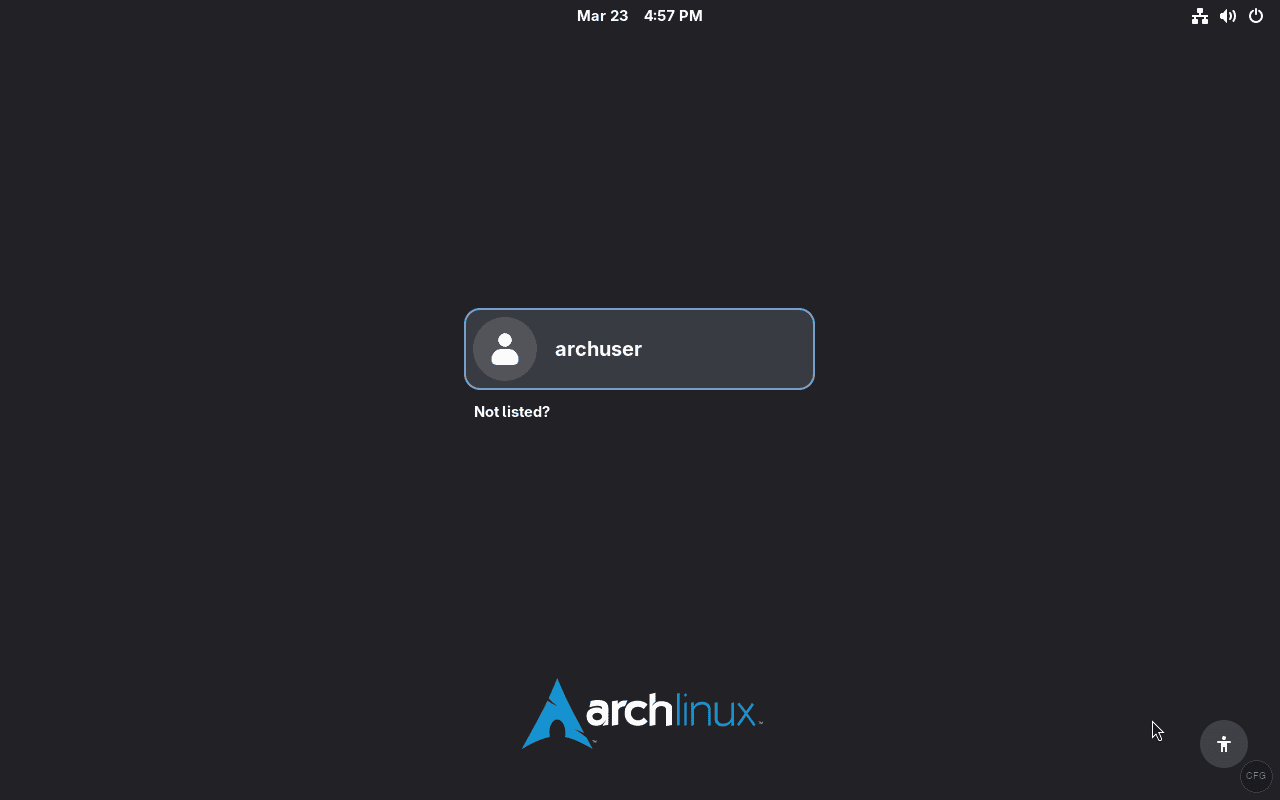
Log in with the user account you created earlier. GNOME will display a welcome dialog on first login where you can configure privacy settings, online accounts, and other preferences.
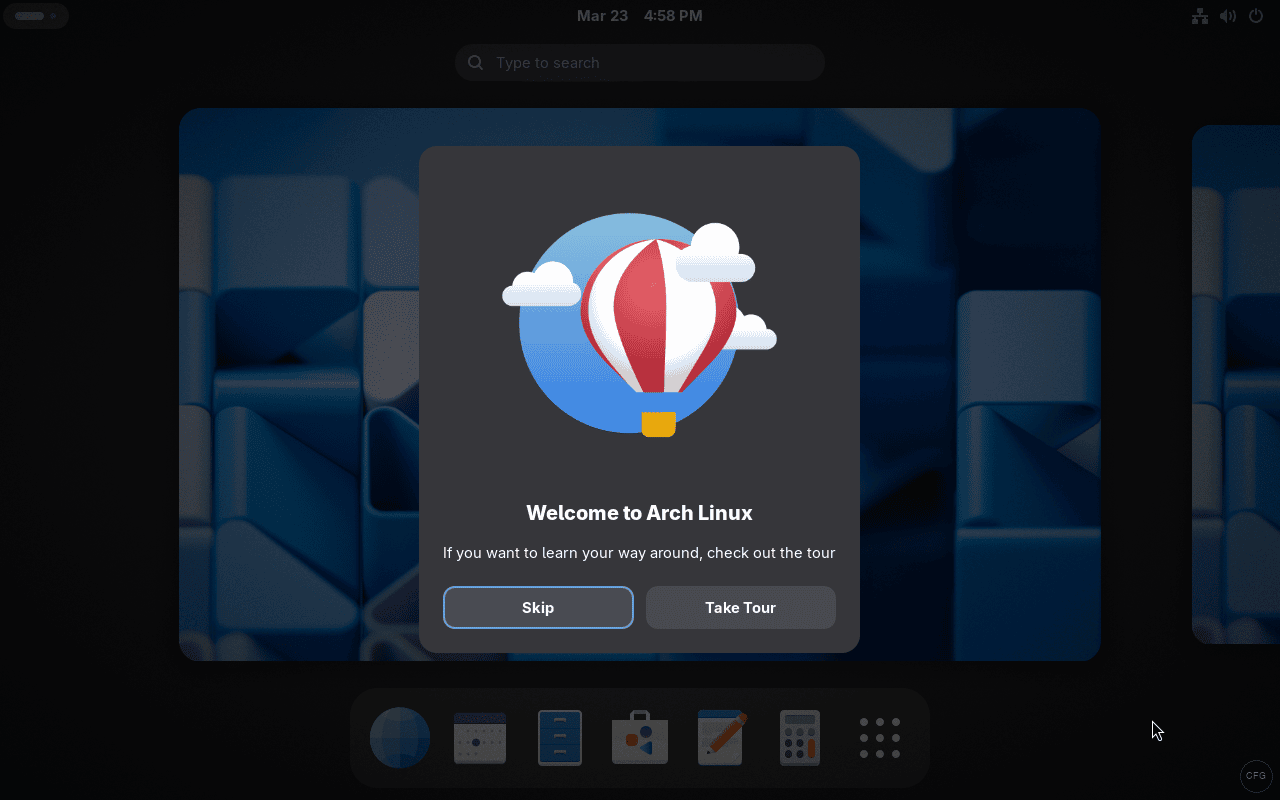
Congratulations – you now have a working Arch Linux system with LVM on UEFI. The next sections cover essential post-installation setup to make the system production-ready.
Post-Installation Setup
A fresh Arch install is bare bones. These post-installation steps will turn it into a comfortable daily-driver system with proper security, backups, and multimedia support.
Verifying System Information
Open a terminal (press Super key, type “Terminal”) and run fastfetch to see your system details at a glance – kernel version, DE, memory, disk usage, and more.
fastfetch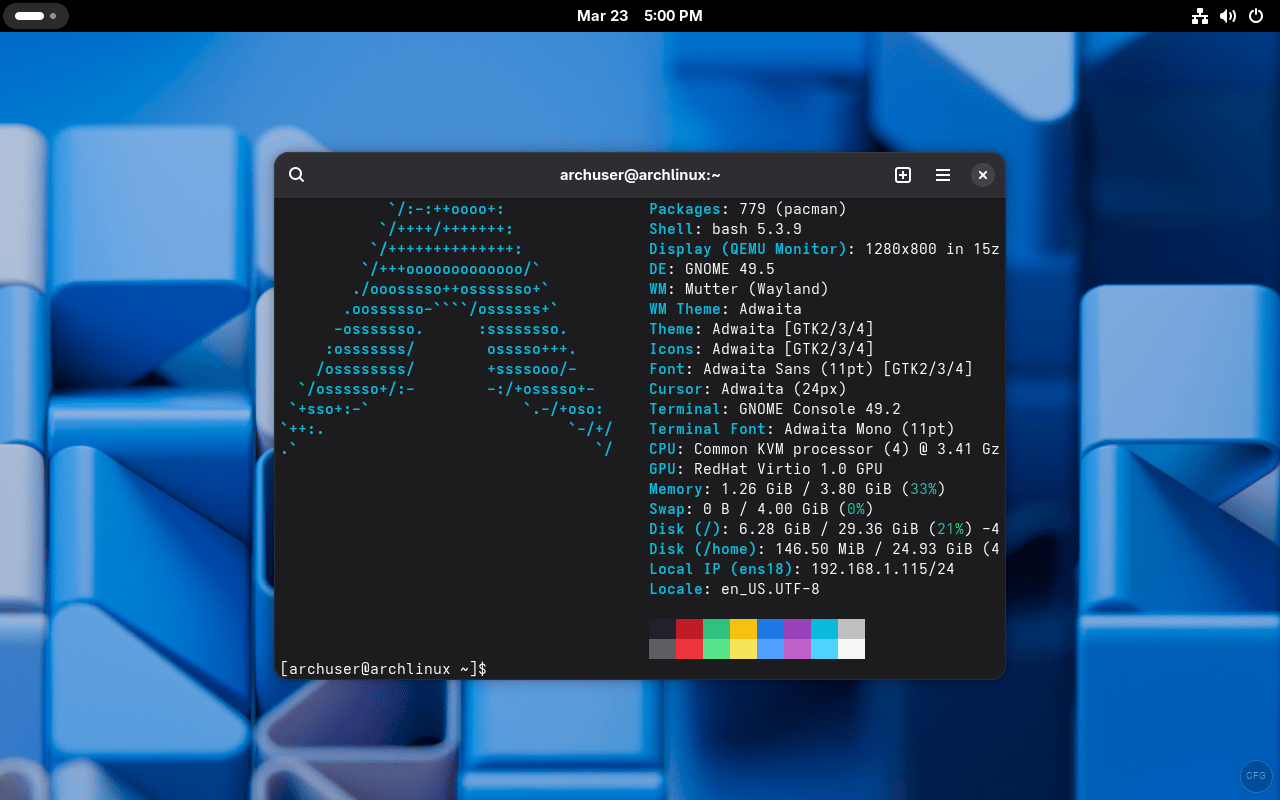
Installing an AUR Helper (yay)
The AUR (Arch User Repository) contains thousands of community packages not in the official repos. yay is the most popular AUR helper – it wraps pacman and handles AUR packages automatically. Build it from source since AUR helpers can’t be in the official repos.
git clone https://aur.archlinux.org/yay.git
cd yay
makepkg -si --noconfirm
After installation, you can use yay the same way you use pacman. For example, yay -S package-name installs from either the official repos or AUR automatically.
Setting Up a Firewall with UFW
A firewall is non-negotiable, especially if your machine is connected to any network. UFW (Uncomplicated Firewall) is the simplest option that still does the job well.
sudo pacman -S ufwConfigure the default policies and allow SSH before enabling. If you enable the firewall without allowing SSH first and you’re connected remotely, you’ll lock yourself out.
sudo ufw default deny incoming
sudo ufw default allow outgoing
sudo ufw allow ssh
sudo ufw enable
sudo systemctl enable ufw
Verify the firewall status and rules.
sudo ufw status verboseThe output should show the firewall as active with SSH (port 22/tcp) allowed.
Enabling Periodic TRIM for SSDs
If you’re running on an SSD (which most modern systems do), enable the weekly TRIM timer. TRIM tells the SSD which blocks are no longer in use, maintaining write performance over time.
sudo systemctl enable fstrim.timerThis runs fstrim weekly on all mounted filesystems that support it. No configuration needed.
Optimizing Pacman
Two quick tweaks that make pacman noticeably better. First, enable parallel downloads to speed up package installation.
sudo sed -i 's/#ParallelDownloads = 5/ParallelDownloads = 10/' /etc/pacman.confSecond, enable color output so you can actually read what pacman is doing.
sudo sed -i 's/#Color/Color/' /etc/pacman.confThe difference is immediate – your next pacman -Syu will download packages in parallel and show color-coded output.
Installing Multimedia Codecs
GNOME comes with a video player, but it needs GStreamer plugins to handle common media formats like MP4, MKV, and MP3.
sudo pacman -S gst-plugins-good gst-plugins-bad gst-plugins-ugly gst-libavAfter installing these, most video and audio formats will play without issues in GNOME Videos, Firefox, and other GStreamer-based applications.
Setting Up Timeshift for System Backups
Before you start customizing your system heavily, set up Timeshift for system snapshots. It takes filesystem snapshots that let you roll back your entire system if an update breaks something – and on a rolling release like Arch, this is insurance worth having.
yay -S timeshiftLaunch Timeshift from the application menu and configure it to take daily snapshots. With LVM, Timeshift uses rsync mode which works well across volume boundaries.
Updating Mirror List with Reflector
We installed reflector earlier. Use it to automatically select the fastest mirrors for your location. This speeds up all future package downloads.
sudo reflector --country US --latest 10 --sort rate --save /etc/pacman.d/mirrorlistReplace US with your country code. You can also enable the reflector timer to refresh mirrors weekly.
sudo systemctl enable reflector.timerGNOME Desktop Overview
With GNOME 48.5 running on Wayland, you get a clean, modern desktop. Here’s a quick tour of the key areas. For more tips on customizing your Arch desktop, check our list of top things to do after installing Arch Linux.
The Activities overview (press the Super key) shows all open windows and lets you search for applications, files, and settings.
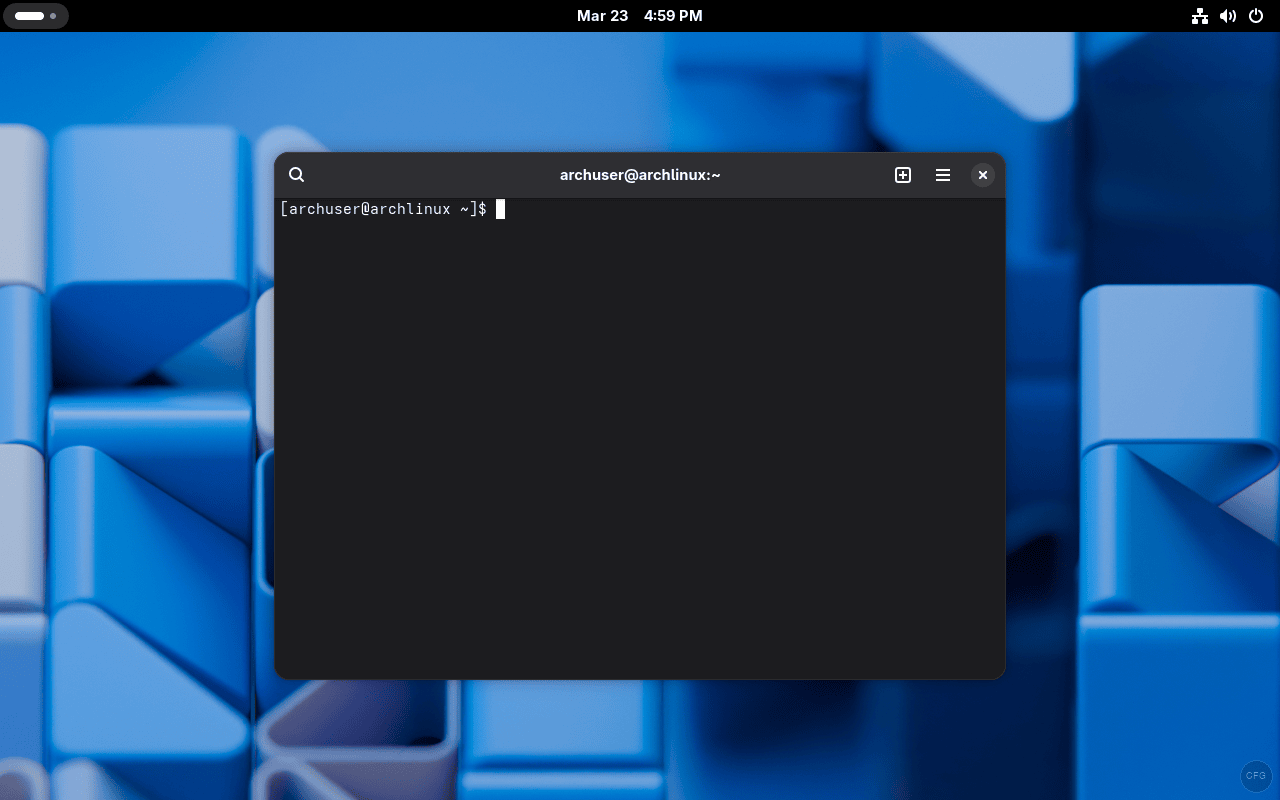
GNOME Terminal provides a solid terminal emulator out of the box. With fastfetch installed, you can quickly check system details.
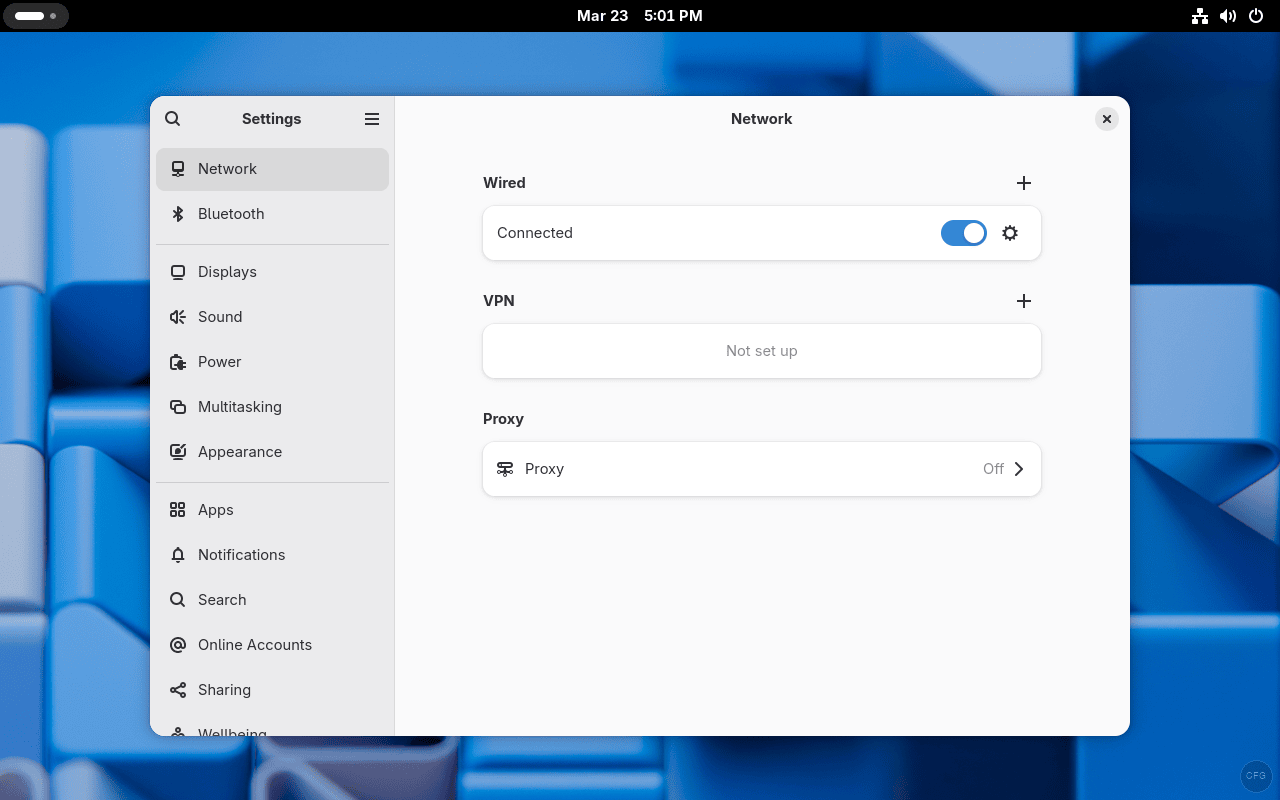
GNOME Settings gives you control over display, network, users, power, and all system configuration from one place.
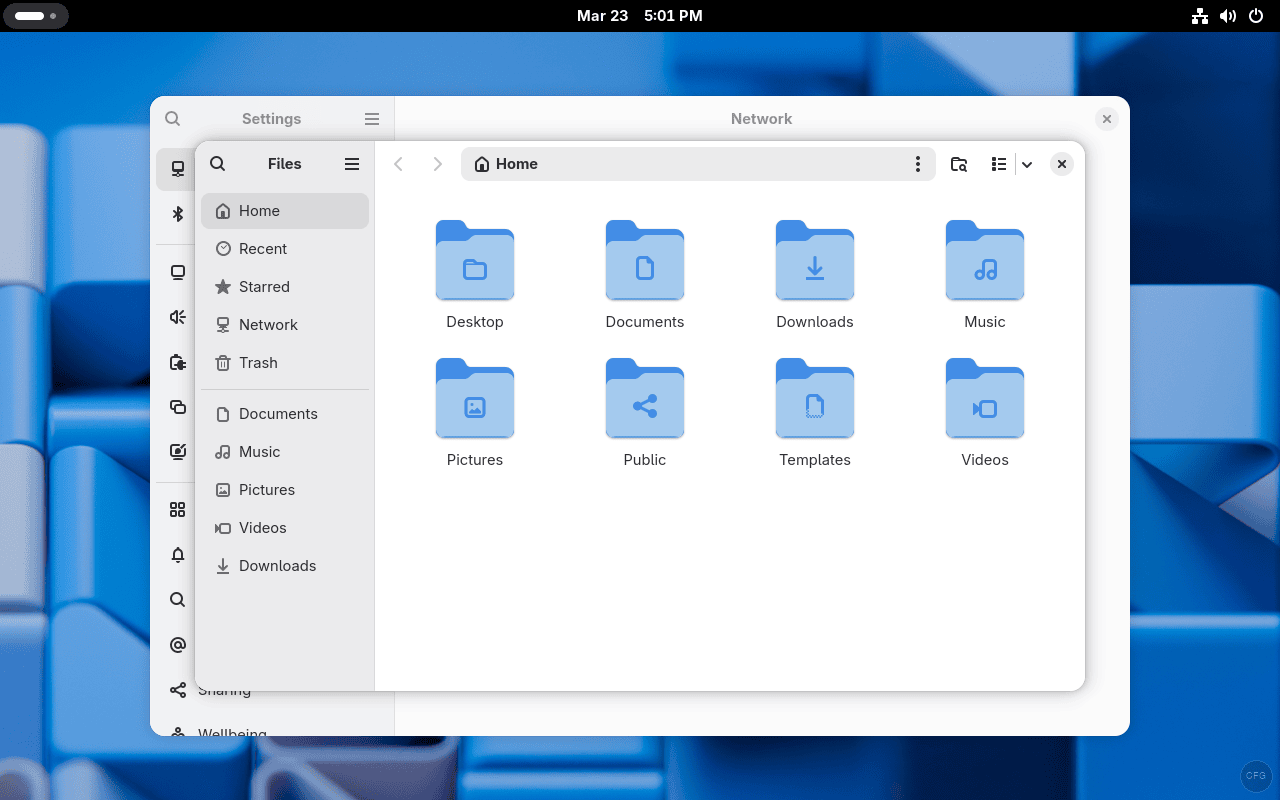
GNOME Files (Nautilus) is the default file manager with a clean interface and built-in search.
Alternative Desktop Environments
GNOME isn’t the only option. If you prefer a different workflow, Arch makes it easy to install alternatives. You can even have multiple DEs installed and switch between them at the login screen.
KDE Plasma – Feature-rich and highly customizable. Great if you want fine control over every aspect of your desktop.
sudo pacman -S plasma sddm kde-applications
sudo systemctl enable sddm
XFCE – Lightweight and fast. Perfect for older hardware or if you prefer a traditional desktop layout.
sudo pacman -S xfce4 xfce4-goodies lightdm lightdm-gtk-greeter
sudo systemctl enable lightdm
i3 Window Manager – Tiling WM for keyboard-driven workflows. Steep learning curve but extremely efficient once you get used to it.
sudo pacman -S i3-wm i3status i3lock dmenu xorg-xinitIf you choose a different display manager (SDDM or LightDM), disable GDM first with sudo systemctl disable gdm to avoid conflicts.
Troubleshooting Common Issues
“Failed to find root device” on Boot
This is the most common LVM installation error. It means the lvm2 hook is missing from /etc/mkinitcpio.conf. Boot from the Arch USB again, mount your partitions, chroot in, add lvm2 to the HOOKS array between block and filesystems, then run mkinitcpio -P to regenerate the initramfs.
No Network After Reboot
You forgot to enable NetworkManager. Boot from USB, mount and chroot, then run systemctl enable NetworkManager. If you’re already booted without networking, you can still enable it locally with sudo systemctl start NetworkManager and then sudo systemctl enable NetworkManager.
Black Screen After Login or No Display
Usually a missing video driver. Switch to a TTY with Ctrl+Alt+F2, log in, and install the Mesa graphics library.
sudo pacman -S mesaFor NVIDIA GPUs, install the proprietary driver instead.
sudo pacman -S nvidia nvidia-utilsReboot after installing the driver.
GRUB Not Showing at Boot
Check that the EFI partition is correctly mounted at /boot/efi and that grub-install completed without errors. Some firmware requires you to manually add a boot entry. You can do this from the UEFI settings or use efibootmgr to verify and add entries.
efibootmgr -vYou should see a GRUB entry pointing to your EFI partition. If it’s missing, rerun grub-install from the chroot environment.
Pacman “Unable to lock database” Error
This happens when a previous pacman process didn’t exit cleanly. Remove the lock file and try again.
sudo rm /var/lib/pacman/db.lckKeeping Your System Updated
Arch is a rolling release – there are no version upgrades, just continuous updates. Run a full system update regularly.
sudo pacman -SyuOn Arch, updating frequently (weekly or more) is actually safer than waiting months between updates. Large update gaps increase the chance of breaking changes piling up. Read the Arch Wiki when you run into issues – it’s one of the best-documented resources in the Linux ecosystem and covers nearly every piece of software you’ll ever want to run.
Summary
You now have a fully functional Arch Linux system with LVM storage, GRUB bootloader on UEFI, GNOME 48.5 desktop with Wayland, Pipewire audio, a firewall, and essential post-install optimizations. LVM gives you the flexibility to resize partitions as your needs change, and the rolling-release model means you always have the latest software without waiting for point releases. For KVM virtualization on your new Arch system, check out our guide on installing KVM, QEMU and Virt Manager on Arch Linux.






A good guide.
A couple of small issues though:
should actually be:
Also, in case, the following fails, do not proceed without taking measures:
Measures:
1. Create /boot/efi/EFI/arch directory
2. Execute: